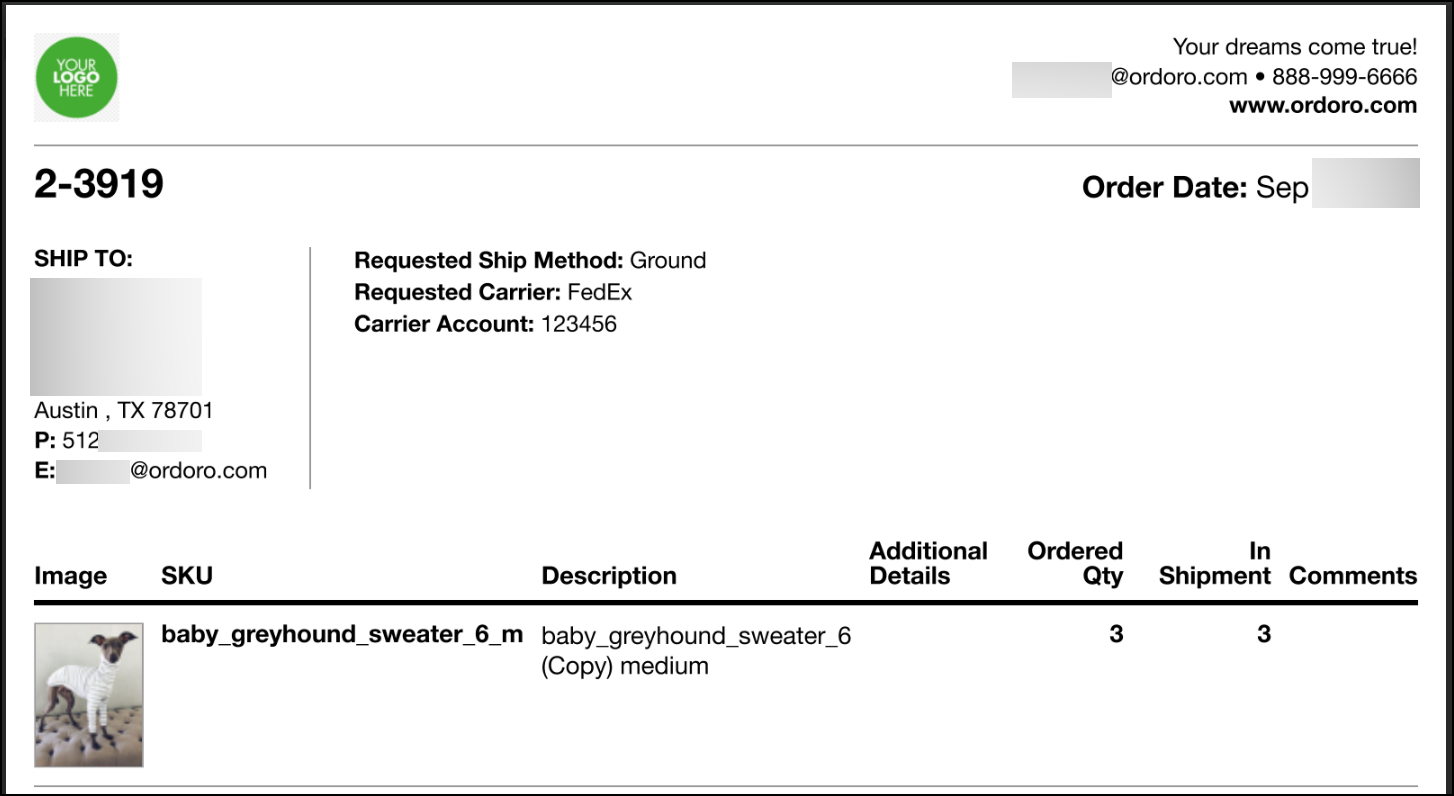
Yes, you have the option to include or remove the customer note in dropship emails!
The Customer Notes that appear on orders can appear in both automatic and process dropship emails. This support article shows the dropship email your Supplier will receive.
How to enable the Settings for Customer Notes for your Supplier
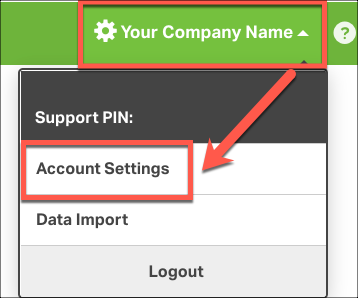
1. Click on your Company Name -> Account Settings.
2. Go to Suppliers and select Edit by the supplier you’d like to enable this setting.
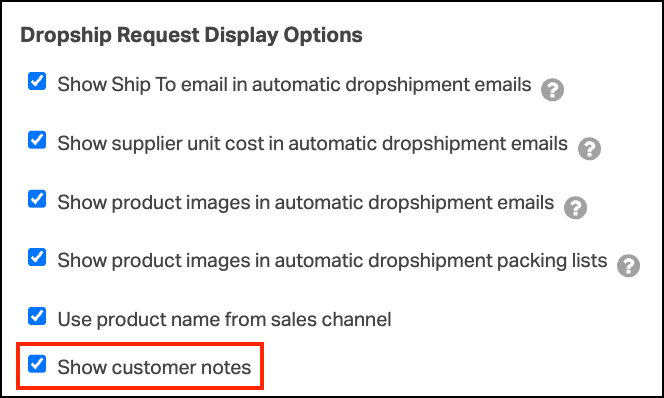
4. Under Dropship Request Display Options, you can select the checkbox Show customer notes. Click Save.
How to send Customer Notes in manual dropshipments
If you are manually dropshipping, you can select the Show Customers Notes in the Dropship panel.

Example
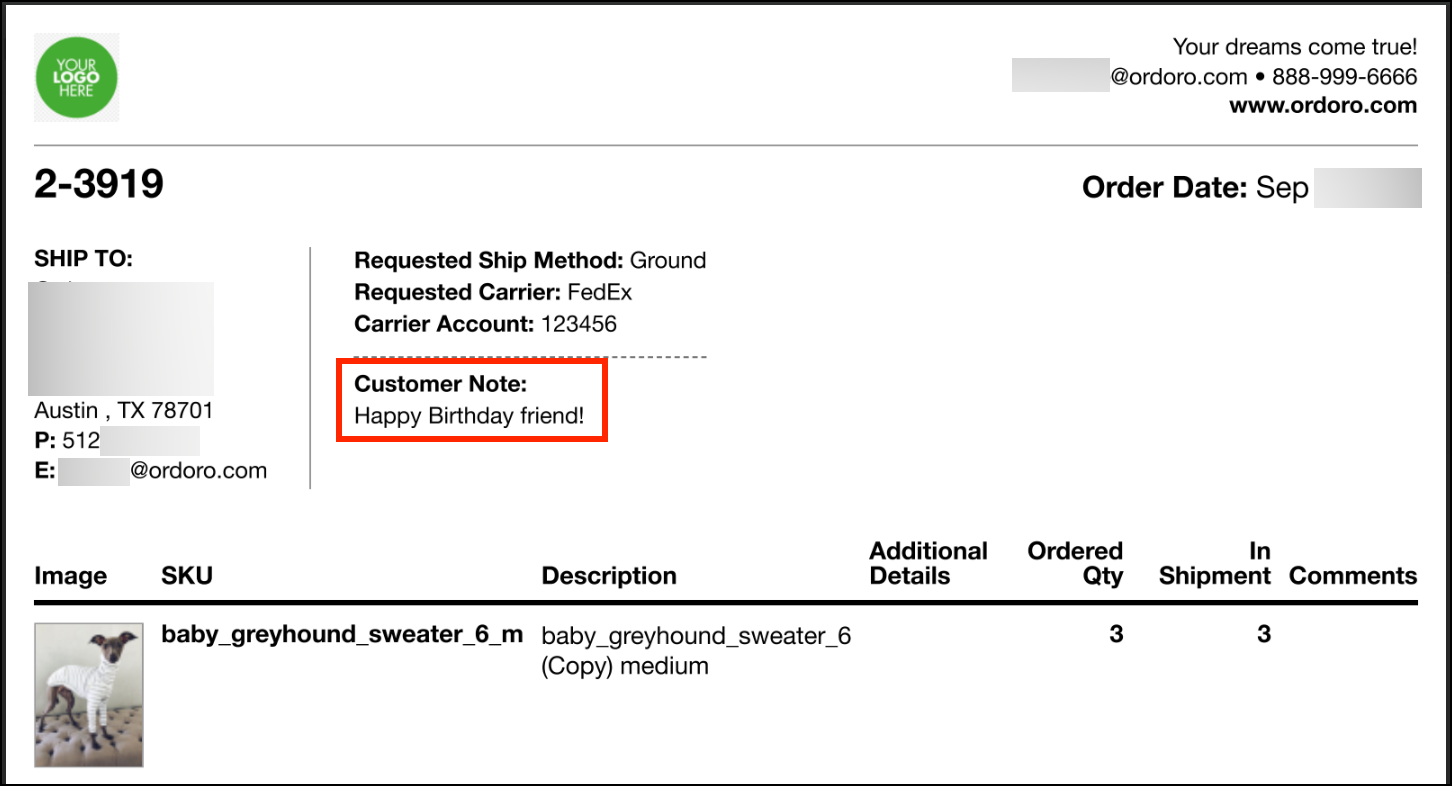
When you have a customer note on your order, you’ll see this note on the attached dropshipment packing PDF.

With the setting enabled, you will see this customer note on the attached PDF to the dropshipment email.
With the setting is not enabled, you will not see the customer note on the attached PDF to the dropshipment email.