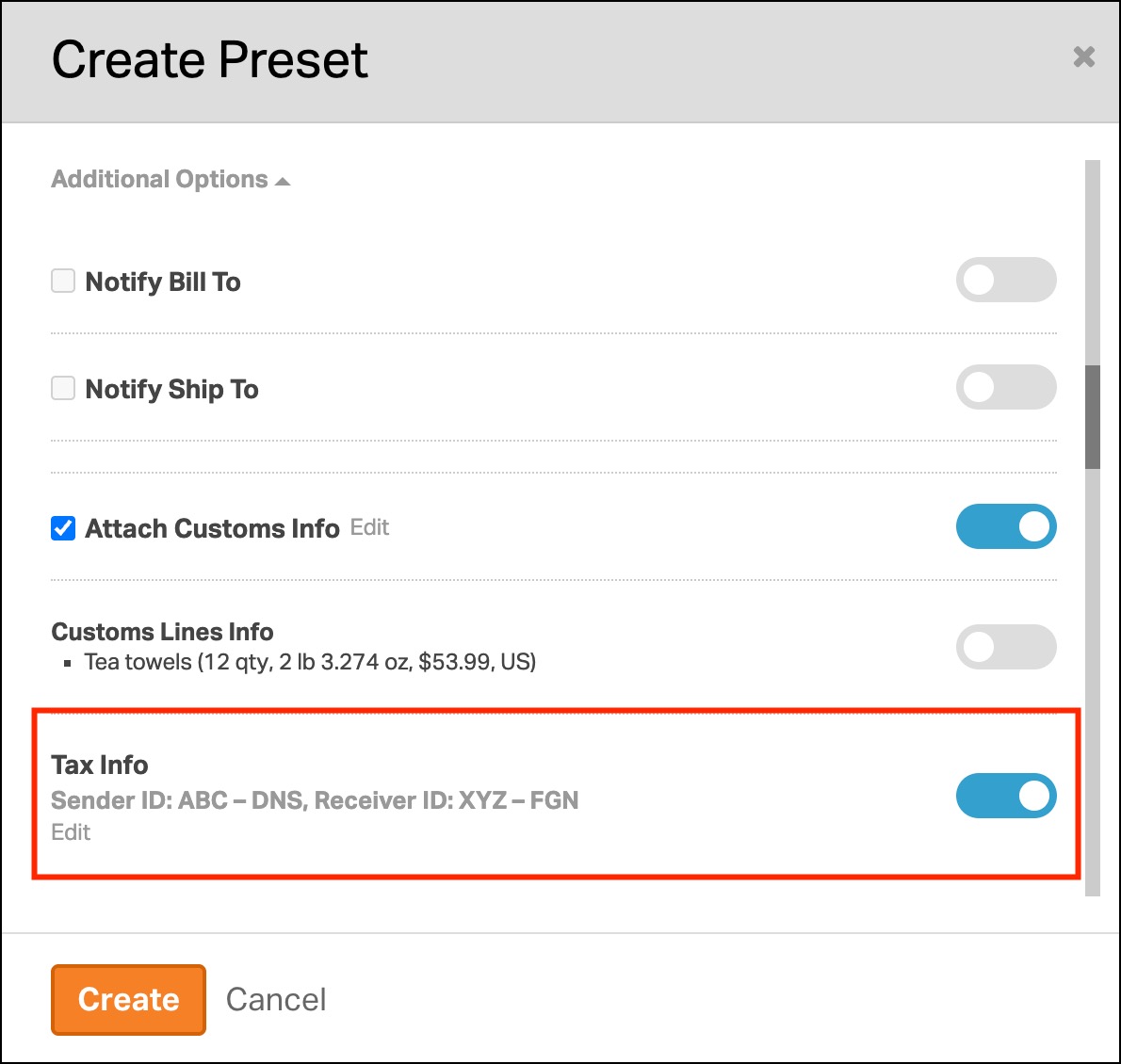
When you create an international UPS shipment, you may need to include tax information for customs clearance. In Ordoro, you can add both Sender and Recipient tax information for UPS shipments.
This is helpful when customs or UPS requires tax identifiers for both parties on the same shipment, such as the Employer Identification Number (EIN).
Topics
- Why would I need tax information to ship internationally?
- What tax information can I add for UPS shipments?
- How do I add tax information to an international UPS shipment?
- Can I save this in a preset?
Why would I need tax information to ship internationally?
A tax ID, such as an EIN, is a number used to identify a business for tax purposes. For international shipments, providing the correct tax information will help with customs clearance and reduce delays. In some cases, customs authorities or the carrier may require tax information for the sender, the recipient, or both.
Here are a few common examples:
- A U.S. business may need to provide its Sender Tax ID, such as an EIN (Employer Identification Number).
- The person or business receiving the shipment may need a Recipient Tax ID, such as a VAT number.
- Some shipments may require both, depending on the destination and import requirements.
What tax information can I add for UPS shipments?
For international UPS shipments in Ordoro, you can add:
- Sender Tax ID
- Sender Tax ID Type
- Recipient Tax ID
- Recipient Tax ID Type
This allows you to enter tax information separately for both parties on the same shipment.
Real-world example
Let’s say your business is shipping from the United States to a customer in Germany:
- Your company may need to provide its EIN as the Sender Tax ID.
- Your customer may need to provide their VAT ID as the Recipient Tax ID.
How do I add tax information to an international UPS shipment?
Follow these steps from the Orders page:
- Select the international order you want to ship.
- In the Label Panel, select UPS as the carrier.
- Under Additional Carrier Options, click View/Edit.

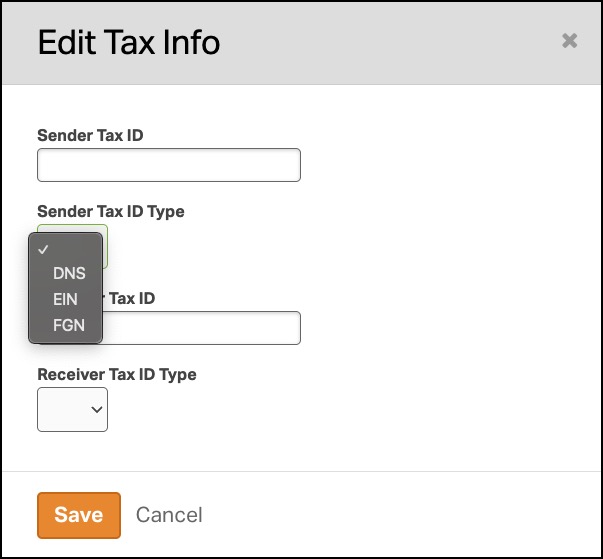
- In the pop-up, click Edit under Tax Info.

- For UPS, you can enter:
- Sender Tax ID
- This is your business tax information.
- Sender Tax ID Type
- Choose between DNS, EIN, and FGN
- Recipient Tax ID
- This is your customer’s / importer’s tax information.
- Recipient Tax ID Type
- Choose between DNS, EIN, and FGN
- Sender Tax ID
- Click Save.
- Review the tax info summary shown to ensure it’s correct.
- Click Save.

Can I save this in a preset?
Yes. You can save Tax Info in a preset from the Label Panel so you can reuse it on future shipments.
This can be helpful when:
- Your business ships internationally often,
- Your sender tax info stays the same from order to order,
- Or you want your team to follow a more consistent workflow.
Keep in mind that recipient tax information may vary by order, so it is still a good idea to review those details before creating the label.
Refer to this help article for details on creating and managing shipping presets.