
Need to see what your inventory looked like on a specific day?
The Inventory Snapshot report lets you export a historical view of your inventory as of a selected date. This can be helpful for investigating inventory discrepancies, reconciling stock levels, reviewing past inventory positions, or understanding what inventory looked like before a specific event.
The report includes inventory values such as Physical on Hand, Available on Hand, Committed, Allocated, and Reordered quantities for the selected date and warehouse.
NOTE:
- This export is in beta until Q3 2026. Please contact the Support team if you’d like to access it.
Topics
- What is the Inventory Snapshot report?
- How to export an Inventory Snapshot
- What information is included in the report?
- How dates and timezones work
- Frequently asked questions
What is the Inventory Snapshot report?
The Inventory Snapshot report provides a historical view of your inventory as it existed at the start of the selected day.
Instead of showing your current inventory, this report helps answer questions like:
- What did inventory look like before a stock discrepancy?
- How much inventory did we have at the beginning of last month?
- What quantities were committed or allocated on a specific date?
- What did inventory look like before a major shipment or inventory adjustment?
You can run the report for:
- All warehouses
- A specific warehouse
- A selected timezone
How to export an Inventory Snapshot
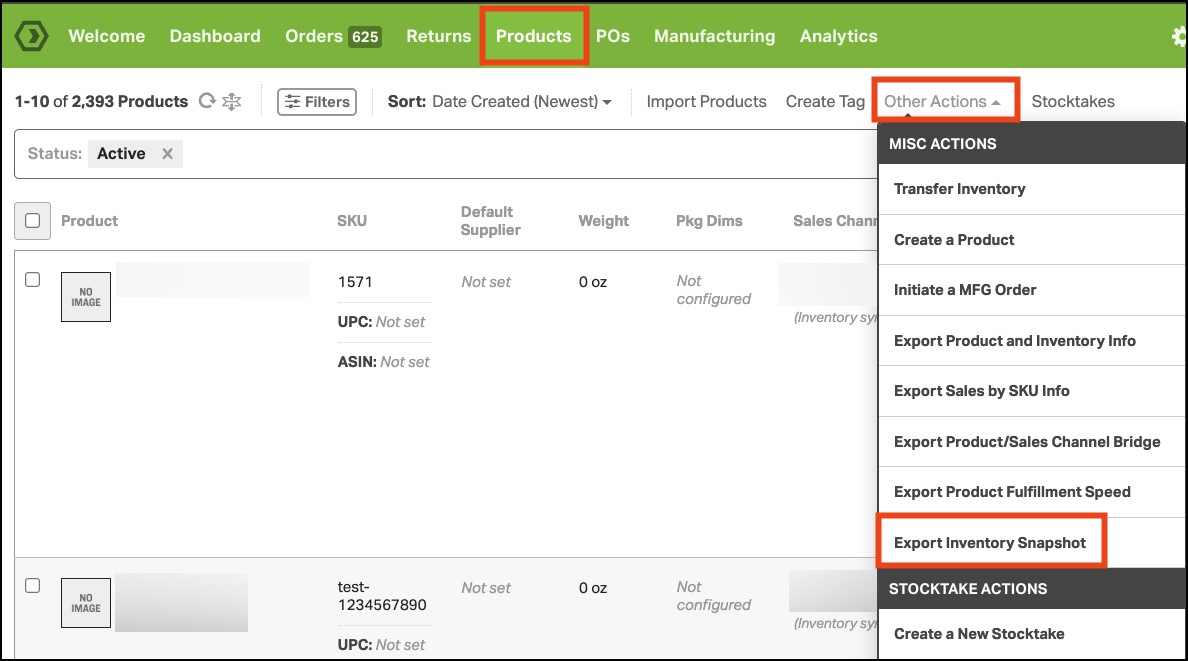
- Go to Products.
- Open the Other Actions dropdown.
- Click Export Inventory Snapshot.
- Select a Warehouse:
- All warehouses to include all inventory locations.
- A specific warehouse to limit results.
- Select the Date you want to review.
- Choose the Timezone for the snapshot.
- (Optional) Add Recipient Email Addresses if you want the export emailed.
- Click Export.

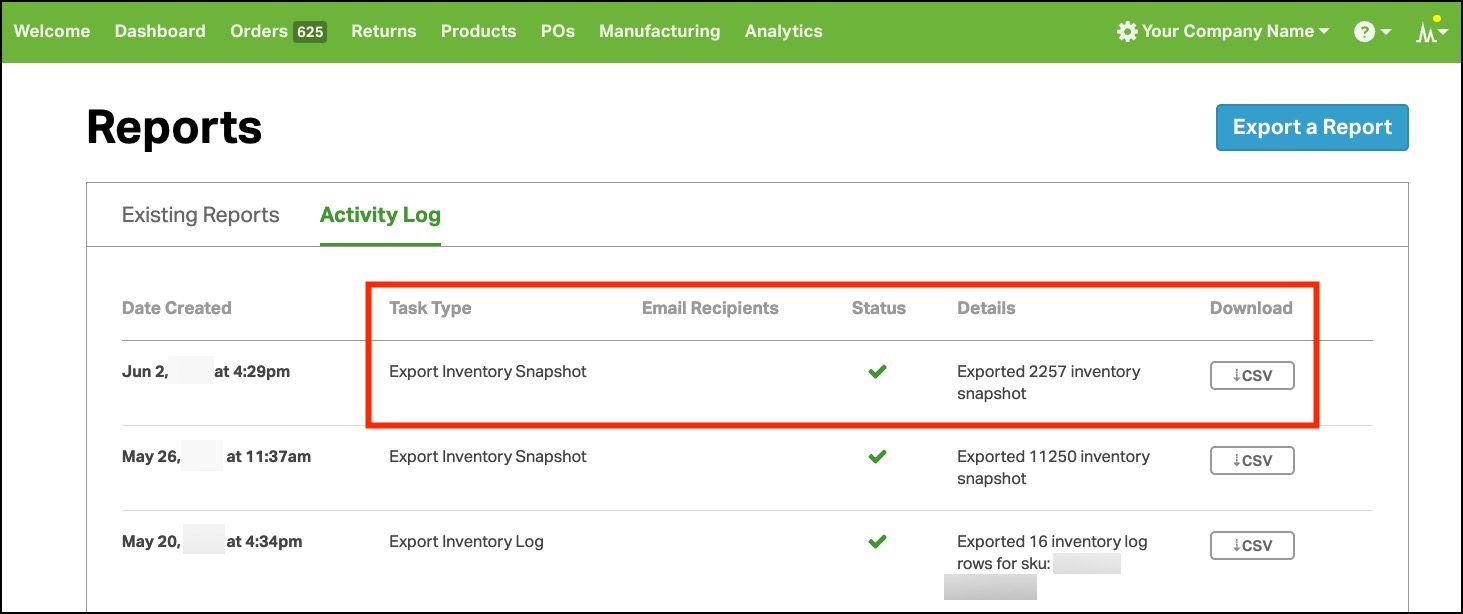
- Ordoro will generate a CSV export that you can download and review from your Reports.
What information is included in the report?
The Inventory Snapshot export includes the following information for the selected date:
| Column | Description |
|---|---|
| Date Updated | The date/time of the inventory record. |
| SKU | Product SKU. |
| Warehouse | The warehouse associated with the inventory row. |
| Physical on Hand | Total physical inventory available at that time. |
| Available on Hand | Inventory available to sell after commitments. |
| Committed | Inventory committed to open orders. |
| PO Reordered | Inventory reordered through purchase orders. |
| Manufacturing Ordered | Inventory tied to manufacturing orders. |
| Low Stock Threshold | The low stock threshold set for that warehouse. |
| Allocated | Inventory allocated to orders. |
| Unallocated | Inventory on open orders that has not yet been allocated. |
| Date Created in Warehouse | When the SKU was first added to that warehouse. |
Good to know: Products stocked in multiple warehouses will appear as separate rows per warehouse.
How dates and timezones work
The Inventory Snapshot report is based on the start of the selected day in your chosen timezone.
For example:
If you run the report for June 1:
- Using Eastern Time (ET) shows inventory as of 12:00 AM ET
- Using Pacific Time (PT) shows inventory as of 12:00 AM PT
This means results may differ between timezones if inventory activity happened near midnight.
If you are reconciling inventory with another system, we recommend using the timezone that best matches your warehouse operations or business reporting.
Frequently asked questions
1. Will archived products appear in the export?
- Yes. Archived products are included if they had inventory in the selected warehouse at that time.
2. Why do I see the same SKU more than once?
- If a product is stocked in multiple warehouses, the SKU will appear once for each warehouse.
3. I do not see the Inventory Snapshot option. Why?
- The Inventory Snapshot report is only available for accounts with inventory functionality enabled.