
Barcode scanning helps you confirm that the correct items go into the box before you ship.
With this workflow, you can:
- Scan a packing list to pull up the correct order.
- Scan each item as you pack to confirm the contents.
- See product images (when available) during verification to reduce look-alike mistakes.
- Track which Ordoro user verified the package.
- Quickly identify which orders were audited using the Contents Verified tag.
Note: This feature is available for select Ordoro plans. Please contact Ordoro Support at support@ordoro.com for more information.
Topics
- Set up products for barcode scanning
- How to verify items for packing
- What happens if the wrong item is scanned
- How to verify products without barcodes
- Real world examples
- Additional barcode support articles
Set up products for barcode scanning
Before scanning can work smoothly, each product needs at least one scannable identifier saved in Ordoro.
What you need on each product:
- UPC (common for retail products), or
- SKU that matches what’s printed on your labels/barcodes.
If you need to add or update UPCs, see: How to update products with UPCs.
Helpful details you will see while verifying
When you scan a packing list, and the order loads in packing mode, Ordoro shows helpful product context so you can pack faster and with fewer mistakes:
- Product name
- SKU and/or UPC
- Warehouse location (if you use locations)
- Product image stored in Ordoro (if available)
Tip: Product images are especially helpful when items have similar names, colors, or packaging.
How to verify items for packing
- Go to Orders and enter Packing Mode (single order or batch).

- If you’re batch packing, scan the packing list barcode to pull up your first order.

- Pack the order and scan each item as you place it in the box.
- Correct scans increase Qty Verified.

Sorting note:
- Items are sorted by Warehouse Location by default.
- Use the Sort dropdown to view in a different way.

- When an item is fully verified, it disappears from the list. The number of “Lines Verified” will also increase.

- When everything is verified, click Mark as “Contents Verified.”

- Ordoro adds the Contents Verified tag.

What happens if the wrong item is scanned
Scanned too many times: You’ll see an error. Set the item aside and click Continue.
Item isn’t on the order: You’ll see an error. Check the SKU/UPC and product image (if available), then scan the correct item.
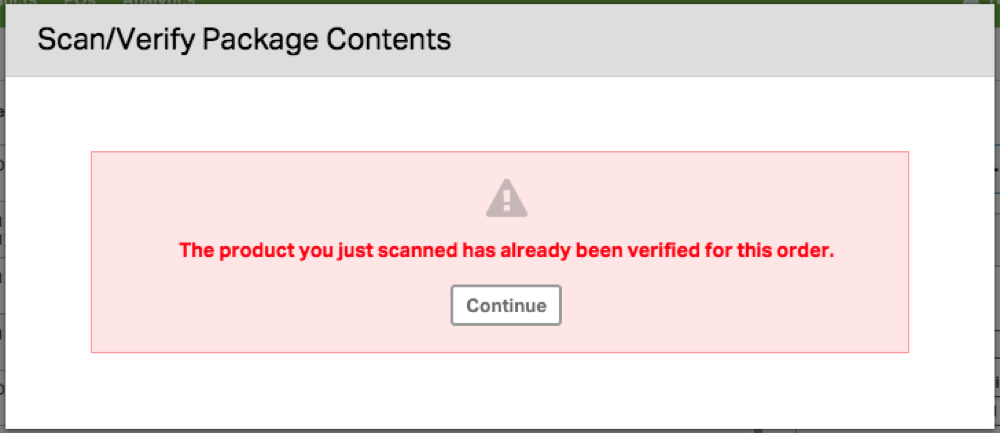
- If an item is scanned more times than it’s on the order (e.g. scanned too many times), you’ll see: “The product you just scanned has already been verified for this order.”
- To fix this, set the item aside and click Continue.
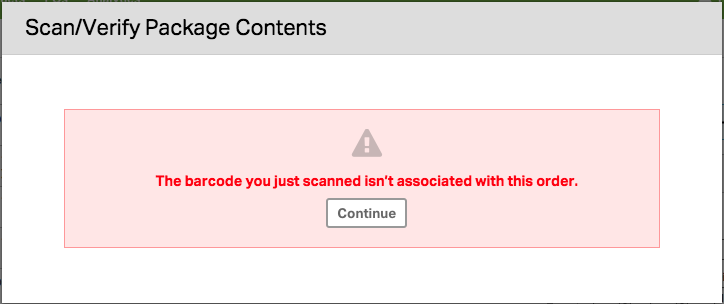
- If an item isn’t on the order, you will see: “The barcode you just scanned isn’t associated with this order.”
- To fix this, check the SKU/UPC and product image (if available), then scan the correct item.
How to verify products without barcodes
If an item doesn’t have a barcode, you can manually verify it:
- Hover near Qty Verified.
- Click the checkmark that appears.
This verifies the full quantity for that line item (example: quantity 3 verifies all 3).

Real world examples
Example 1: Preventing a wrong color shipment
- You sell a t-shirt in multiple colors with similar names.
- During packing, the picker grabs a blue shirt instead of black.
- When the packer scans the item, Ordoro rejects it because the barcode does not match the order.
- The product image shown in the verification list also helps the packer quickly see the correct color before rescanning.
Example 2: Catching a look-alike SKU mix-up
- You carry two supplements with nearly identical packaging but different sizes.
- Scanning verifies the exact SKU, and the item disappears once the correct quantity is verified.
- This reduces the chance of double-packing the wrong size.
Example 3: Faster batching with a clean handoff
- One team member picks and prints packing lists, and another team member packs.
- The packer scans each packing list to load the right order, verifies items by scanning, and marks the order as Contents Verified.
- A shipping station can then filter to verified orders and print labels in a clean batch.
Additional barcode support articles
Here are additional setup articles for barcoding in Ordoro.
- How to create barcodes in Ordoro
- How to enable barcode notification sounds
- Which barcode scanner does Ordoro recommend?
Ordoro also offers barcode scanning in other areas of the app. See below.