
For Ordoro’s inventory management to work properly, your Physical on Hand quantity must exactly match the units on the shelves in your warehouse. For most retailers, doing an all-encompassing inventory count is not reasonable. Cycle Counting allows you to count your inventory in smaller increments, on a regular interval, to keep your physical inventory counts in sync with Ordoro.
Follow the steps below to begin your Cycle Counting:
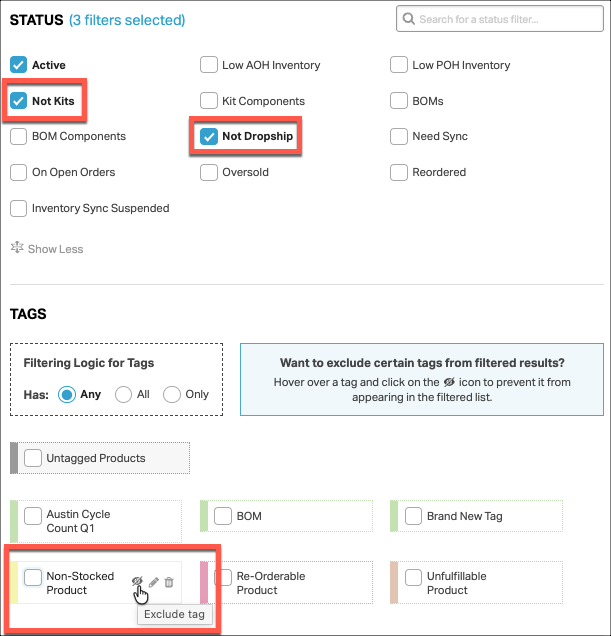
1. Filter down to only the products you need counted.
Click on the Product tab, and then select Filters.

Then, filter out any products you don’t need to count. A few examples of those are:
- Kits – Kitted products don’t have real inventory, as they are made up of the component inventory, so there’s no need to count those. You can exclude these from this count.
- Dropshipped products – If you don’t inventory your dropshipped products, then we can exclude those from this count.
- Tags – For products that you don’t need to count, be sure to tag them in Ordoro, and you can exclude those products from your count.
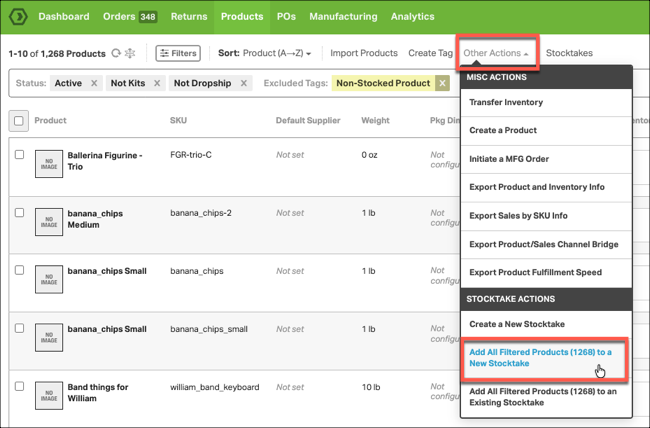
2. Once you’ve filtered to your count-able products, we’ll add them to a stocktake.
Click on Other Actions, then select Add All Filtered Products to a New Stocktake.
Update the Stocktake ID, select the warehouse you plan on counting, and enter Notes for your stocktake. Click Create and View.
NOTE: There’s no need to record your expected Physical On Hand Quantities, as you’ll be counting this over time, and that number will not be relevant days or weeks later.
3. In the Stocktake, sort your products, and start your count.
Click on the Sort function, and choose the sort, to help you with your count. Sorting by Location in Warehouse will help you count in order of your warehouse, and should speed up your counting.

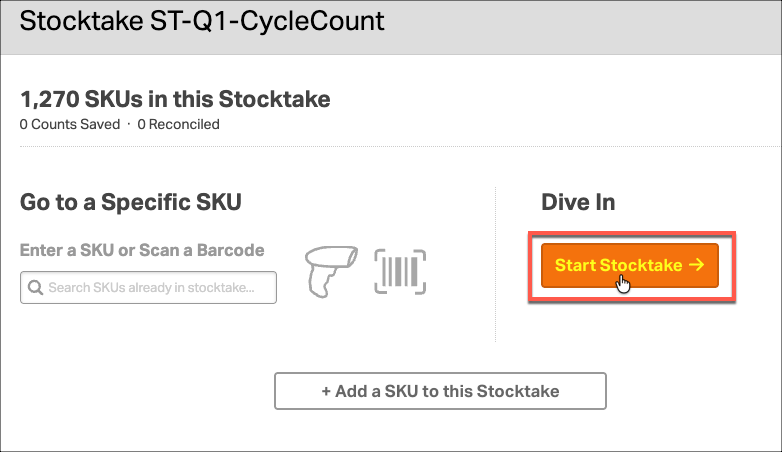
Once sorted, click Start Stocktake.

In the Stocktake count modal, select Start Stocktake
4. Count your products for the day.
Once you’ve started the Stocktake, count your product, and enter the Quantity and Save the count.
5. Once you’re done counting for the day, reconcile the inventory to update the inventory in Ordoro.
Return to the Stocktake page. Click on Filters, then filter Counted and Not Reconciled products. Then, reconcile the products from that list.
You’re done for the day. When you have time again, return to that stocktake, and follow steps 3 – 5 again, until you’ve counted all the products in this Stocktake.