
Yes, you can set up filters in user permissions to give your users access to only the orders they need to see. See how the setting works and how to set this up below.
Topics
- How to Set Up Order Restriction Permissions
- How Order Restriction works
- Order Restrictions Examples:
Other resources:
- Click here for instructions on how to create a new user
- Click here for details on all User Permission settings.
How to Set Up Order Restriction Permissions
Only Admin Users can update user permissions. Click here for instructions on how to assign Admin access to your account.
If you’re the Admin User, follow the steps below to setup your user’s order restrictions.
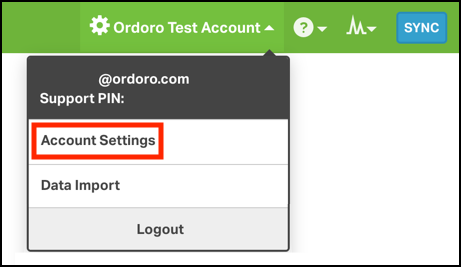
1. Click on your company name in the top right corner and select Account Settings from the dropdown.
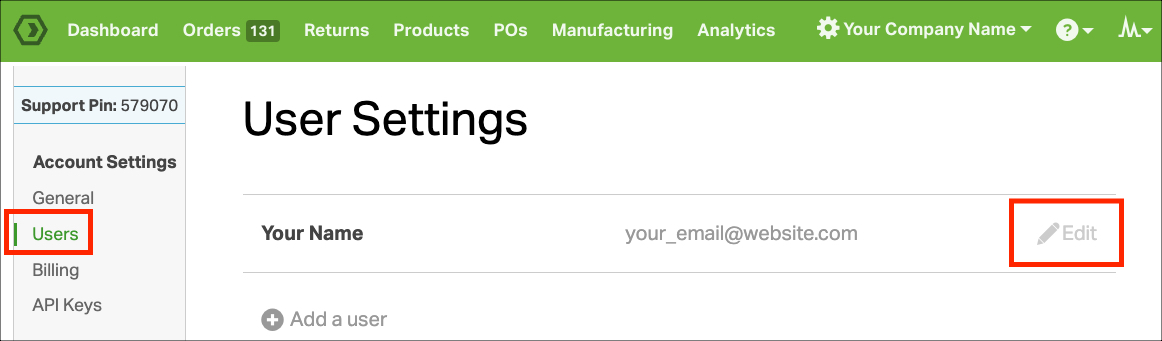
2. Select Users from the menu located on the left side of your screen and click Edit on the user for which you’d like to enable/disable permissions.
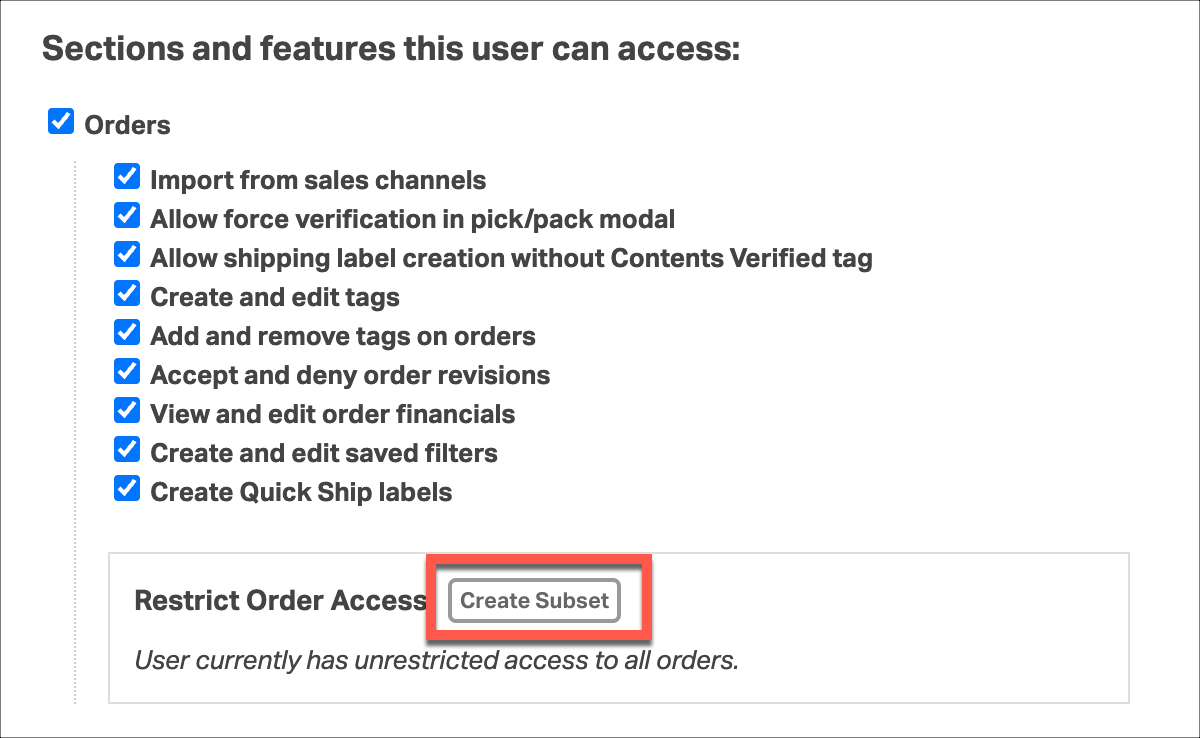
3. Under Sections and features this user can access:, click Create Subset beside Restrict Order Access.
4. This will open the Order Filters modal. These filter options let you choose which orders your user can access, just like using Order filters in the Order List page. If you’re unfamiliar with the Order Filters options, click here for details, and see Order Restriction Examples below for standard examples on how to restrict users.
Once you’ve made your filter choices, click Update and then Save the user permission settings. You’ve now setup your users settings.
How Order Restriction Works
Once a user is restricted, your user will only be able to see the orders that fit the filters from the Restrict Order Access section.
For example, in the video below, the user has access to the Austin Warehouse with 56 orders. After they’ve been restricted to see only the California Warehouse in the Restrict Order Access filters, the user will no longer have access to the Austin Warehouse orders after a refresh.
If a user makes a change to the order that makes that order fall outside the Restrict Order Access filters, that user will lose access to that order. The user in the example below is only assigned to California orders, and assigns the order to a different warehouse, and you can see it removed from access:
Batches and Order Restrictions
One caveat is restrictions in combination with Batches. Bulk Batch printing is not entirely restricted by the User Restrictions. So, although your user won’t have access to the restricted orders visually within the app, your user could see restricted orders with Batch Pack/Pick lists, or printed Labels in Batches.
For example, a packing slip created for a Batch will include all orders in the batch, so restricted users would have access to all of those orders (including restricted orders) if they printed that Batch’s packing slip.
Order Restriction Examples
Below are a few examples of how to restrict users’ access to particular orders.
Restrict a user to a single warehouse
For many, the most common use will be to restrict a user from accessing orders assigned to a particular warehouse.
In the example below, this account has two warehouses, one for Boston and another for Austin. If you want give a User access to orders only in the Austin warehouse (and exclude the Boston orders), you’d set up the user restrictions like so:
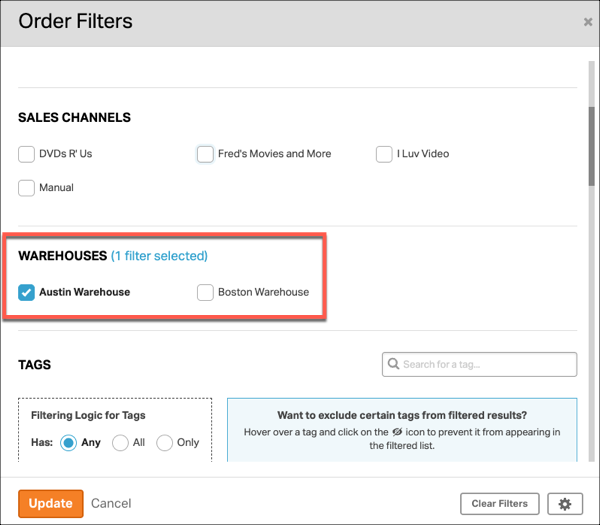
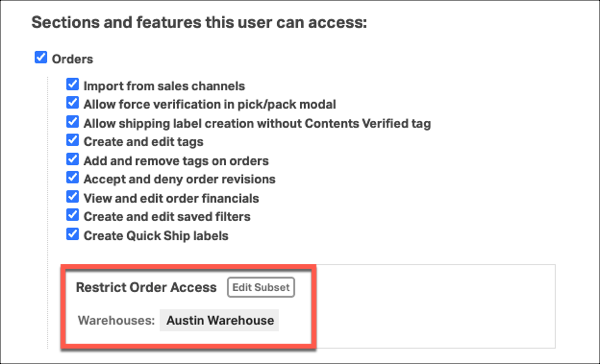
This will show your user only the orders assigned to the Austin warehouse, and will prevent the user from Boston orders.
NOTE: Restrictions do not apply to Batch actions. We do not recommend using batches while applying Order Access Restrictions.
Restrict a user to orders assigned to them by tag
If you would like to restrict a user from seeing orders that aren’t assigned to them, you can use tagging and the user Order Restrictions.
In the example below, the account has created an Order Tag for their user (User Name). To assign an order to that user, they tag their orders with that User Name tag.
With the Order Restrictions, you can now restrict that user from seeing any other orders. To set that up, you’ll just need to Restrict Order Access to the User Name Tag like so:
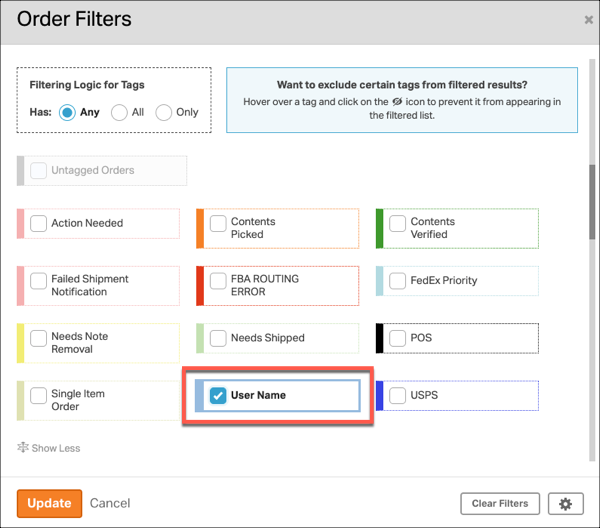
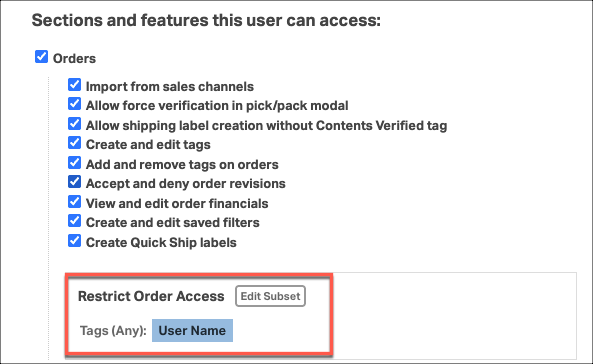
Orders without the User Name tag assigned to them will be hidden from this particular user.
NOTE: Restrictions do not apply to Batch actions. We do not recommend using batches while applying Order Access Restrictions.
Restrict a user to see only your Allocated status orders
If you would like to restrict a user from seeing orders that aren’t allocated with enough inventory to ship, Order Restrictions can help
With the Order Restrictions, you can now restrict that user from seeing any orders that aren’t fully allocated. To set that up, you’ll just need to Restrict Order Access to Allocated status orders like so:
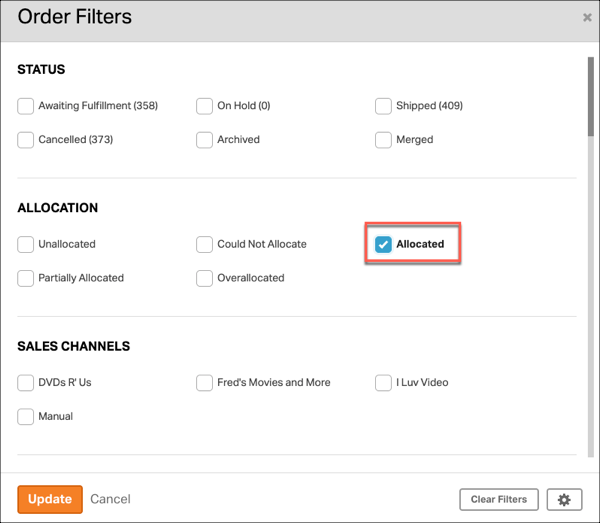
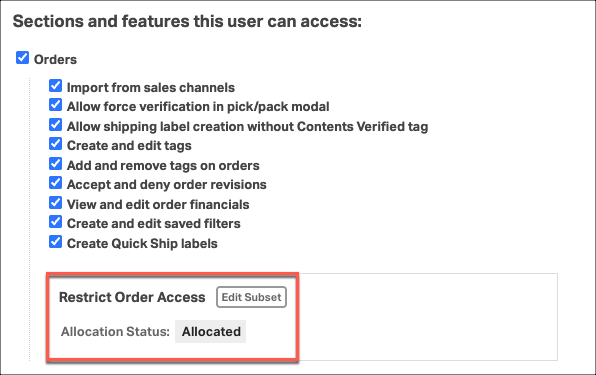
Orders without the Allocated badge will be hidden from this particular user.
NOTE: Restrictions do not apply to Batch actions. We do not recommend using batches while applying Order Access Restrictions.