
When you connect a sales channel to Ordoro, products from that channel can be imported into Ordoro.
The Import New Products with Inventory Sync Enabled setting controls whether new products automatically have inventory sync enabled when they are imported. Learn more about individual products’ inventory sync here.
This setting is helpful if you want Ordoro to import new products but not update inventory in the cart right away.
Topics
- What does this setting do?
- Where can I find this setting?
- What happens when the checkbox is selected?
- What happens when the checkbox is deselected?
- When should I turn off this setting?
- Does this update existing products?
- How do I update existing products?
What does this setting do?
The Import New Products with Inventory Sync Enabled checkbox controls the default inventory sync setting for new products.
It does not stop products from importing into Ordoro.
It only controls whether Ordoro can sync inventory back to the sales channel after those products import.

Where can I find this setting?
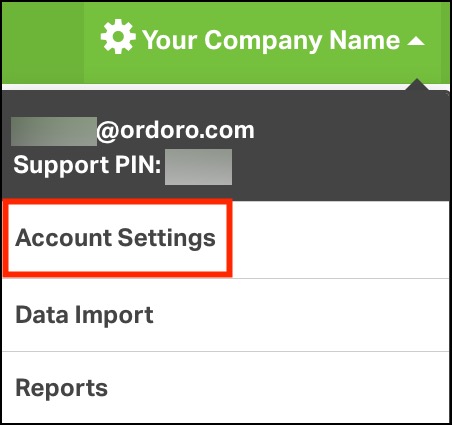
- Go to Account Settings.
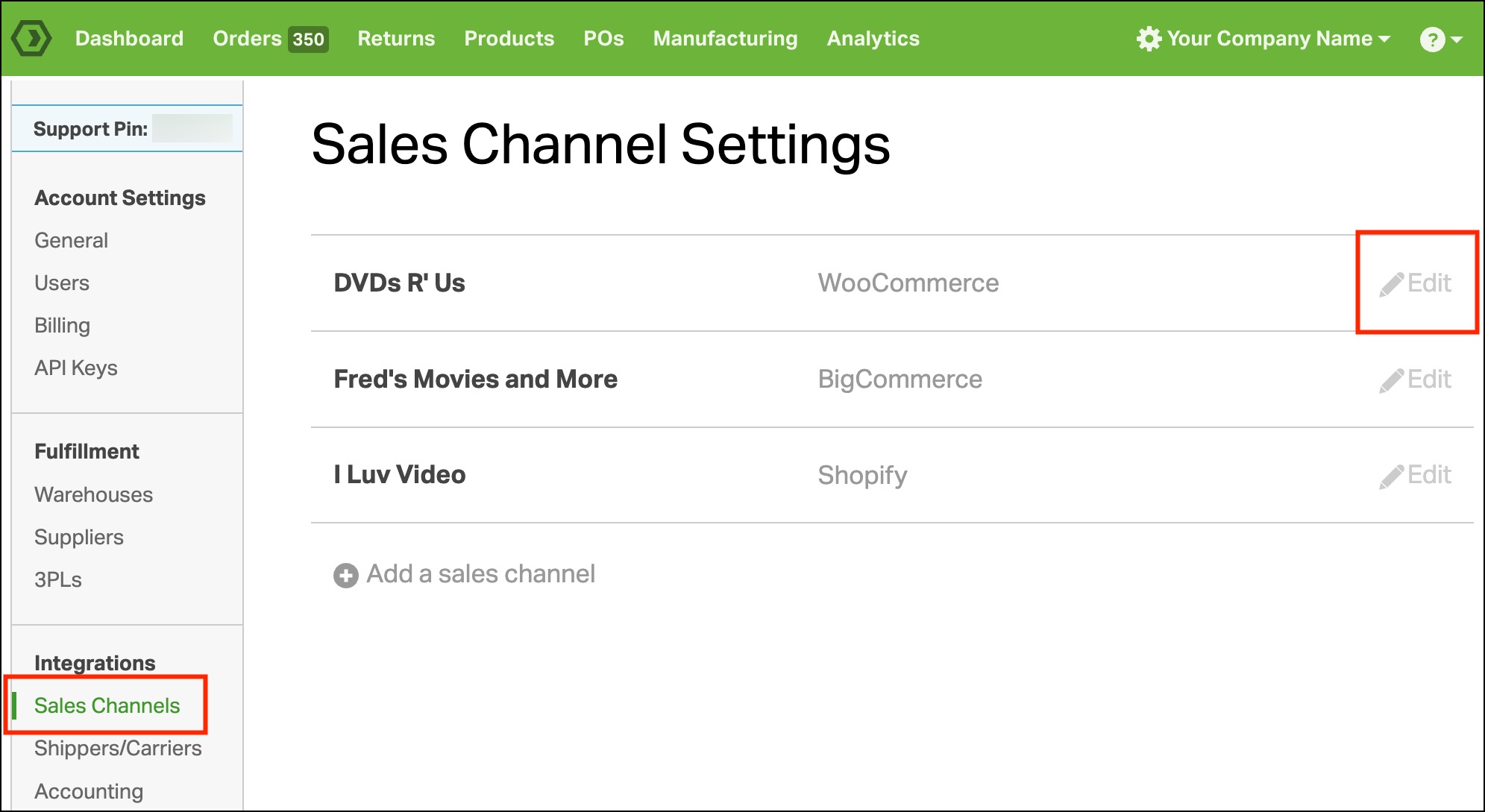
- Select Sales Channels.
- Click Edit next to the sales channel.
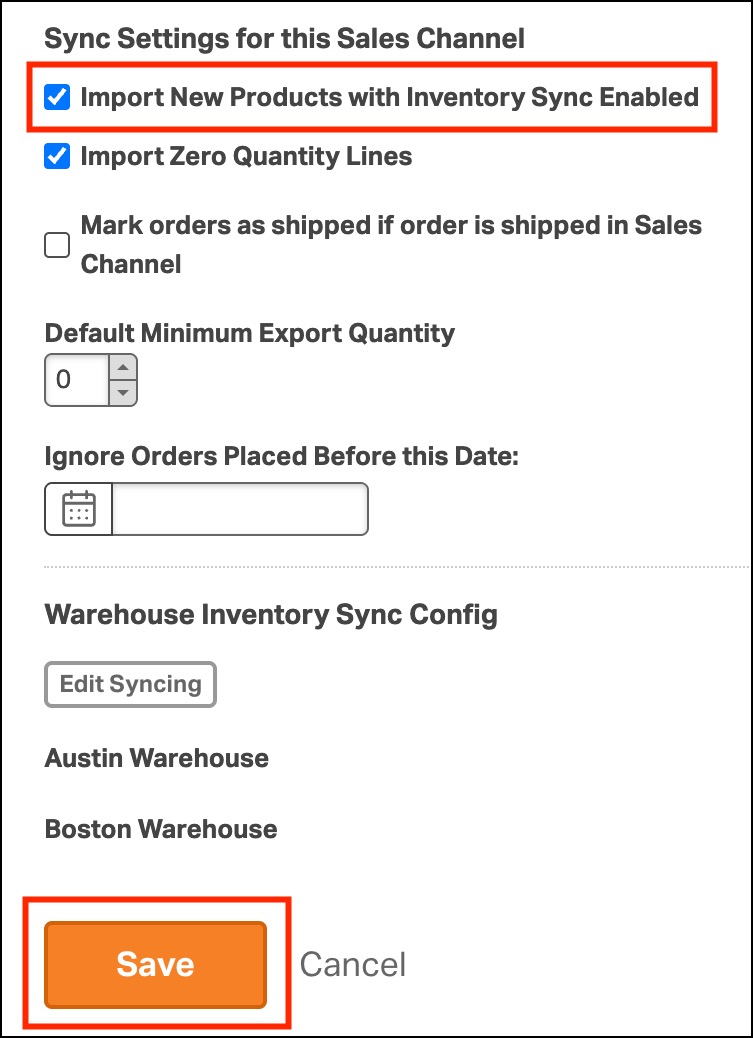
- Scroll to Sync Settings for this Sales Channel.
- Find Import New Products with Inventory Sync Enabled.
- Check or uncheck the box.
- Click Save.
What happens when the checkbox is selected?
When the checkbox is selected, new products imported from that sales channel will have inventory sync enabled.
This means Ordoro can update inventory quantities back to that sales channel.
This is the default setting.
What happens when the checkbox is deselected?
When the checkbox is deselected, new products imported from that sales channel will have inventory sync disabled.
This means the products will still import into Ordoro, but Ordoro will not update inventory back to the sales channel for those products.
You can turn inventory sync on later if needed.
When should I turn off this setting?
You may want to disable this setting if you want to review new products before Ordoro starts updating inventory in your cart.
This can be helpful if:
- You sell presale items and want the cart’s inventory to stay the same for now.
- Another supplier or system updates inventory directly in the sales channel.
- You use merchant portals and do not want inventory sync turned on automatically.
Does this update existing products?
No. This setting only applies to new products imported after the setting is saved.
It does not update products that already exist in Ordoro.
For example:
- Products with inventory sync enabled will stay enabled.
- Products with inventory sync disabled will stay disabled.
- If a product is connected to more than one sales channel, this setting only affects the sales channel you edited.
How do I update existing products?
Since this setting only applies to new products, existing products need to be updated separately.
You can update inventory sync in two ways:
- Update one product from the Product Detail page.
- Update many products using a data import.
To update one product, go to the product’s Sales Channels tab. Then update the Writeback setting for that sales channel.
To update many products, use the Update Product/Sales Channel Bridge data import.
In the import file, update the Writeback Inventory column:
- Enter FALSE to disable inventory writeback.
- Enter TRUE to enable inventory writeback.
For full steps, see this article: How can I disable Inventory Writeback per product?