
Stop setting up the same product filters each day. Saved Filters let you save your most-used Product List views so you can quickly find the products you need.
Use them to review kits, find products that need tags, or focus on products from a specific sales channel. Your team can access the same saved views across users and devices.
Topics
- Why use Saved Filters?
- How to create a Saved Filter
- How to apply a Saved Filter
- How to edit or delete a Saved Filter
- Saved Filter permissions
- Real-world examples
Why use Saved Filters?
If you use the same Product filters often, save them for quick access.
Instead of choosing the same filters each time or keeping browser bookmarks, you can save a filter set directly in Ordoro.
Saved Filters are:
- Shared with your team: Anyone in your company with Product access can apply them.
- Available across devices: Access them when you sign in from another browser or computer.
- Available on all plans: The filter choices shown depend on your plan’s features.
How to create a Saved Filter
Option 1: Save a filter from the Product List
- Navigate to the Products page.
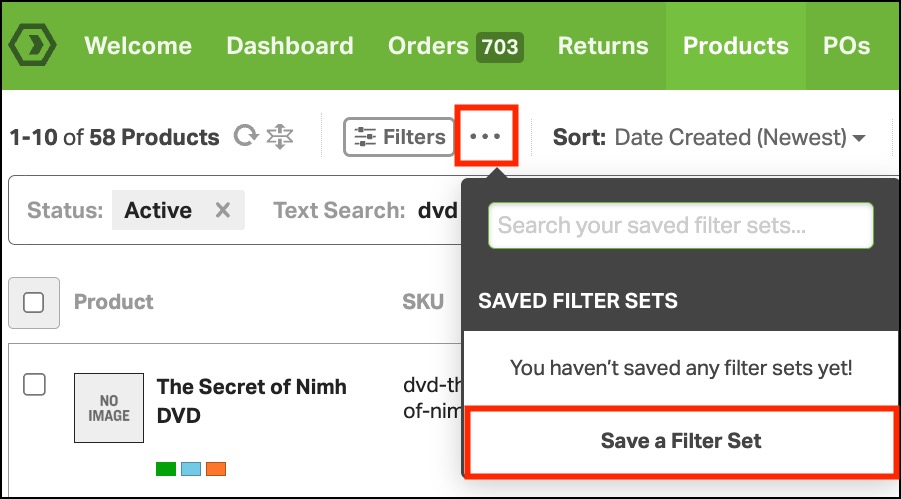
- Click the ••• button -> Save a Filter Set.
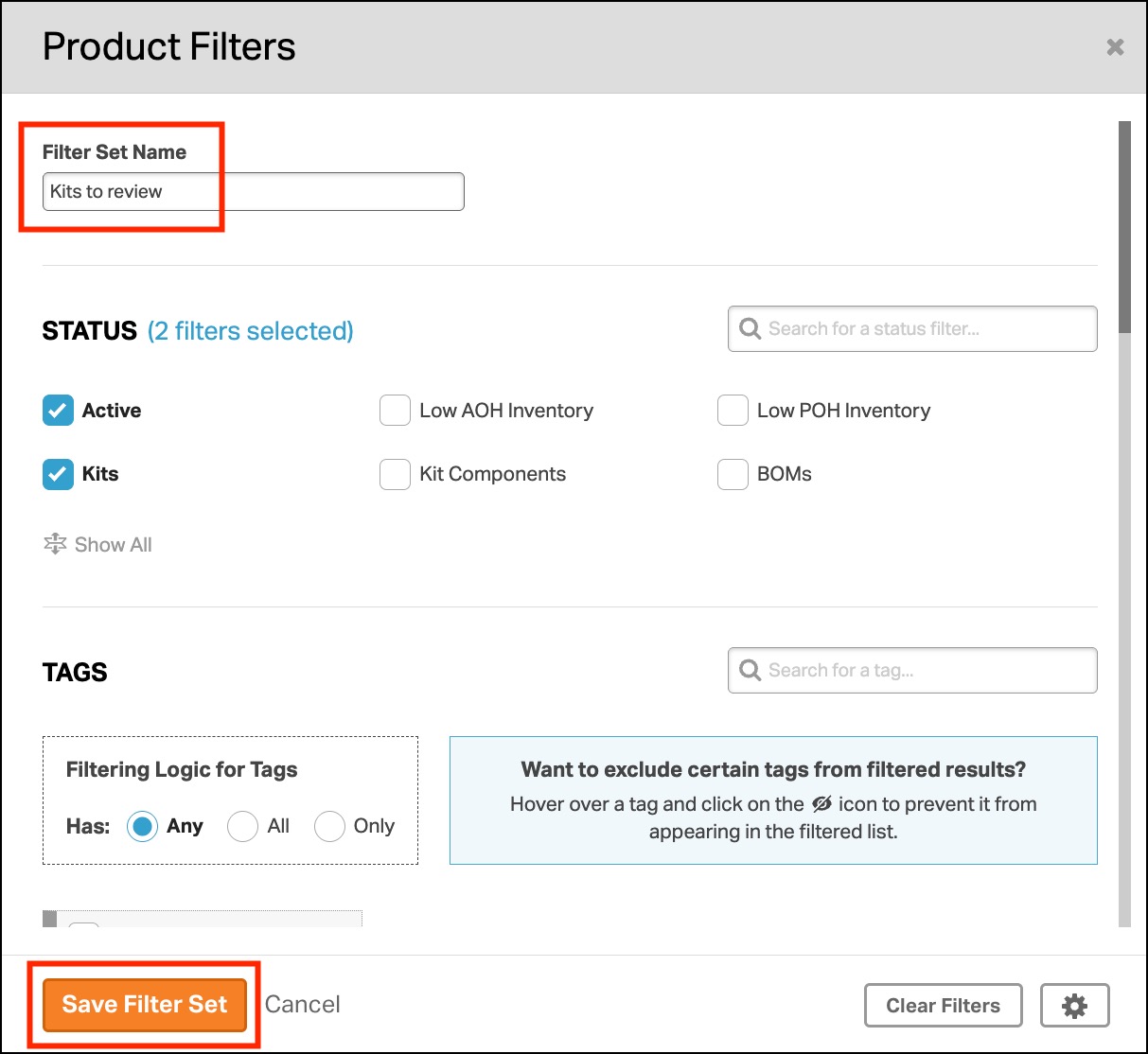
- Enter a name for the Filter Set.
- Apply the filters you want to save.
- Click Save Filter Set.
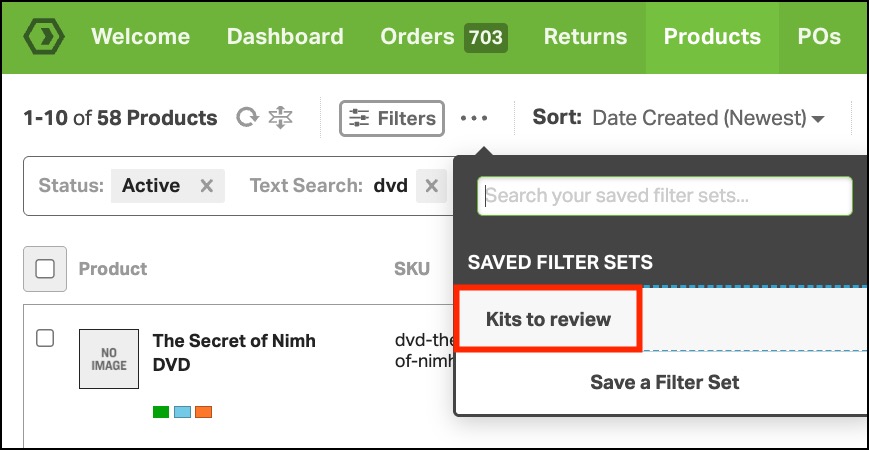
Your filter will now appear in the Saved Filters list for future use.
Option 2: Save a filter while using the Filters modal
- Navigate to the Products page.
- Click Filters.
- Add your desired filters.
- Choose the option to Save and Apply.

- Enter a name for the filter.
- Click Save and Apply Filter Set.

Saving does not apply the filter or change the products shown on the page. To use it, select it from the Saved Filters menu.
Tips for naming your filter
Choose a short name that tells your team what the filter shows, such as Kits to Review or Products Missing Tags.
- A name is required.
- The name cannot exactly match another saved Order or Product filter in your company.
- Capital letters count as different characters. For example, Filter 1 and filter 1 are allowed as separate names.
- Spaces at the beginning or end of the name are removed automatically.
How to apply a Saved Filter
- Go to the Products page.
- Click ••• next to Filters.
- Select the saved set you want to use.
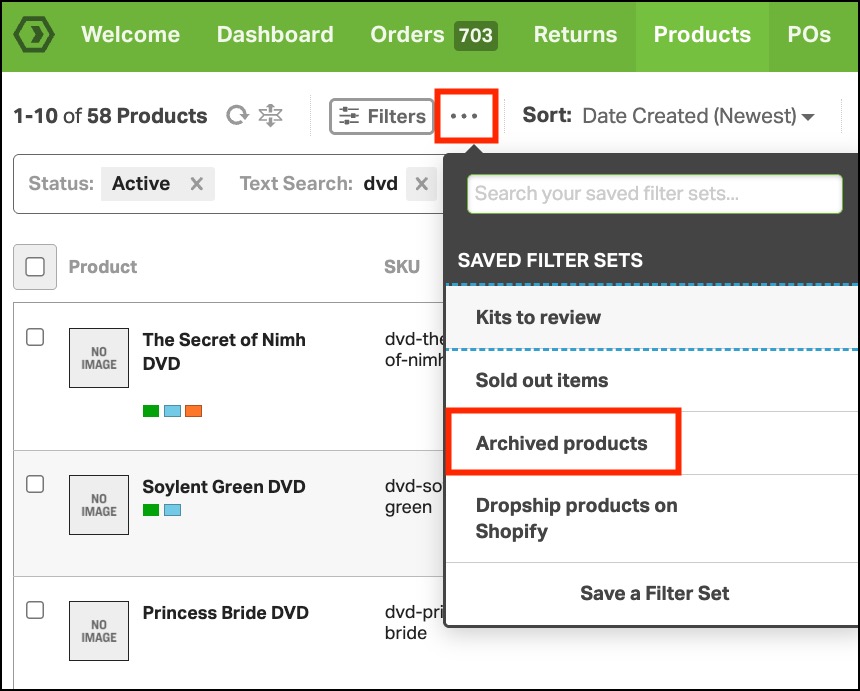
Ordoro applies its saved choices and updates the Product List. Your current sort and number of products shown per page stay the same.
If you have several saved filters, use the search box at the top of the menu to find one.
How to edit or delete a Saved Filter
Saved Filters are shared with your company. Editing or deleting a filter changes it for everyone who uses it.
Edit a Saved Filter
- On the Products page, click ••• next to Filters.
- Find the filter you want to update.
- Choose the Edit icon to update the filter settings or rename it.
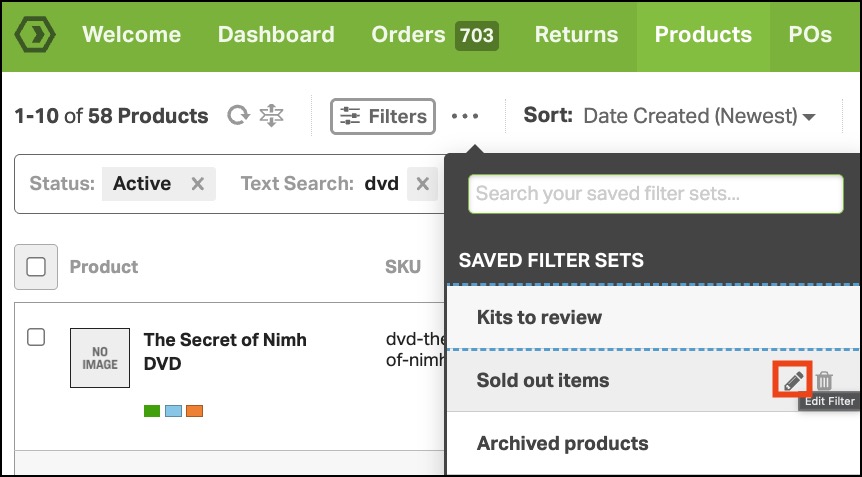
- Choose Delete to remove the filter.

Saved Filter permissions
The Create and edit saved filters permission controls who can create, edit, and delete Product Saved Filters.
You can find it under Settings → Users → Permissions → Products. This permission is enabled for all users by default.

Product and Order Saved Filters have separate permissions. Changing a user’s Product permission does not change their Order permission.
Learn more about setting up user permissions.
Real-world examples
Create saved filters for the product groups your team reviews most often.
| Saved Filter name | Filters to choose | How it helps |
|---|---|---|
| Kits to Review | Status → Kits | Quickly find kits your team needs to review. |
| Products Missing Tags | Tags → Untagged Products | Find products that still need tags. |
| Dropshippable Products | Fulfillment Type → Dropshippable | Focus on products that can be fulfilled through dropshipping. |
| Products for My Store | Sales Channels → Select your store | View products connected to a specific sales channel. |
Because these filters are shared with your company, teammates can open the same views without rebuilding the filters themselves.