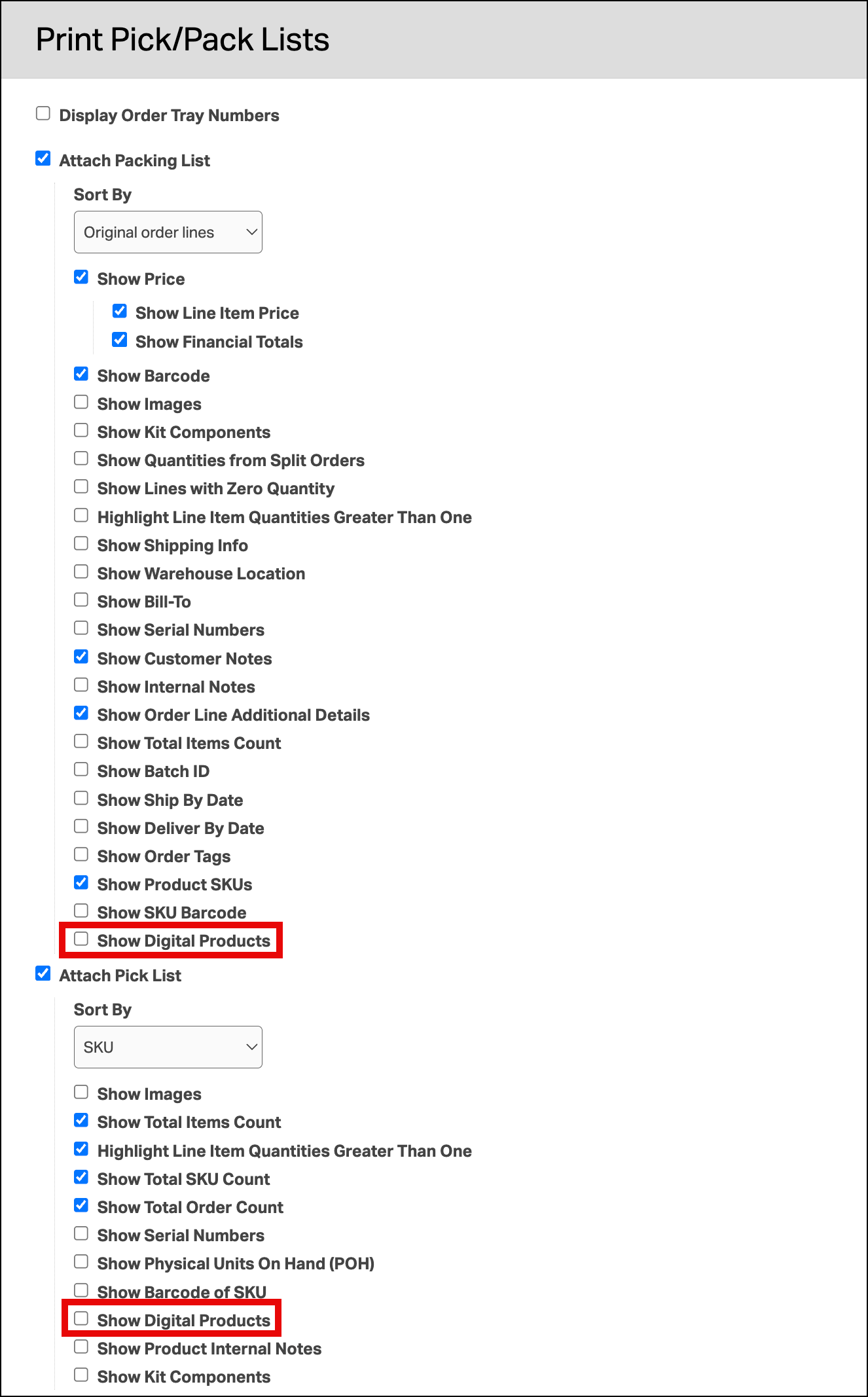
If you sell digital products, like downloadable digital graphics, digital gift cards, shipping insurance, etc., you can designate such products as digital so that these lines do not print on the packing or pick lists. This way, your customer only sees the physical items that were shipped in the box. But this can also help by eliminating any confusion for pickers in the warehouse who don’t need to pick non-existent physical goods.
Topics
- How do I mark my digital products?
- How do I control whether digital products display on the packing lists or pick lists?
How do I mark my digital products?
- Navigate to the Products section in Ordoro by clicking the “Products” tab in the green bar.
- Search for the product and click the product SKU or Name.
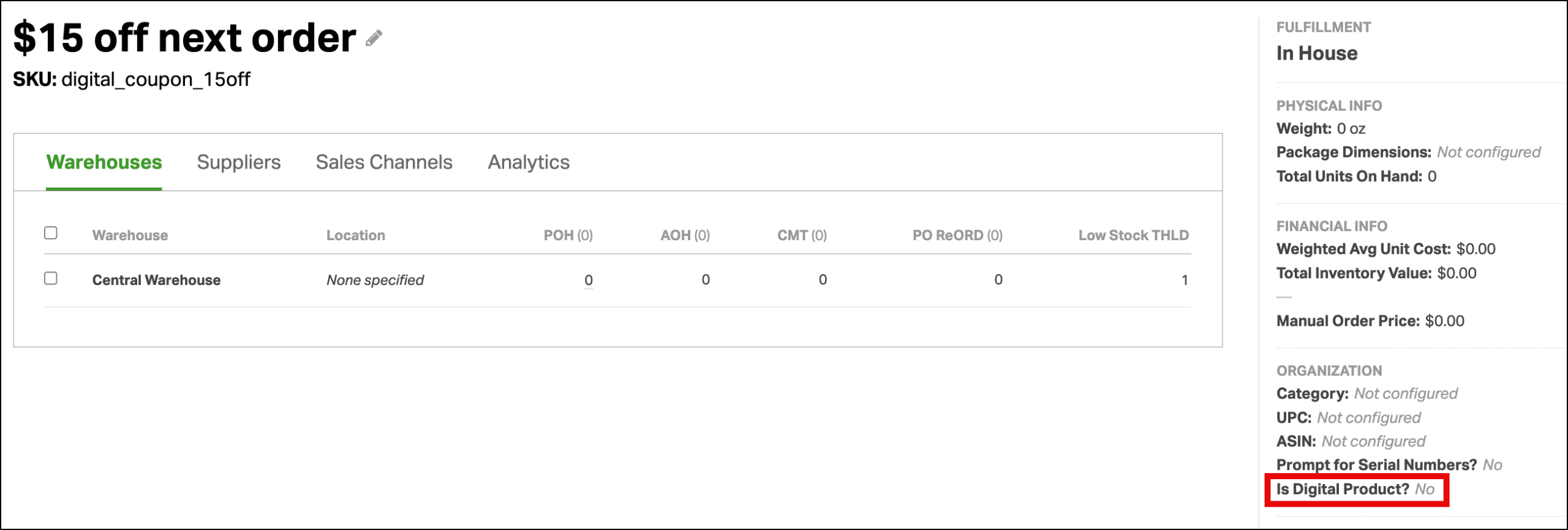
- On the Product details page, look to the right and click Is Digital Product? No. A window will pop up.
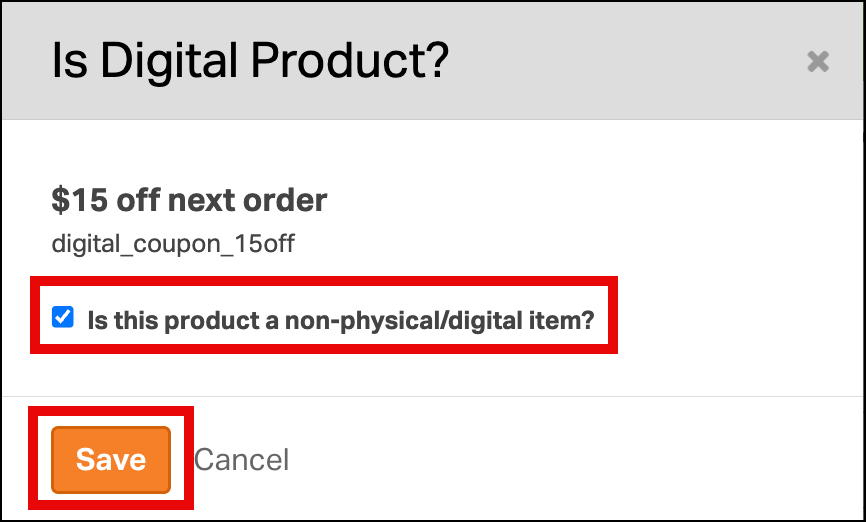
- Check the box for “Is this product a non-physical/digital item?” and then click “Save”.
How do I control whether digital products display on the packing lists or pick lists?
When printing packing lists and/or pick lists, you’ll have the option to deselect digital products. If you don’t want products designated as digital to print, then make sure the checkbox is deselected for each section. These selections are saved to your browser, so set it once and you’re good to go!