
Looking to connect your Miva store to Ordoro? This guide walks you through the setup process. Follow these steps to ensure your orders, tracking and inventory sync smoothly.
Topics
Generate your API keys keys from Miva
To start your Ordoro integration with Miva, you’ll need to generate an API Key in your Miva Account. See the instructions below to setup and get those Keys.
1. Log into your Miva account. Select Settings and then User Management.

2. In the User Management settings, select API Tokens and then Add API Token.

3. In the Add API Token module, enter Ordoro Integration into the Name field, and then enter the following IP address into the Address(es) field: 0.0.0.0/0, ::/0
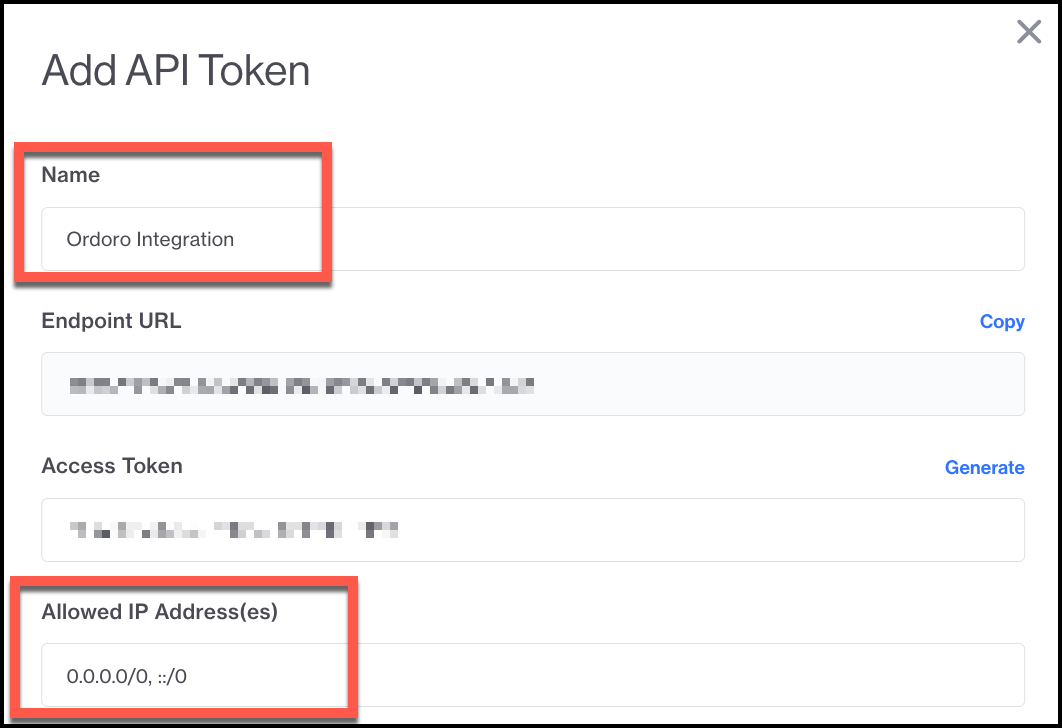
4. Copy the Endpoint URL, Access Token, and Signature information to enter in Ordoro. Then select Save to save the new API Token.
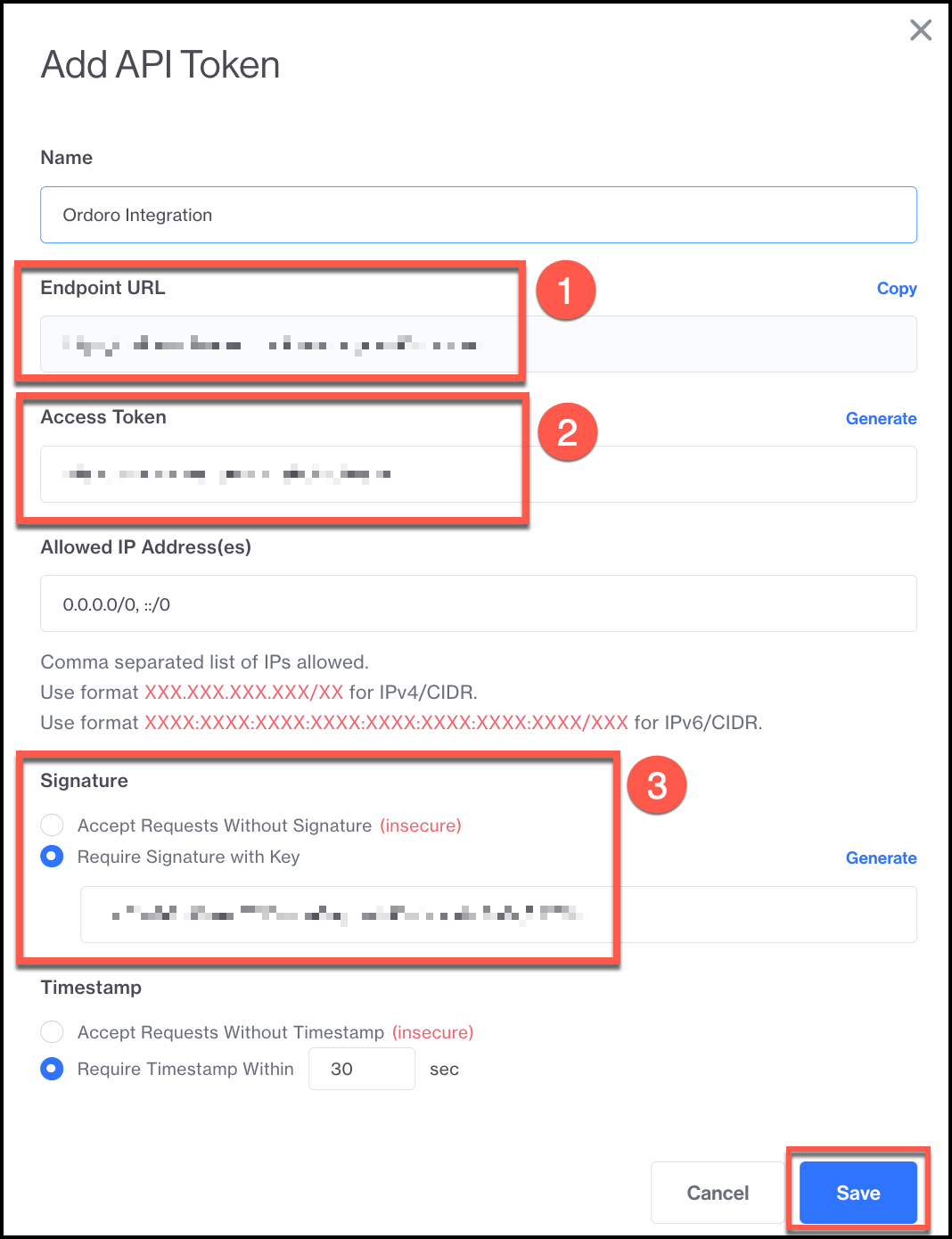
5. Select Yes when prompted to confirm the IP Address:

6. Log into Ordoro and enter the Endpoint URL, Access Token and Signature. Click on your Company Name -> Account Settings.
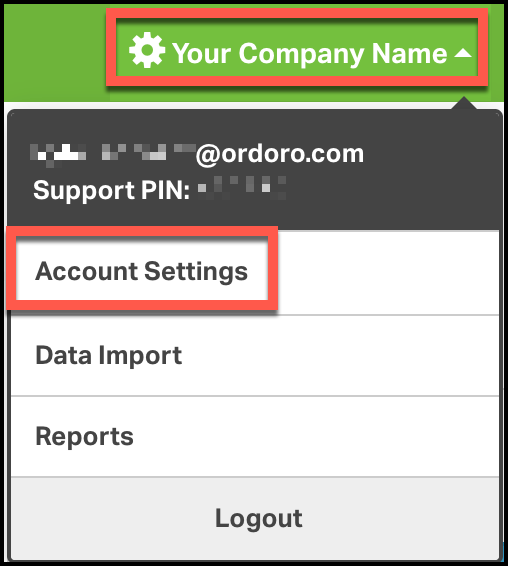
- Navigate to the Sales Channels Settings on the left side of the page.
- Click Add Sales Channel.
- Select Add a sales channel
- Choose Miva from the dropdown options and enter the following into Ordoro:
- Endpoint URL
- Access Token
- Signature

Leave this open while you complete the next steps:
Enter Miva Permissions for Keys
Next, you’ll need to give the Ordoro Token the permissions necessary to sync Orders, Tracking, and Inventory with Miva. Follow the instructions below to enable these permissions.
1. On the API Token Users’ page (see steps 1 & 2 above to get here), select the checkmark box next to the Ordoro Integration user you’ve created. Then select Functions.

2. In the pop-up module, select Add Function. You’ll need to add the following functions to this user:
- ProductList_Load_Query
- ProductVariantList_Load_Query
- Product_Update
- OrderList_Load_Query
- OrderItemList_CreateShipment
- OrderShipmentList_Update
- ProductKitList_Load_Query
Enter the function, and select your store name from the dropdown. Select Save Changes. Then repeat this step until all the above functions have been saved. Select Close once you’ve done this to exit the functions modal.
See the video below for instructions:
Enter your Store Code from Miva
The final step to the integration is entering your store code into Ordoro. See instructions below:
1. In Miva, Select Settings, and then Store Settings.

2. Copy the Store Code.

3. Back in Ordoro, enter the Store Code in your Miva Sales Channel settings. Select Add Sales Channel (or Save if you’re updating credentials).
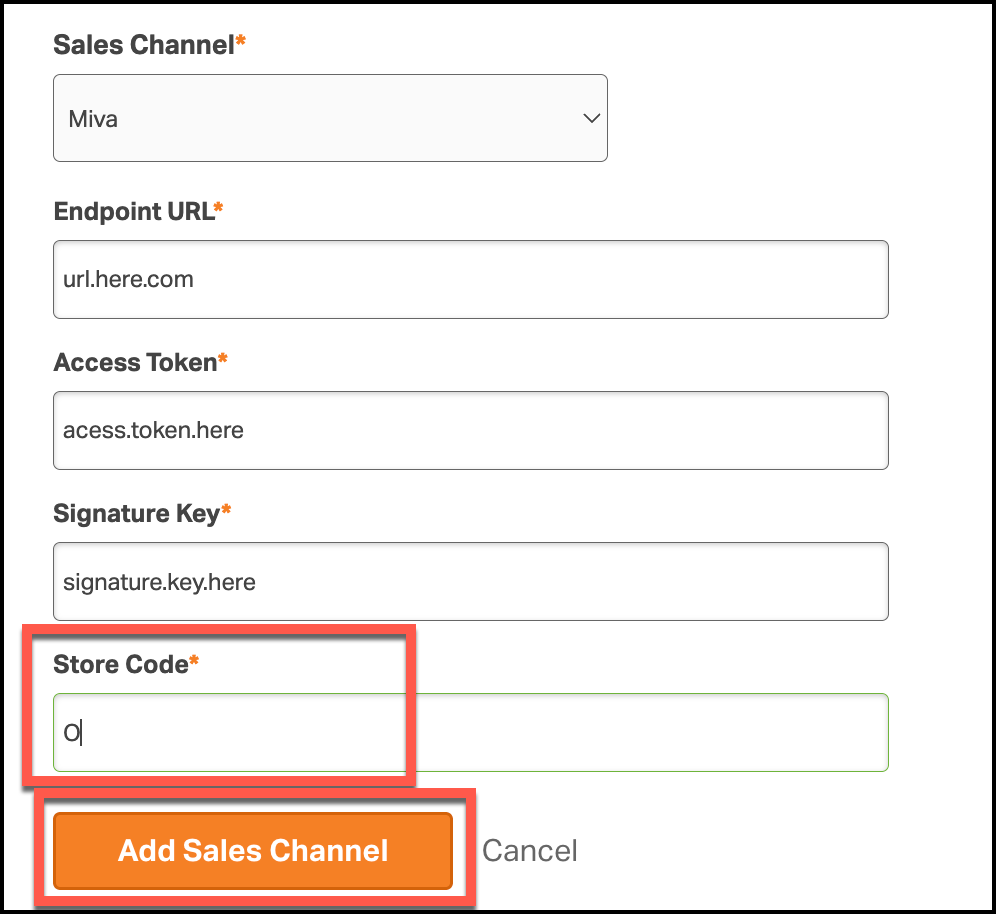
Your integration is now set up. Orders and products should begin importing into Ordoro.