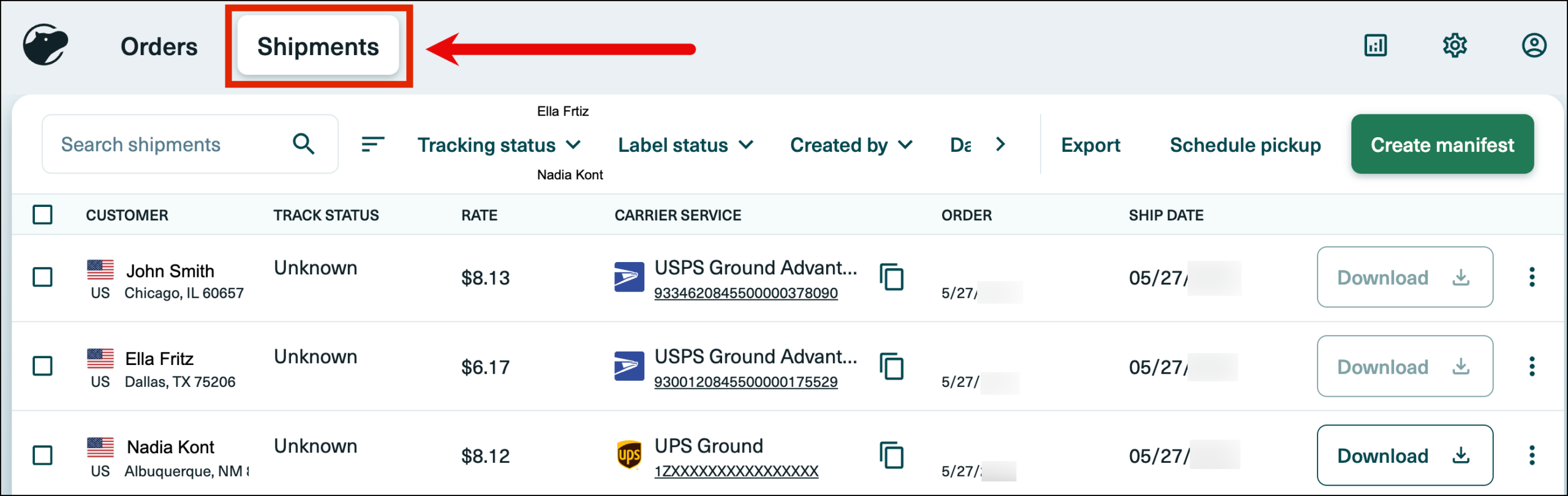
You can connect your Shippo account to Ordoro and use your enabled Shippo carriers and services when creating shipping labels.
Topics
- Connect Shippo to Ordoro
- Choose which shipping services appear in Ordoro
- View your shipments in Shippo
Connect Shippo to Ordoro
- In Ordoro, go to Account Settings > Shippers/Carriers.
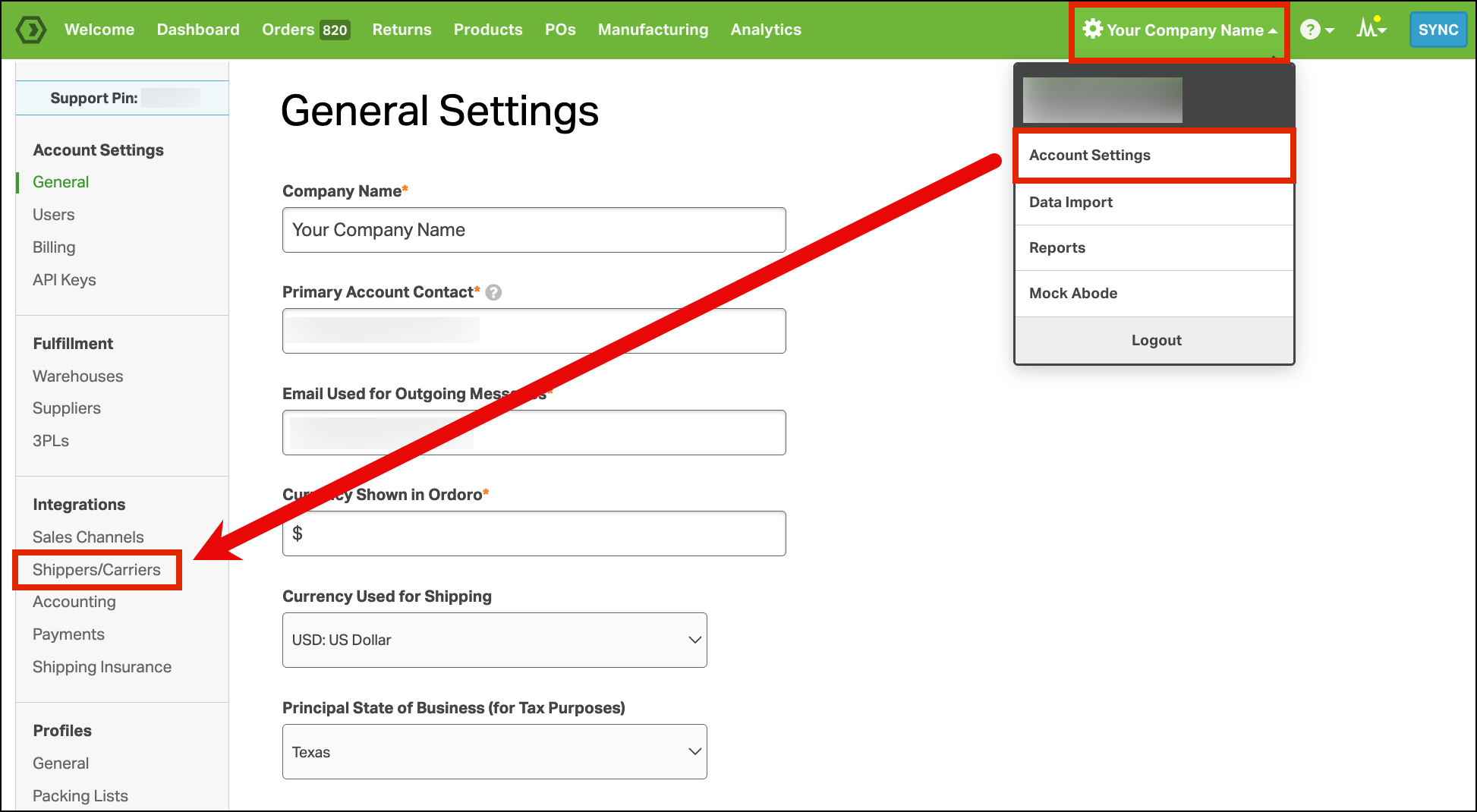
- Click Add a Shipper.
- Select Shippo from the dropdown.
- Click Authorize.
Don’t see Shippo? Email support@ordoro.com and let us know which carriers you plan to use with Shippo. We’ll help enable this for your account!

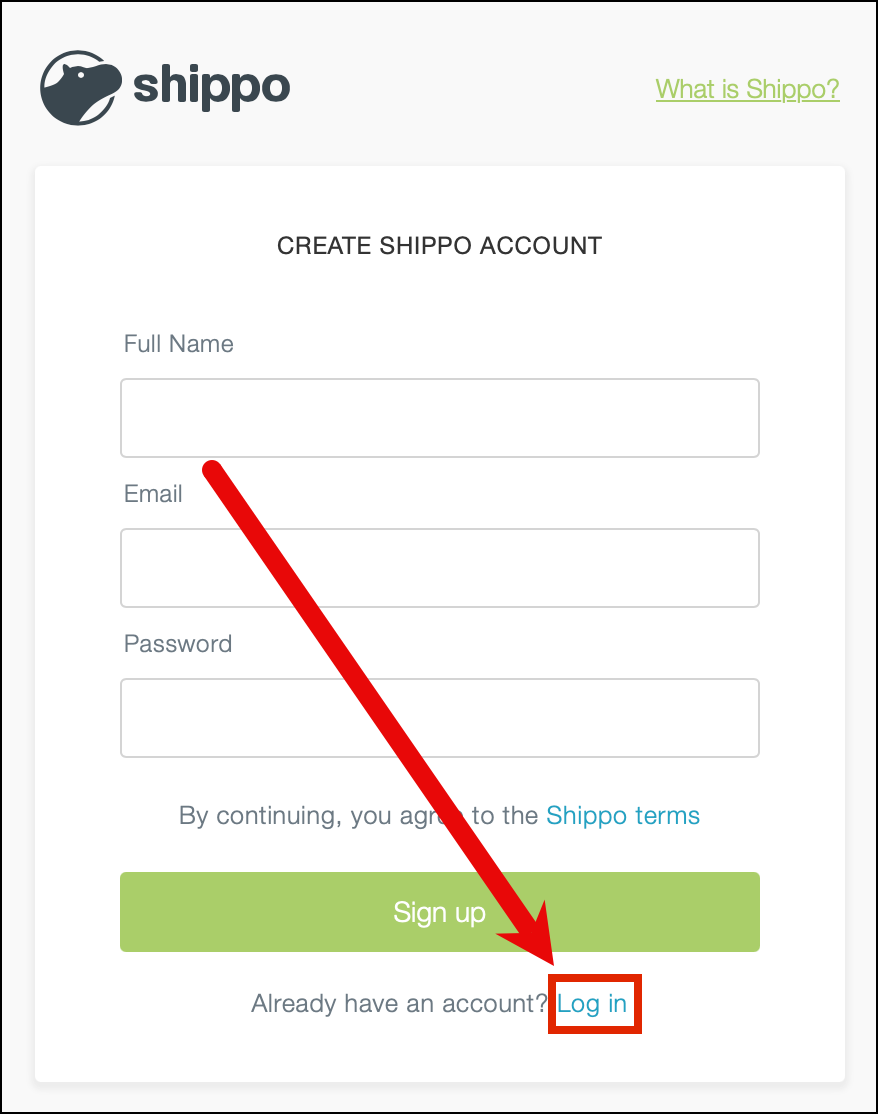
- On the Shippo authorization page, click Log in in the bottom-right corner.
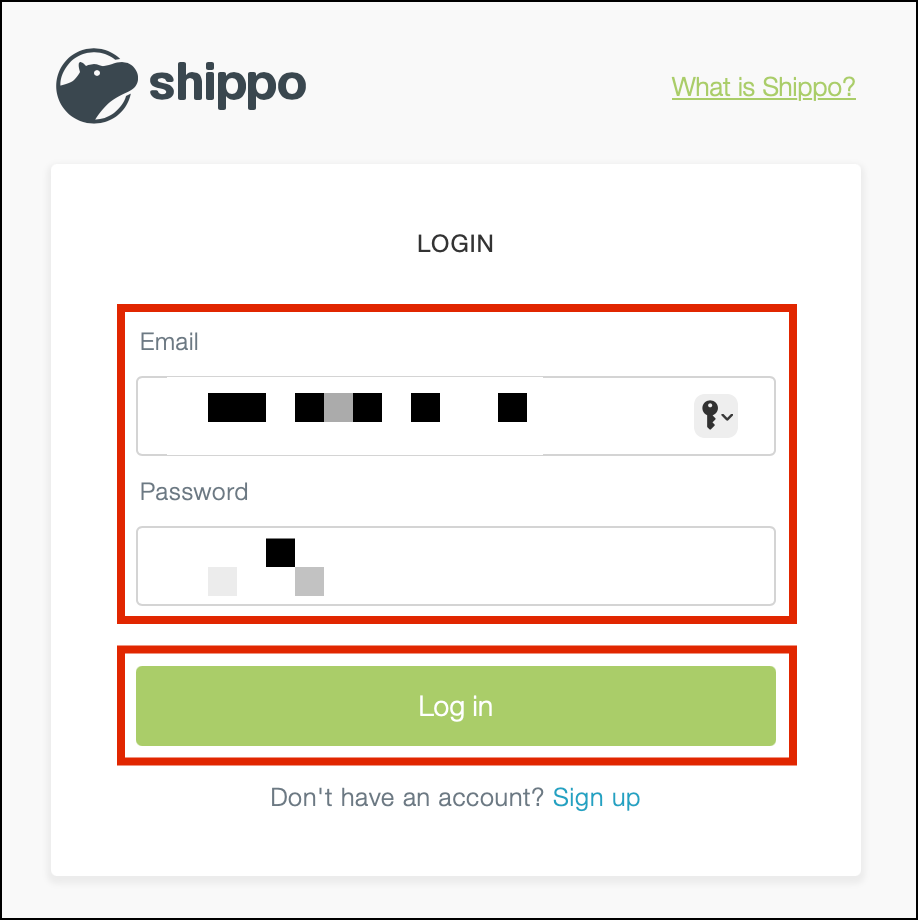
- Enter your Shippo email address and password.
- Click Log in.
After authorization is complete, you will be redirected to the Shippers/Carriers page in Ordoro.
- Enter the Certify Signer name.
- The Certify Signer is the person authorized to certify the shipment information is complete and accurate.
- Click Update to save your settings.

Choose which shipping services appear in Ordoro
Shippo may return rates for services you do not plan to use. You can manage these services from your Shippo carrier settings so that only the services you need appear in Ordoro.
- Log in to your Shippo account at apps.goshippo.com/login.
- Go to Settings > Carriers.
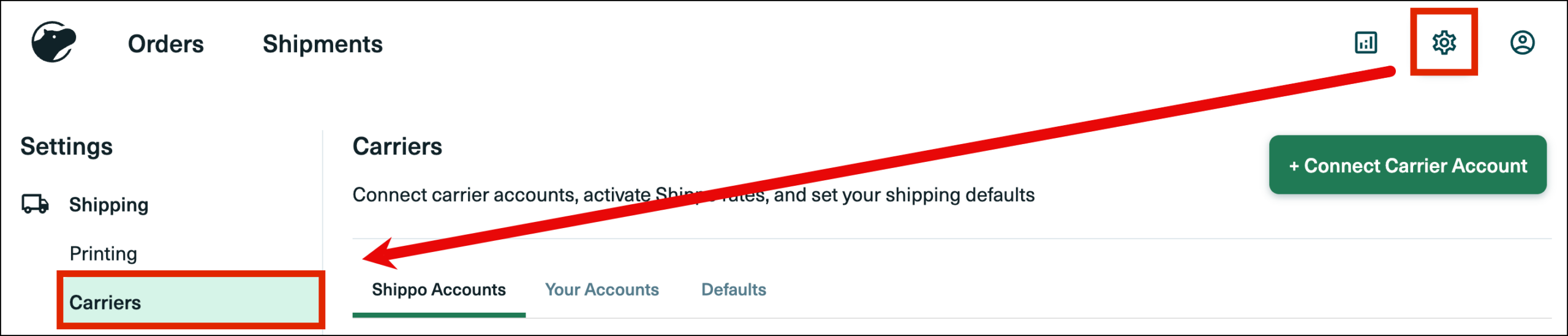
- Locate the carrier you want to update and click Edit.
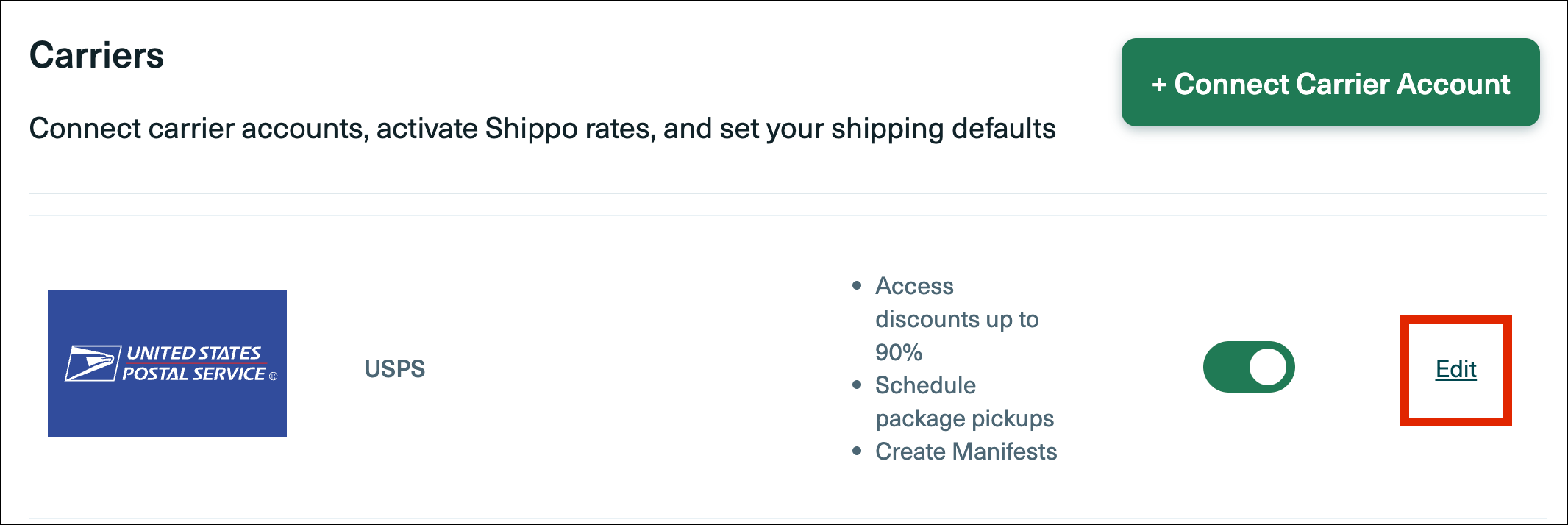
- Select the services you want to make available.
- Note: USPS First Class Mail must be configured for your account by Shippo. Please contact support@ordoro.com if you need USPS First Class Mail services.
- Click Save.

Services that are disabled in Shippo will no longer appear as available rates in Ordoro.
View your shipments in Shippo
After you create a Shippo label in Ordoro, the shipment and tracking information will appear on the Shipments page in your Shippo account.