Add an extra layer of security to your Ordoro account with Multi-Factor Authentication (MFA). When MFA is enabled, you’ll be required to enter a one-time code from an authentication app after entering your username and password.
This guide covers how to turn on MFA, how login works after it’s enabled, and how to get support if you’re locked out.
Topics
- What is multi-factor authentication?
- How to enable MFA
- What the MFA login looks like
- How to disable MFA
- What to do if you’re locked out
What is multi-factor authentication?
Multi-factor authentication (MFA) adds an extra layer of security to your login. After entering your username and password, you’ll be prompted to enter a one-time code from an authentication app like Google Authenticator or 1password.
How to enable MFA
Only admin users can manage these settings. Admins can also enable multi-factor authentication (MFA) for other users in the account.
- Open your User Settings in Ordoro.
- Click Edit next to the user.

- Click Enable MFA.
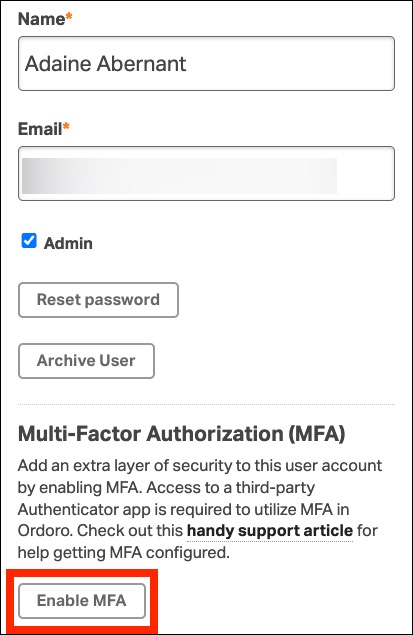
- In the pop-up, follow the instructions to connect your authentication app:
- You’ll see your unique Ordoro Authentication URI.
- You can either copy the URI or scan the QR code using your mobile authenticator app (like Google Authenticator).
- Once added, your app will start generating 6-digit one-time codes (OTPs) that refresh regularly.
- Enter a valid 6-digit OTP code in the field provided and click Enable MFA to complete setup.

Once verified, MFA will be turned on for your account. You’ll need to enter a code from your authenticator app each time you log in.
What the MFA login looks like
After enabling MFA:
- You’ll enter your username and password as usual.
- You’ll then be prompted for a 6-digit code from your authentication app.
- Entering the correct code completes the login.
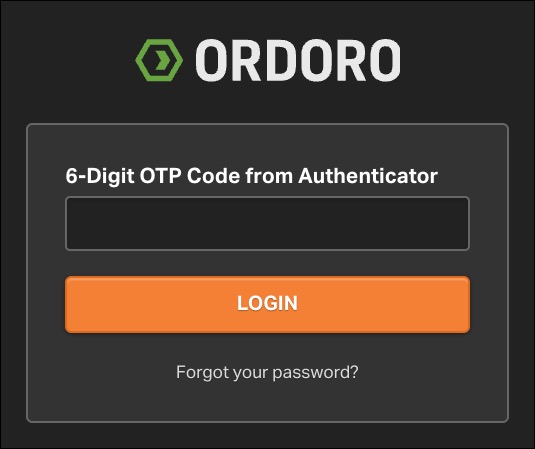
If the code is invalid or expired, you’ll see an error message and can try again.
How to disable MFA
To turn off MFA:
- Go to User Settings.
- Click Disable MFA.
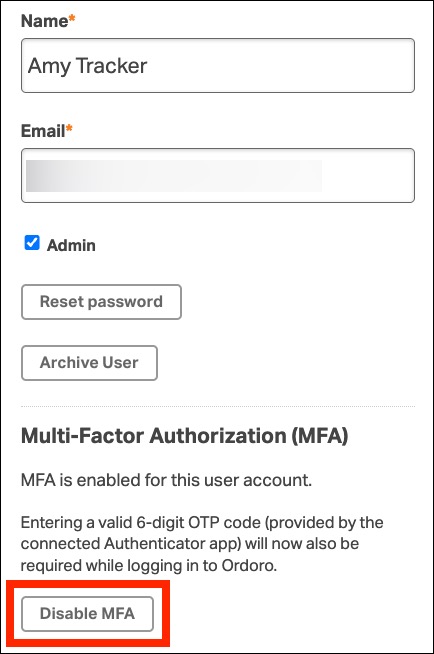
- Confirm when prompted.

Once disabled, the user will no longer be prompted for an MFA code when logging in.
What to do if you’re locked out
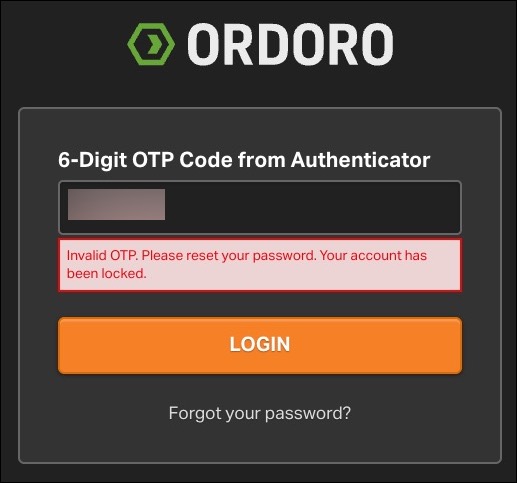
If you lose access to your authentication app or are locked out due to multiple failed attempts:
- Contact your account admin or reach out to Ordoro Support.
- We can help reset your password so you can log in again.