
Ordoro’s EU Product Identifier (PID) fields help you meet new EU customs requirements. Save these codes on your products, then use them when filling out customs information for an order.
Starting November 1, 2026, PIDs are required for qualifying business-to-consumer shipments sent from outside the EU. The European Commission’s guidance covers shipments with an intrinsic goods value of €150 or less. Missing required information can delay your shipment.
Supported carriers in Ordoro: FedEx, UPS, and DHL eCommerce
Topics
- What is a PID
- Add PIDs to a product
- Update PIDs on open orders
- Update PIDs for multiple products
- Add PIDs to an order
- If a product has no standard barcode
What is a PID
A Product Identifier (PID) is a code that identifies a product. Ordoro has three fields for these codes:
| Field | What to enter | Example |
|---|---|---|
| EU M-PID Merchant Product ID | Your store or marketplace’s SKU, listing ID, or other product code. | SHIRT-BLK-M |
| EU NS-PID Manufacturer Product ID | The manufacturer’s model, style, or part number. | MX-2024-BLK-M |
| EU S-PID Standardized Product ID | A UPC, GTIN, EAN, or ISBN assigned to the product. | 012345678905 |
Note: EU M-PID is separate from your Ordoro SKU. Fill it in even if you use the same value.
Add PIDs to a product
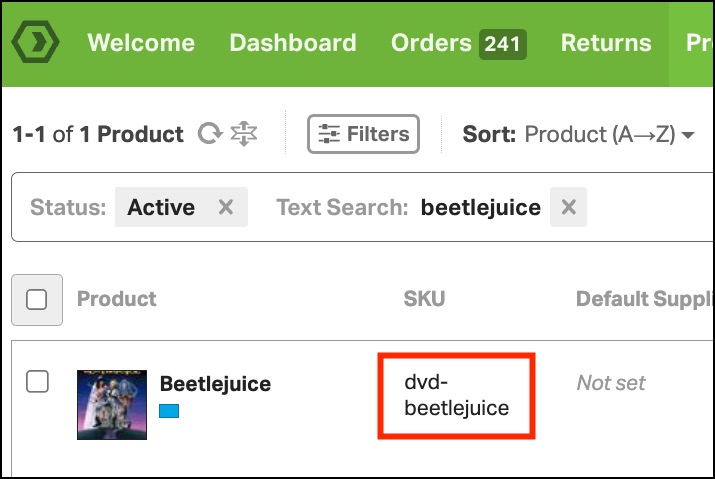
- Go to Products and click the product’s SKU.
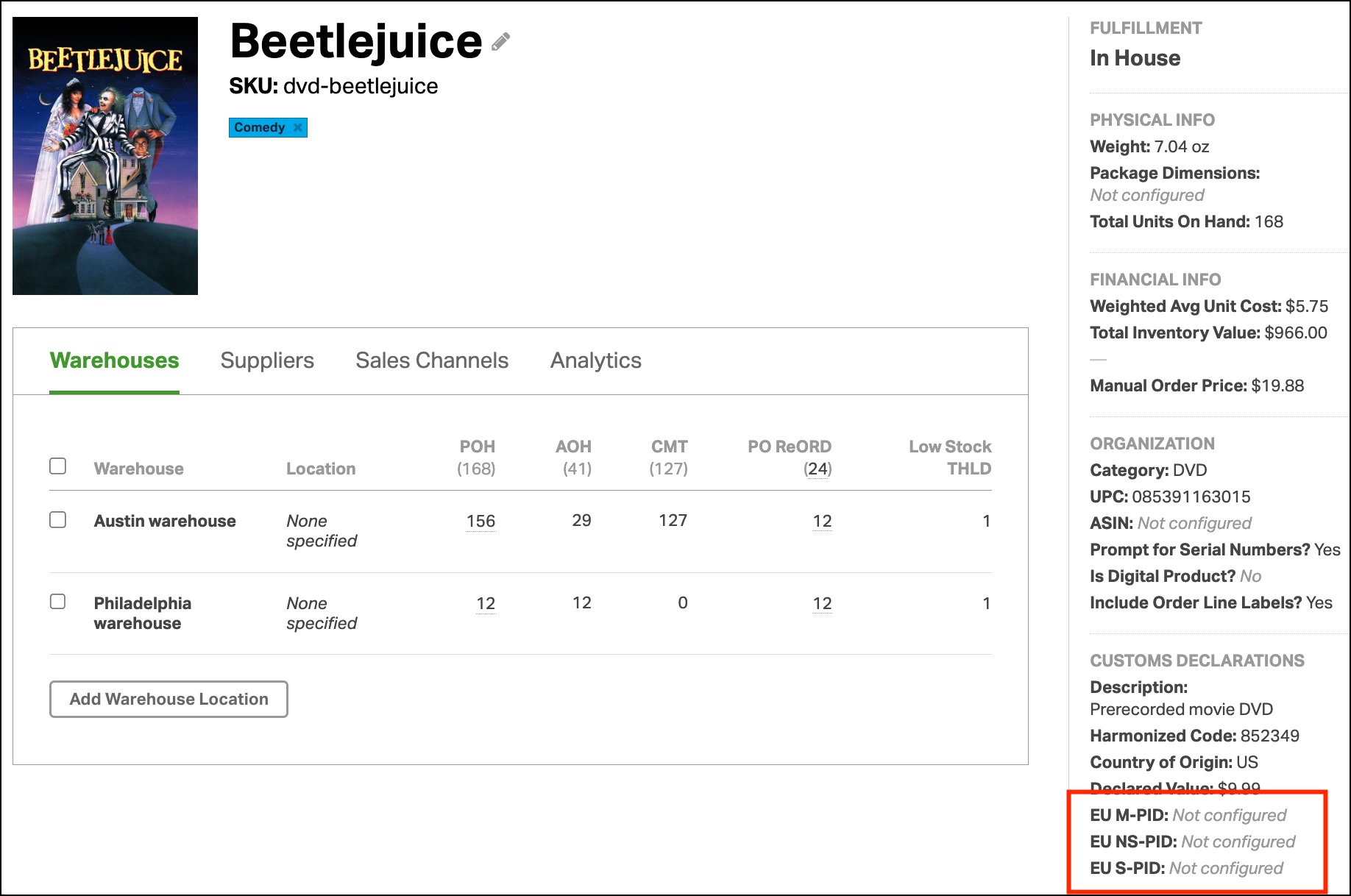
- On the Product Detail page, find Customs Declarations.
- Click EU M-PID, EU NS-PID, or EU S-PID to open its editing window.
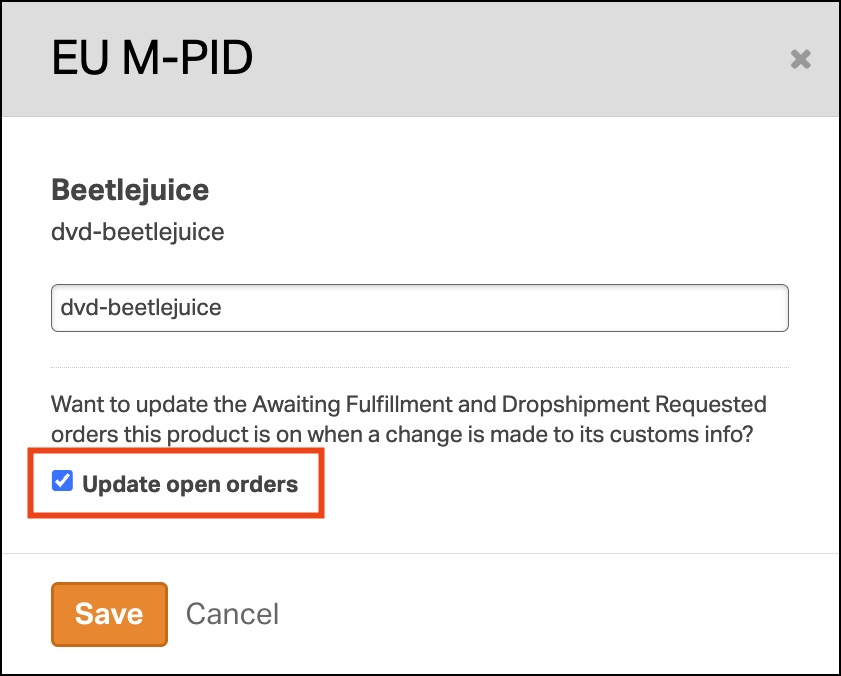
- Enter the product’s code.
- Select Update open orders if you want to apply the change to existing orders.
- Click Save. Repeat for the other PID fields.

Update PIDs on open orders
Select Update open orders when saving a product’s PID to update orders containing that product in these statuses:
- Awaiting Fulfillment
- Dropshipment Requested
Leave the checkbox unchecked to keep the customs information already saved on those orders.
Update PIDs for multiple products
Use Data Import to update several products at once.
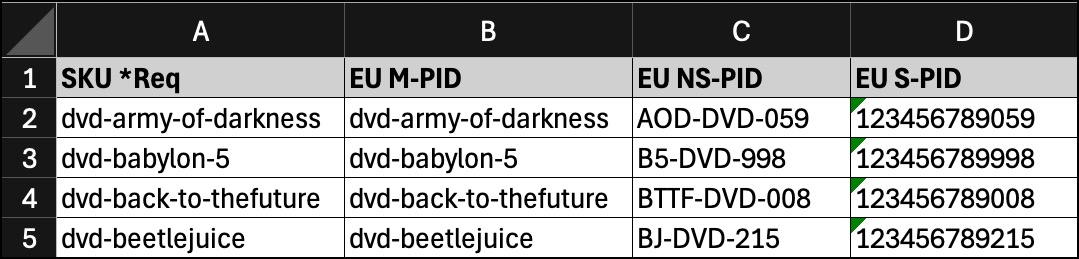
- Create a CSV with a SKU column and the fields you want to update: EU M-PID, EU NS-PID, and EU S-PID.
- Add each product’s SKU and codes.
- Go to the Data Import page.
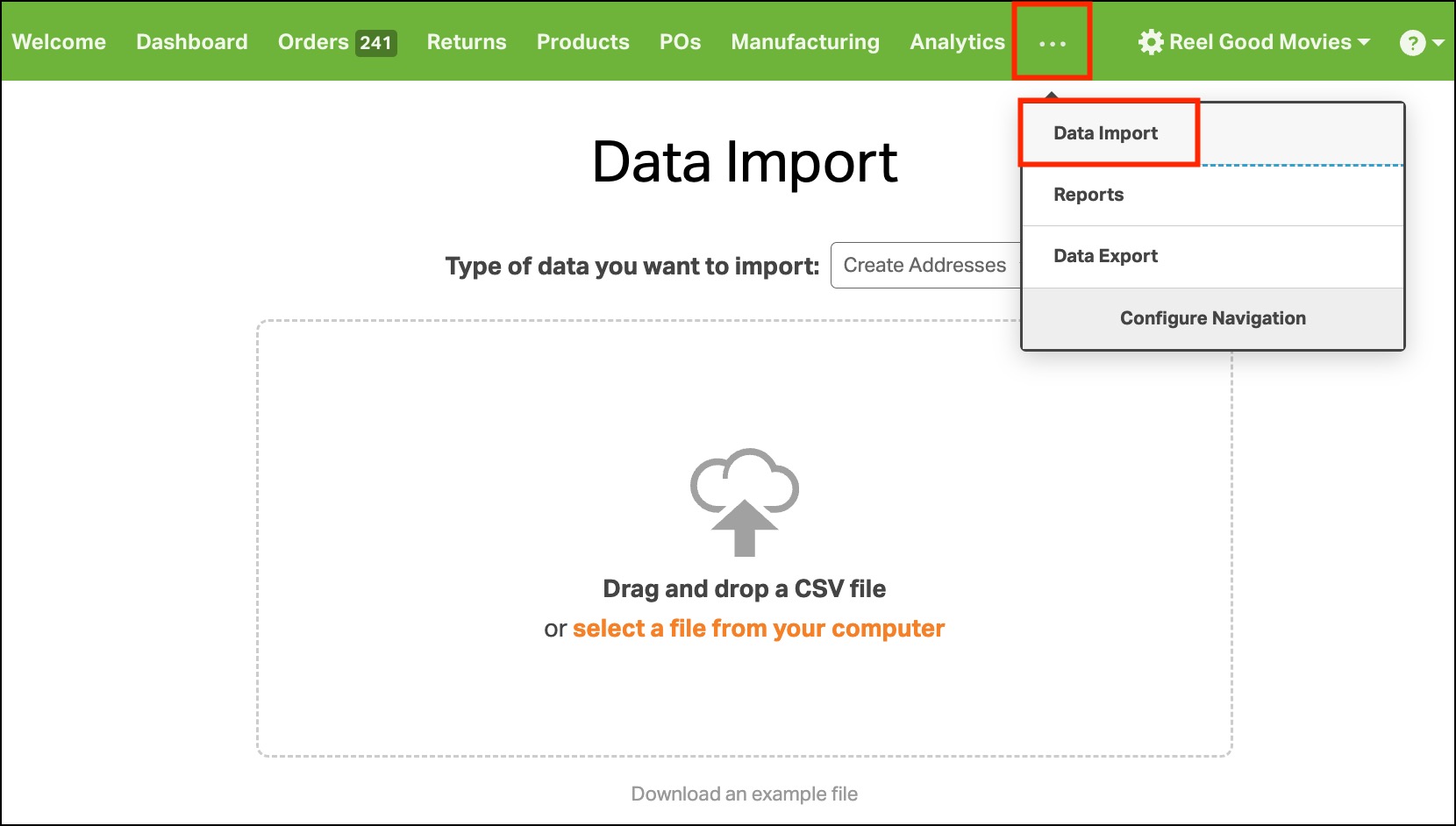
- Choose Update Product and upload the CSV.
- Match the CSV columns to the Ordoro fields, review the import, and complete it.
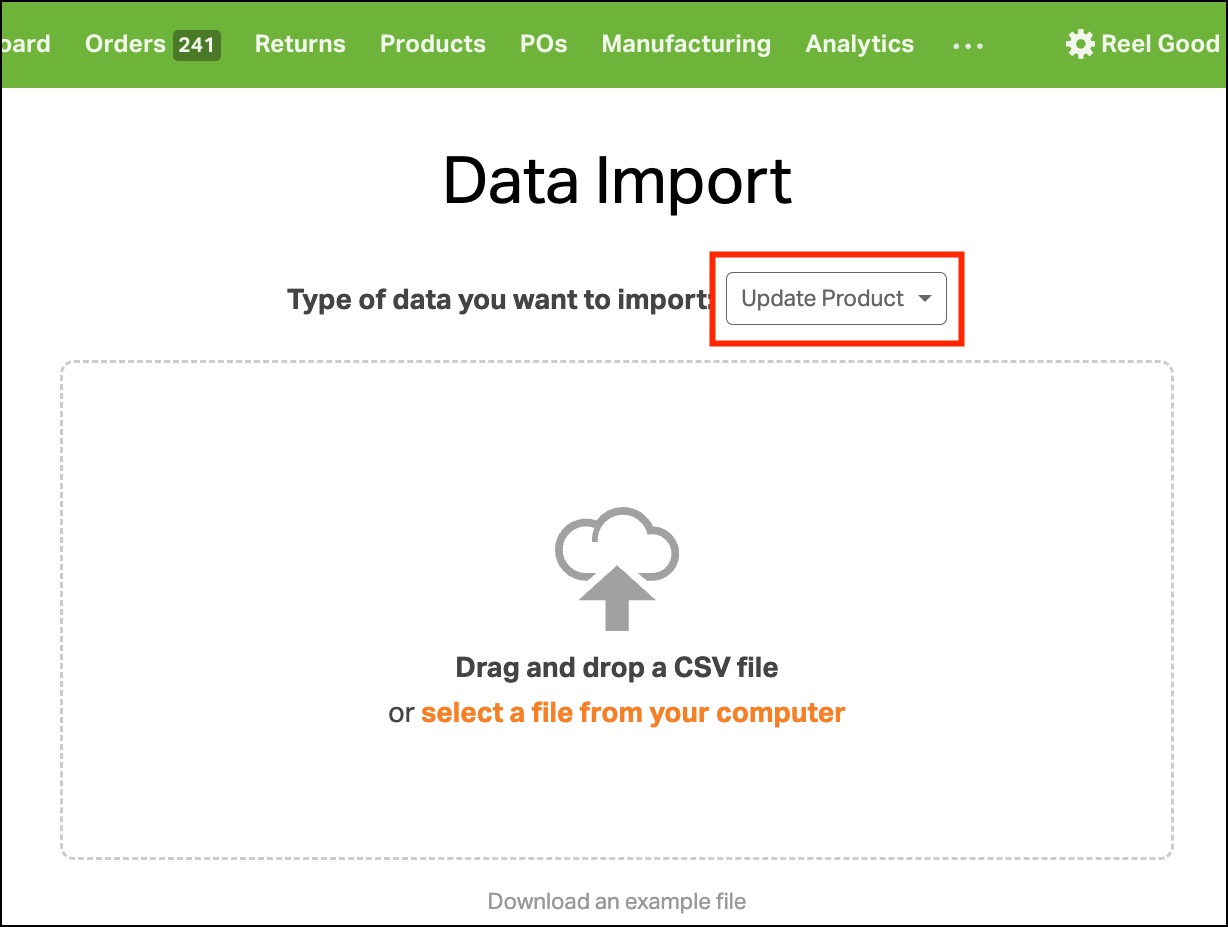
Important: A blank cell in a mapped PID column clears the product’s saved value.
- To keep a product’s existing PID, include its current value in the CSV.
- If you are not updating that PID field for any products, remove the column from your CSV or leave it unmapped during import.
See How do I update products in bulk? for more help.
Add PIDs to an order
- Open the order’s Label Panel.
- Select FedEx, UPS, or DHL eCommerce as the carrier.
- Open Additional Carrier Options
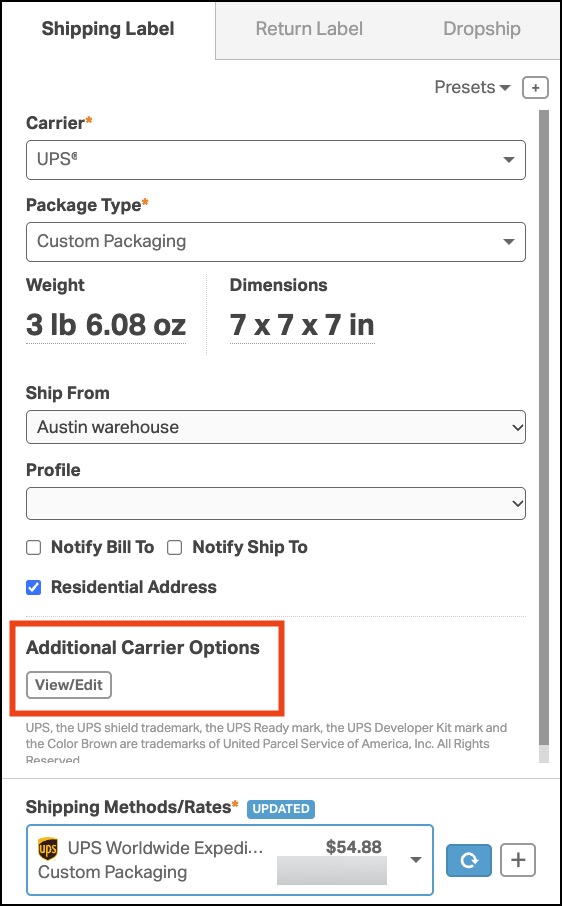
- Select Attach Customs Info, then Send EU Product Identifiers.

- Open the Customs Info window by clicking Edit.

- Review the three PID fields for each item. Ordoro fills them in using the product’s saved codes.
- Add missing codes or make changes for this order.
- Click Save.
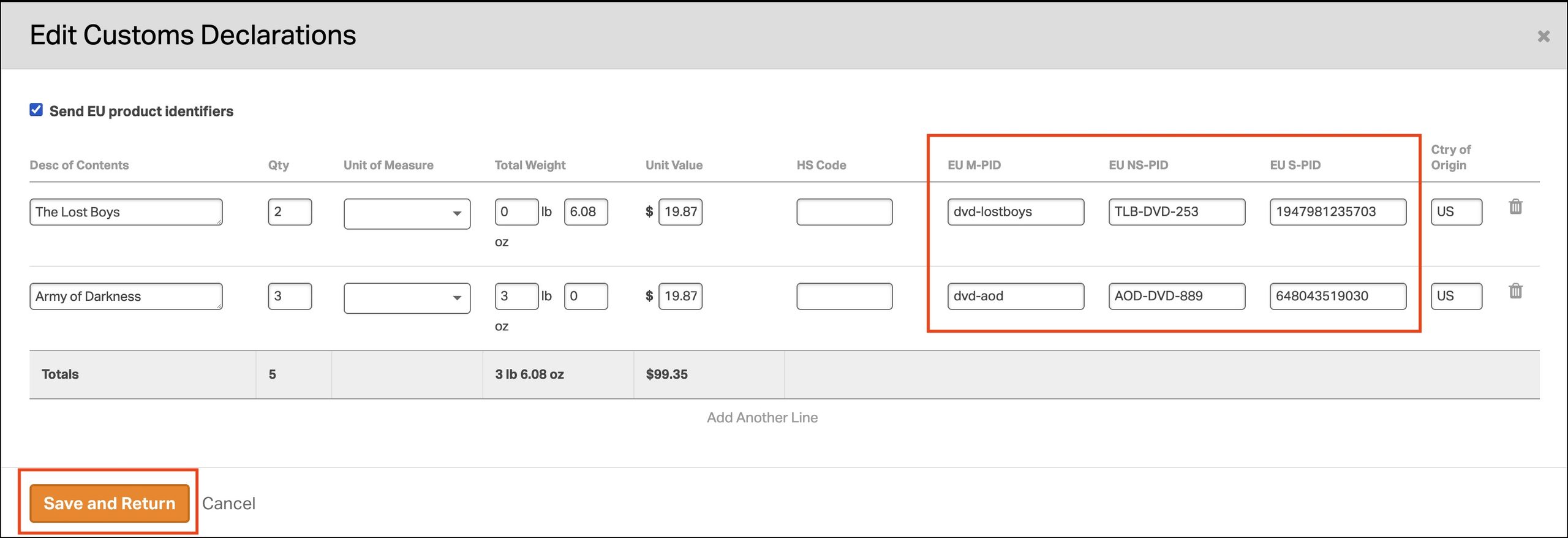
Before you save:
- EU M-PID and EU NS-PID are required for every item when Send EU Product Identifiers is selected.
- EU S-PID is optional in the window, but include it if the product has one.
Changes made here apply only to this order. They do not change the codes saved on the Product Detail page.
Don’t see the PID option?
- Make sure you selected a supported carrier and checked Attach Customs Info.
- Saving PIDs on a product does not turn on Send EU Product Identifiers for an order.
If a product has no standard barcode
If your product has no UPC, GTIN, EAN, or ISBN, customs may need a code stating that no standardized ID exists.
You can save the Customs Info window with EU S-PID blank:
- FedEx: Ordoro sends NA automatically.
- UPS or DHL eCommerce: Check with your carrier about how to report a missing standardized ID.
Leave the EU S-PID blank only when the product does not have one.
