
SKUs can make packing faster and more accurate, especially when items have similar names, multiple sizes/colors, or product variations.
If you want a cleaner Pack List (or don’t want internal identifiers printed), you can hide SKUs instead.
Topics
When this is helpful
Here are a few common reasons teams show SKUs:
- Similar product names: Two items look alike but have different SKUs.
- Variants: Size/color differences, such as TSHIRT-BLK-M vs TSHIRT-BLK-L.
- Warehouse scanning: Your pick/pack workflow uses SKUs for barcode labels.
And here are common reasons teams hide SKUs:
- Cleaner layout: Less clutter on the page.
- Customer-facing docs: You don’t want internal identifiers visible.
- Simple catalogs: Product names are clear enough on their own.
Show or hide SKUs on the Pack List
- Select the order(s).
- Click Print → Pick/Pack Lists.
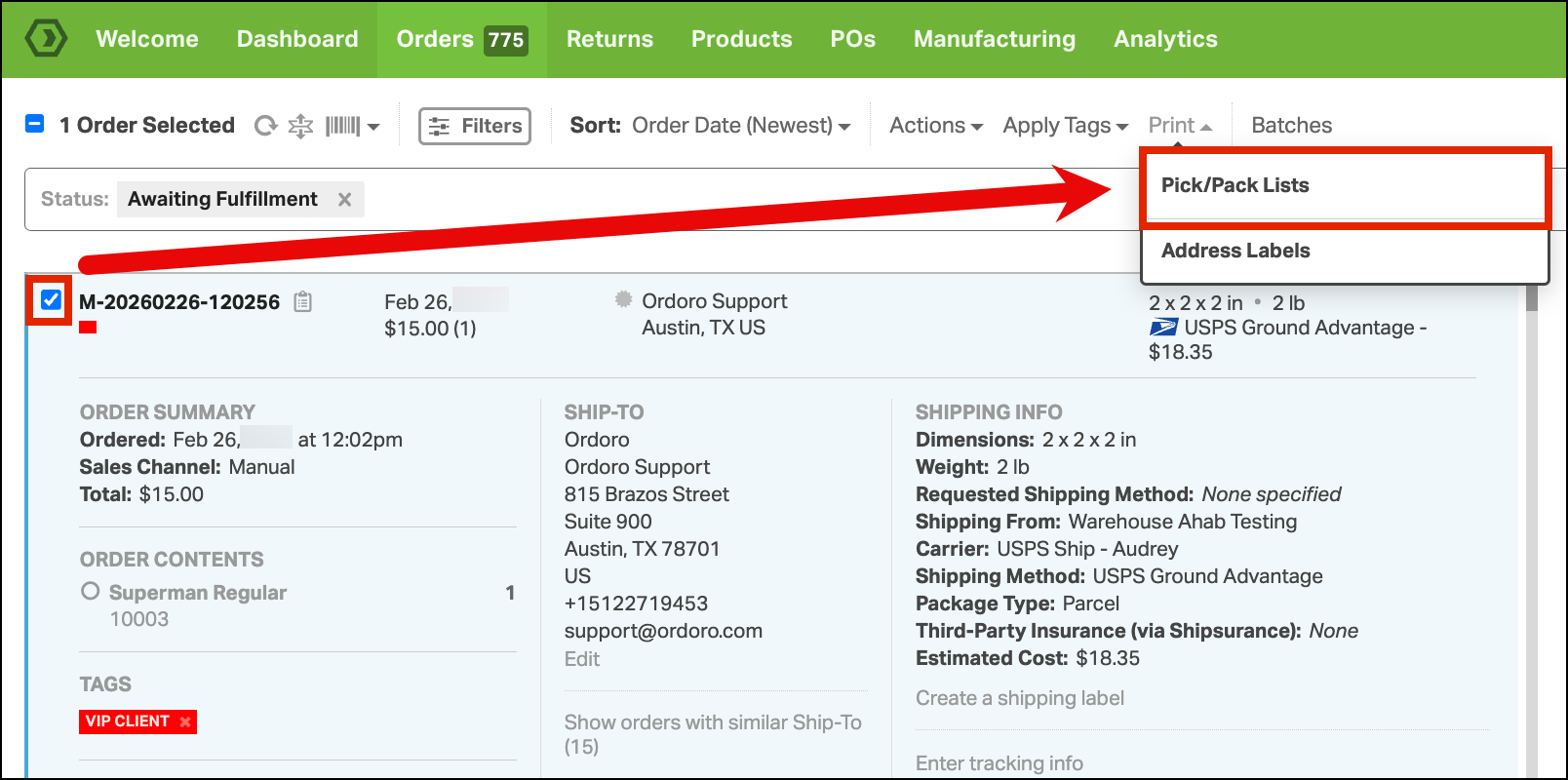
- Under Attach Packing List:
- Check Show Product SKUs to display SKUs
- Uncheck Show Product SKUs to hide SKUs.

- Print or preview the Pack List. The SKUs will appear or be removed based on your selection.
