
In Miva, if you set up product to have components, you’ll need to set them up correctly so Ordoro can:
- Track inventory accurately
- Import orders with the right SKUs
This guide walks through the recommended setup options, what each one does, and how to configure them. If your Ordoro account needs access to Kit Product imports, please email support@ordoro.com for access.
Topics
- How Miva setups translate to Ordoro
- Customer Checkout Option: Assign Attribute Components via Inventory Variants
- Customer Checkout Option: Assign Attribute Components via Inventory Kit Builder
- No Customer Checkout Option: Assign Inventory Variants
How Miva setups translate to Ordoro
All three options may look similar to your shopper, but they behave differently behind the scenes.
The key difference is how the product is structured in Miva, which determines whether Ordoro receives the right data for inventory tracking.
Option | How it’s set up in Miva | What Ordoro receives | Recommendation |
|---|---|---|---|
| Customer Checkout Option: Assign Attribute Components via Inventory Variants | Product is built using variants and structured inventory | Product and component details | Good option |
| Customer Checkout Option: Assign Attribute Components via Inventory Kit Builder | Product is built using the Miva Inventory Kit Builder to define how attribute choices map to components | Product and component details | Good option |
| No Customer Checkout Option: Assign Inventory Variants | Attributes are used for selection, but no structured inventory setup behind them | May not include the data needed for accurate inventory tracking | Not recommended |
In short:
- Options 1 and 2 both work well with Ordoro.
- The difference is how you prefer to manage the product inside Miva.
- Option 3 should be avoided if you plan to track inventory in Ordoro.
Assign Attribute Components via Inventory Variants
If your customers select options at checkout, use this setup to define each option as a bundle or kit in Miva. See the steps below:
Step 1: Enable inventory tracking
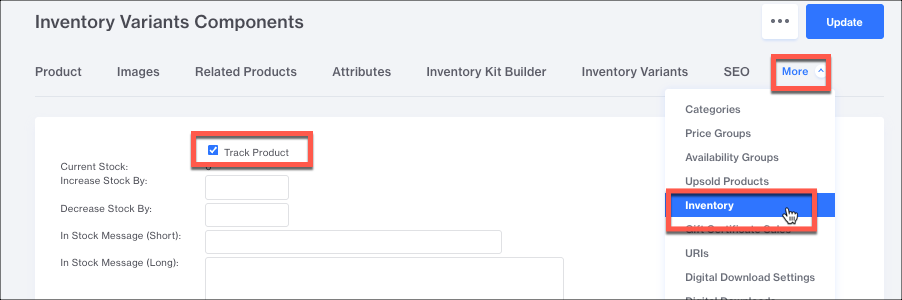
- Open your product in Miva.
- Go to More → Inventory.
- Select Track Product.
Step 2: Enable tracking on attributes
- Go to the Attributes tab.
- Make sure Track Inventory is enabled for each attribute.

Step 3: Generate variants
- Click Generate Variants.
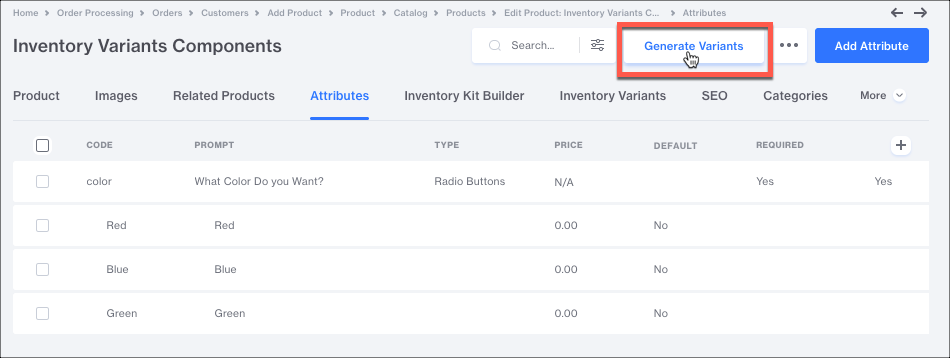
- Choose your:
- Variant code delimiter
- Pricing setup
- Click Generate.

Step 4: Add component products to each variant
- Go to the Inventory Variants tab.
- Select a variant option to edit.
- Add the component product(s) and quantity for that option.
- Click Save.
- Repeat these steps for each variant option.
What this looks like in Ordoro
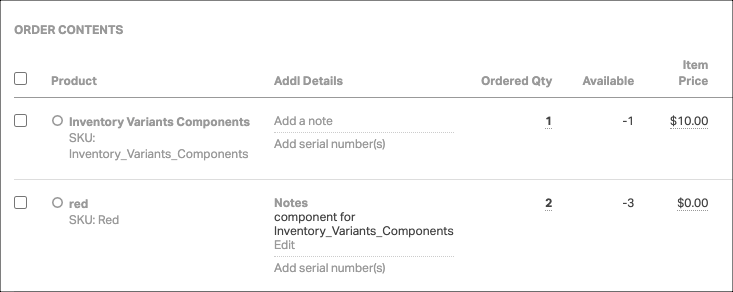
- When the order imports into Ordoro, you’ll see the SKU for the option the customer picked.
- You’ll also see the product tied to that option, plus a note in Additional Details showing that they’re connected.
- In the screenshot below:
- The red product is the option the customer selected.
- The other product is the item connected to that option.
- The note in Additional Details shows that relationship.
Assign Attribute Components via Inventory Kit Builder
If your customers need to make a selection on checkout, you can use this option to build your option choices as bundles/kits in Miva. See instructions below:
Step 1: Enable inventory tracking
- Open your product in Miva.
- Go to More → Inventory.
- Select Track Product.
Step 2: Enable tracking on attributes
- Go to the Attributes tab.
- Make sure Track Inventory is enabled for each attribute.
Step 3: Generate variants
- Click Generate Variants.
- Choose your:
- Variant code delimiter
- Pricing setup
- Click Generate.
Step 4: Add component SKUs using the Inventory Kit Builder
- Go to Inventory Kit Builder.
- Select an attribute option.
- Add the component SKU for that option, along with the quantity per selection and price per unit.
- Repeat these steps for each attribute option.
What this looks like in Ordoro
When the order imports into Ordoro, you’ll see both the kit product and the option the customer selected as separate line items.
If your pricing is set up separately in Miva, you’ll also see:
- The price for the kit product
- The price for the selected option
In addition, the selected option will include a note in Additional Details showing which kit product it’s connected to.
In the screenshot below:
- The red product is the option the customer selected
- The other product is the kit
- The note in Additional Details shows how they’re linked

Assign Inventory Variants
Use this setup if your customers do not need to choose an option at checkout and you want to build the product as a bundle or kit in Miva.
Important: This setup does not pass the component products on the order into Ordoro. If you plan to use Ordoro for inventory tracking, this is not the best option.
Step 1: Enable inventory tracking
- Open your product in Miva.
- Go to More → Inventory.
- Make sure Track Product is checked.
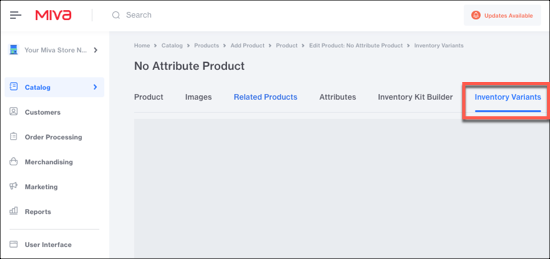
Step 2: Open Inventory Variants
- Open the Inventory Variants tab for the product.
Step 3: Edit the default variant
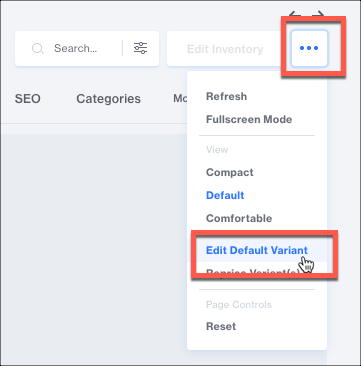
- Click the three dots in the upper-right corner.
- Select Edit Default Variant.
Step 4: Add the component products
- Add your component products as Variant Parts.
- Click Save.
What this looks like in Ordoro
When the order imports into Ordoro, you’ll only see the main product.
The component products added as Variant Parts in Miva do not import onto the order.
If you need those components tied to the product in Ordoro, you can set that up using Kitting in Ordoro instead.