
Automation Rules let Ordoro automatically apply actions to orders as soon as they’re in your account. This helps you save time, reduce mistakes, and keep your team consistent. See this support article for examples of popular shipping rules.
Common uses for rules include:
- Add a tag like “Rush” or “Fragile.”
- Apply a shipping preset (carrier, service, package type).
- Assign orders to the correct warehouse.
- Allocate inventory automatically.
Topics
- What Automation Rules do
- Before you start
- Quick start: Create your first rule
- Rule order and why it matters
- FAQ
- IF options reference
What Automation Rules do
Each rule has two parts:
- IF: Which orders should this apply to?
- THEN: What should Ordoro do with those orders?
Rules run when an order is created in Ordoro (imported from a cart or created manually). They do not continuously re-run on existing orders.
Before you start
A few key things to know before you build rules:
- Rules trigger at order creation. If you change a rule later, it won’t update older orders automatically.
- Rules can stack. More than one rule can apply to the same order.
- Presets can override each other. If multiple rules apply presets, the order of your rules matters.
- Text matching can be case-sensitive. If you use a text-based condition, match the wording exactly as it appears on orders.
- Use Rule Description/Notes. Each rule includes a field to write a quick reminder of what the rule is meant to do. For example, “Tag all Amazon orders” or “Assign international orders to Warehouse B.”
Quick start: Create your first rule
Use these steps to build a basic rule you can trust.
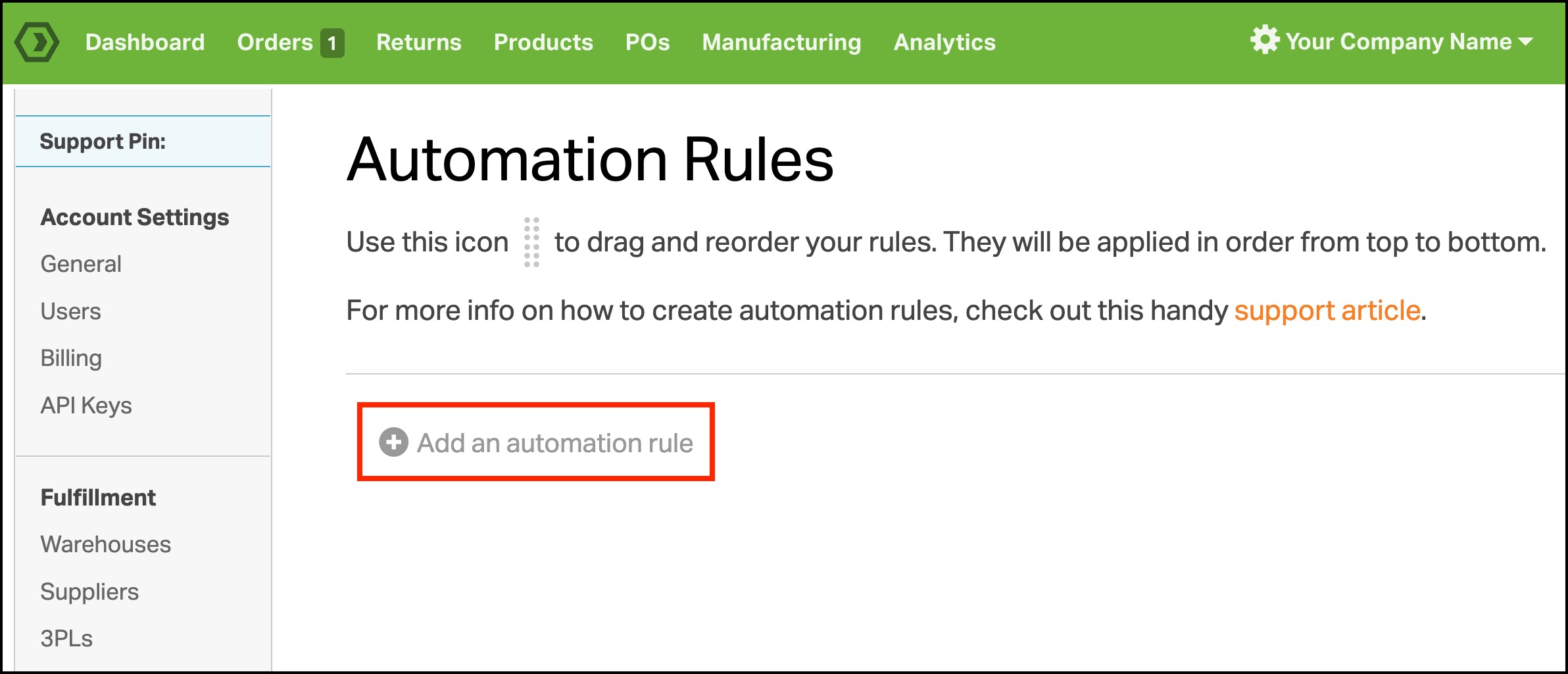
- Go to Settings (Company Name in the top right).
- In the left menu, go to Automation → Rules.
- Click Add an automation rule.
Step 1: Build the IF condition
- Choose an IF field (for example, Sales Channel, Ship To Country, Product SKU).
- Choose the condition (these change depending on the field).
- Enter the value the order must match. This field is case-sensitive.
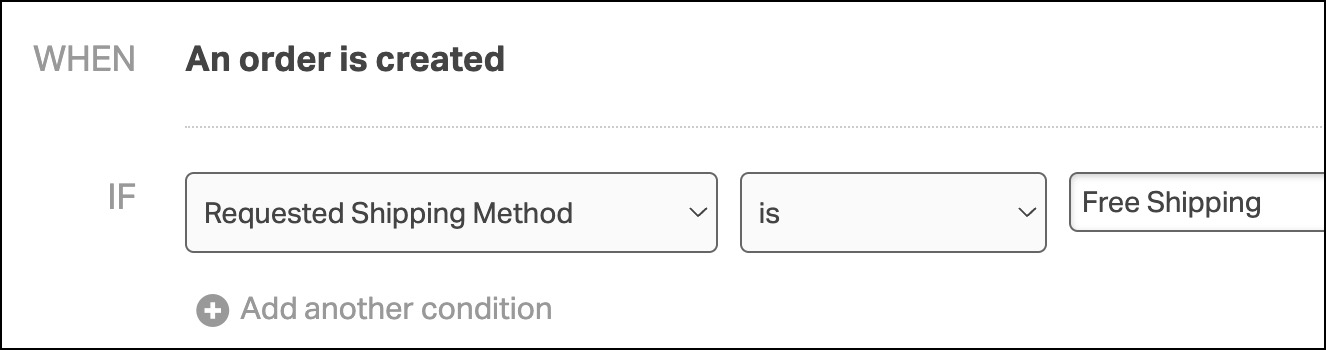
If you add multiple conditions, choose whether the rule should apply when:
- ALL conditions match (most common).
- ANY condition matches.

Step 2: Choose the THEN action
Pick what Ordoro should do when the IF condition matches. A rule can include multiple actions, such as:
- Allocate order (Learn about allocation)
- Apply tag (Learn about tags)
- Apply preset (Learn about presets)
- Assign to warehouse (Learn about warehouses)
- Dropship To (Learn about dropshipping)
- Mark as shipped (Learn about mark as shipped)
Tip: For presets, create the preset first, then add it to your rule.

Step 3: Add a Rule Description/Notes
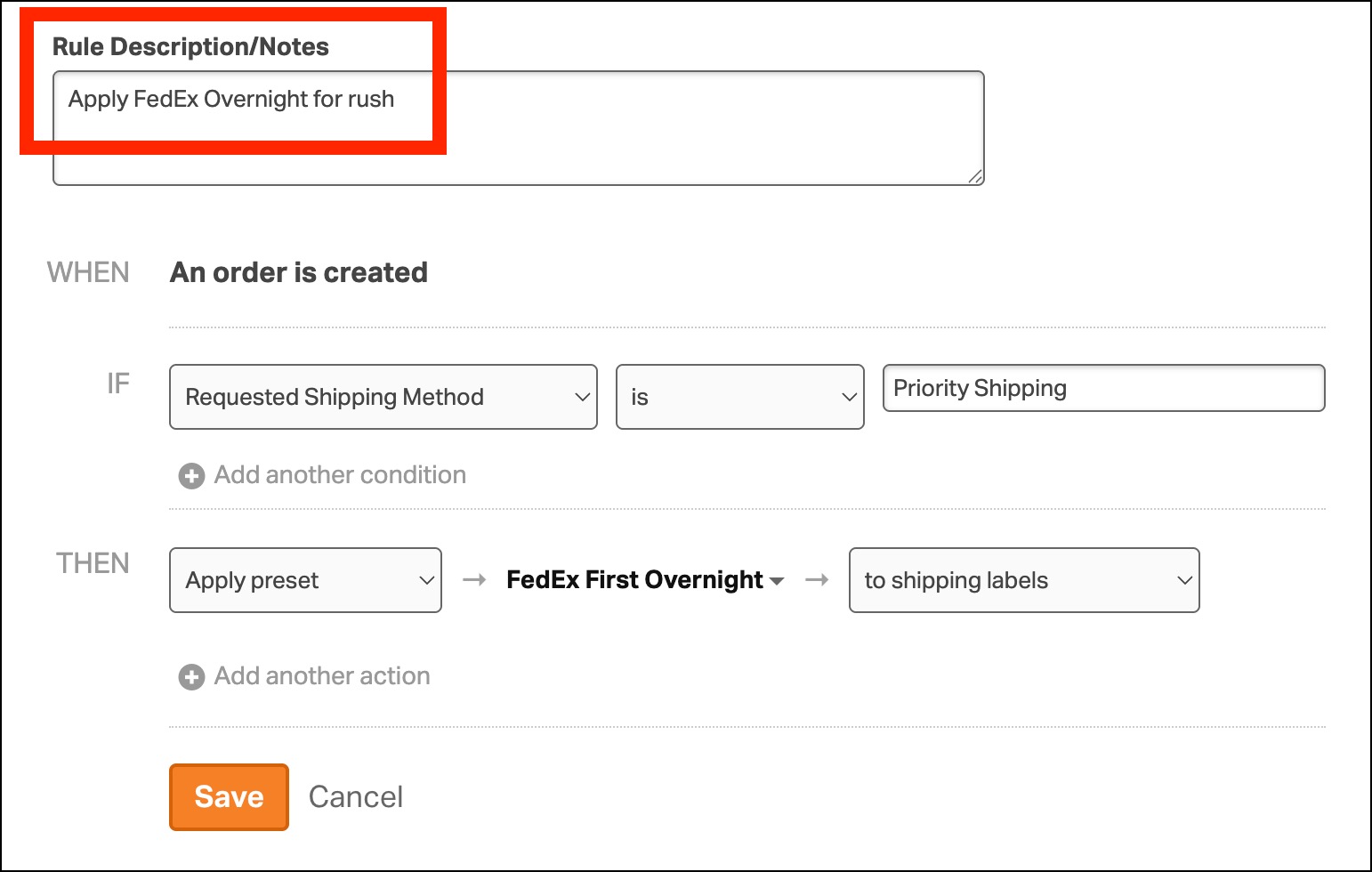
In Rule Description/Notes, write a short summary of what the rule is for. This makes it easier to understand and maintain your rules later.
Examples include:
- Apply FedEx Overnight for rush
- High-value orders: add insurance
- Fragile SKUs: add ‘Fragile’ tag
- Orders over $200: signature required
- Shopify preorders: tag as Preorder
Step 4: Save and test
After saving:
- Import a test order (or create one manually) that matches the IF conditions.
- Confirm that the tag/preset/warehouse appears on the order as expected.
Example:
- The rule is “IF Requested Shipping Method = Priority Shipping, THEN apply preset FedEx First Overnight.”
- Created a test order with Priority Shipping and confirmed the preset applied.

Rule order and why it matters
Rule order matters most when you apply presets.
If multiple rules apply presets that set the same kind of value (like carrier, shipping method, or package type), Ordoro applies them from top to bottom. The last preset applied can win.
Example 1:
You have three separate rules that could all match the same order and apply:
- FedEx Overnight preset
- UPS Ground preset
- USPS Priority Mail preset
If the order matches all three rules, USPS Priority Mail will be applied since it was the last rule in the list.

Example 2:
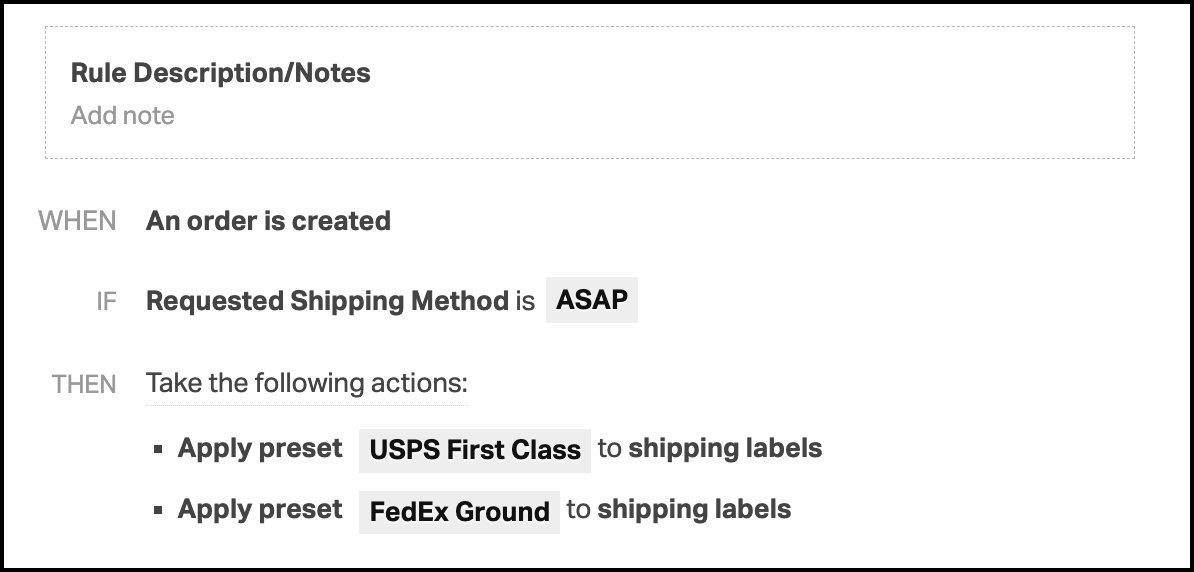
You have one rule could all match the same order and apply:
- USPS First Class preset
- FedEx Ground preset
If the order matches this rule, FedEx Ground preset will be applied since it was the last preset listed in the rule.
Reorder rules
- Go to Automation → Rules.
- Hover to the left of the rule to find the reorder icon. Then drag it to move the rule up or down.
Tip: Put your most specific preset rules lower in the list, and more general “catch-all” preset rules higher. This helps ensure the right preset wins.

FAQ
Can multiple rules apply to the same order?
- Yes, multiple rules can apply.
- If multiple rules apply tags, the order can receive all of them.
- If multiple rules apply presets, the rule order determines which preset will be applied last / wins.
Can I name a rule?
- Rules don’t have a title field. Use Rule Description/Notes to describe what the rule is for.
Can I change the tag or preset after the rule runs?
- Yes, rules don’t lock orders. You can still change tags/presets on the order afterward.
If I delete a rule, will it remove tags or presets from past orders?
- No, deleting a rule does not change orders that already had tags/presets applied.
IF options reference
When you choose an IF field, Ordoro shows condition options that match that field type (text, dropdown, or number). Some fields also include Any / Every because an order can contain multiple line items.
Text fields (match words or phrases)
Use these when the field is text-based (names, addresses, notes, IDs, etc.).
Available conditions:
- is
- is not
- contains
- does not contain
- is blank
- is not blank
- starts with
- does not start with
- ends with
- does not end with
Fields that use these conditions:
- Requested Shipping Method
- Order ID
- Notes from Customer
- Internal Notes
- Ship To: Name, Email, Company, Phone, Street 1, Street 2, City, State, Country, Zip
- Bill To: Name, Email, Company, Phone, Street 1, Street 2, City, State, Country, Zip
Dropdown fields (choose from a list)
Use these when the field is selected from a dropdown.
Available conditions:
- is
- is not
Fields that use these conditions:
- Sales Channel
Note: Sales Channel conditions are limited because you select the value from a dropdown list.
Number fields (compare values)
Use these when the field is a number (totals, weights, counts).
Available conditions:
- equals
- does not equal
- is greater than
- is greater than or equal to
- is less than
- is less than or equal to
Fields that use these conditions:
- Order Grand Total
- Product Total
- Shipping and Handling
- Discount Amount
- Tax Amount
- Order Weight
- Total Item Count in Order
- Total Line Count in Order
Line item fields (Any / Every)
Use these when the IF field checks products on the order. Since an order can have multiple line items, you’ll choose:
- Any: The rule applies if at least one line item matches.
- Every: The rule applies only if all line items match.
After choosing Any or Every, you’ll pick a condition based on the field type (text or number).
Line item text fields
Available conditions (after Any/Every):
- is
- is not
- contains
- does not contain
- is blank
- is not blank
- starts with
- does not start with
- ends with
- does not end with
Fields that use these conditions:
- Product Name
- Product Category
- Product Tag
- Order Line Additional Details
Line item number fields
Available conditions (after Any/Every):
- equals
- does not equal
- is greater than
- is greater than or equal to
- is less than
- is less than or equal to
Fields that use these conditions:
- Order Line Quantity
- Order Line Total Price