
After you receive inventory from a purchase order, you can print barcode labels directly from the Goods Receipt. This makes it easier to label newly received products without leaving the PO workflow.
You can print barcode labels for:
- All received items on a Goods Receipt
- One received product line
Barcode label quantities are based on the quantity received.
Topics
- Print barcode labels for an entire Goods Receipt
- Print barcode labels for one product line
- How barcode label quantities are calculated
- What happens if a Goods Receipt is edited
Print barcode labels for an entire Goods Receipt
Use this option when you want to print barcode labels for all products received on a Goods Receipt.
- Go to the POs tab.
- Click the PO for printing.

- Select the Goods Receipts tab.
- Click the Print Barcodes button.
- This button appears in the Goods Receipt header and looks like a barcode icon.

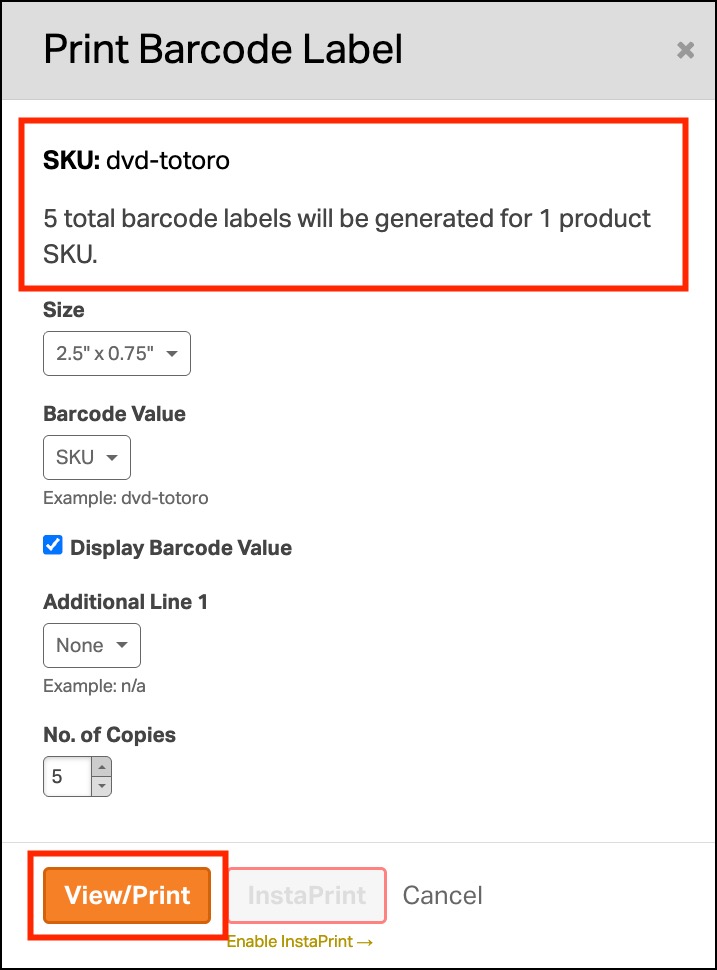
- The Print Barcode Label modal will open.
- Review the barcode label summary. The summary shows the total number of barcode labels to be generated and the number of product SKUs included.
- Update the No. of Copies field if needed.
- Click View/Print to create the barcode labels.

Note: Only products that were received will be included. If the quantity received for a product is zero, then it will not be included.
Print barcode labels for one product line
Use this option when you only need labels for one item on the Goods Receipt.
- Go to the POs tab.
- Open the PO.
- Select the Goods Receipts tab.
- Open the Goods Receipt.
- Find the product line you want to print labels for.
- Click the barcode icon on that product line.

- The Print Barcode Label modal will open.
- Confirm the selected SKU appears in the barcode label summary.
- Update the No. of Copies field if needed.
- Click View/Print to create the barcode labels.
How barcode label quantities are calculated
Barcode labels are calculated using the received quantity and the No. of Copies value.
Formula:
Received quantity x No. of Copies = Total barcode labels
Example:
- Received quantity = 5
- No. of Copies = 2
- Total barcode labels = 10
If you received multiple products, Ordoro calculates the barcode label quantity for each product and adds them together.
Example:
- SKU A received quantity = 2
- SKU B received quantity = 3
- No. of Copies = 4
Ordoro will generate:
- SKU A: 2 x 4 = 8 barcode labels
- SKU B: 3 x 4 = 12 barcode labels
Total barcode labels: 20
What happens if a Goods Receipt is edited?
If you edit the received quantity on a Goods Receipt, Ordoro will use the updated quantity when printing barcode labels.
Example:
- Original received quantity = 5
- Updated received quantity = 7
- No. of Copies = 2
Ordoro will generate 14 barcode labels for that product.