
Ordoro lets you import product images from certain sales channels and display them in key parts of the app. Once images are saved in your account, you can choose where they show up, like the Order Detail page or Product List.
This guide walks you through how to enable product image display in your Account Settings.
Topics
Where can product images be shown?
Once enabled, product images can appear in these areas of Ordoro:
- Order Detail Page
- Product List Page
- Product Detail Page
- RMA Detail Page
How to enable product images
To turn on product image display in your account:
- Click your Company Name in the top-right corner of Ordoro.
- Select Account Settings from the dropdown.
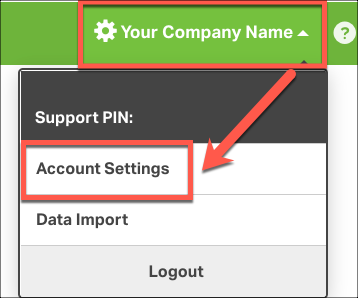
- Scroll to the Product Images section.
- Check the boxes for where you want images to appear:
- Display on Order Detail Page
- Display on Product List Page
- Display on Product Detail Page
- Display on RMA Detail Page

- Scroll to the bottom of the page and click Save.

That’s it! Your product images will now appear in the selected areas.
Need help uploading images?
If you haven’t imported any product images yet, check out these guides: