
Ordoro lets you choose how Purchase Order IDs are created to fit your company’s PO numbering system. You can use the default datetime-based format or set up sequential PO numbers with your own prefix and starting number. Sequential PO IDs can make purchase orders easier to organize, find, and match with supplier records, invoices, and accounting systems.
Topics
- Choose your PO ID format
- Date/Time Sequence IDs
- Sequential Number IDs
- Change the prefix or sequence number
- Use sequential IDs with Data Import
Choose your PO ID format
To manage your PO ID settings:
- Go to your Company Name > Settings.
- Select the PO ID Format settings.

- Click Configure Format.
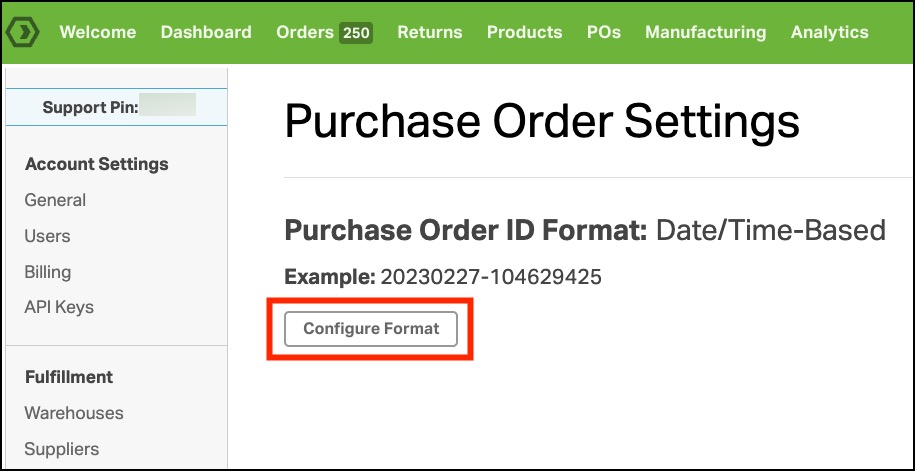
- Choose one of the following formats:
- Date/Time Sequence
- Sequential Numbers
- Save your changes.
Your new settings will apply to POs created after the change. Existing PO IDs will not be updated.
Date/Time Sequence IDs

Date/Time Sequence IDs are the default option.
When this setting is selected, Ordoro creates the PO ID using the date and time the PO was created.
This option works well if you do not need your POs to follow a specific numbering system.
Sequential Number IDs

Sequential IDs use a prefix followed by a number that increases with each new PO.
To set up sequential IDs:
- Enter a Prefix.
- Enter a Starting number.
- Save your settings.
The next PO you create will use the prefix and starting number you entered.
Example
You enter:
- Prefix: ABC-
- Starting number: 1000
Ordoro creates:
- ABC-1000
- ABC-1001
- ABC-1002
Include separators in the prefix
Ordoro does not automatically add a hyphen, underscore, or other separator between the prefix and number.
Include any separator you want as part of the prefix.
| Prefix | Example PO ID |
|---|---|
| ABC | ABC1000 |
| ABC- | ABC-1000 |
| ABC_ | ABC_1000 |
Change the prefix or sequence number
You can change the prefix without restarting the number sequence.
For example:
- Your most recent PO is XYZ1000.
- You change the prefix from XYZ to XYZ-
- You leave the sequence number unchanged.
- You create another PO.
The next PO will be XYZ-1001.
Previously created PO IDs will remain unchanged.
Change the sequence number
You can also update the sequence number. Before saving a new number, make sure the complete PO ID will not match an existing PO.
For example, if PO-2000 already exists, do not configure the next PO ID as:
- Prefix: PO-
- Sequence number: 2000
Each PO ID must be unique within your Ordoro account. It’d be better to set the sequence number to 2001.
Switch back to datetime-based IDs
You can switch back to datetime-based PO IDs at any time.
- Go to Settings > Purchase Orders.
- Select Datetime-based.
- Save your settings.
New POs will use datetime-based IDs. Existing sequential PO IDs will not change.
If you later turn sequential IDs back on, review the prefix and sequence number before creating another PO. Make sure the next ID will not match an existing PO.
Use sequential IDs with Data Import
When sequential IDs are enabled, POs created through Data Import will use the next number in the sequence when the PO ID is left blank.
For example, if your most recent PO is PO-1004, the next imported PO without a PO ID will be assigned PO-1005.
