
Need to find a specific order fast? Advanced Search helps you quickly narrow down your Order List using exact Order Numbers or product SKUs.
This can save time when you’re tracking down customer issues, reprinting labels, checking order status, or shipping a specific set of products.
Instead of sorting through broad search results, Advanced Search helps you get right to the orders you need.
Topics
What is Advanced Search?
The standard search bar in Ordoro looks across many parts of an order, including order numbers, phone numbers, addresses, SKUs, and more.
That’s helpful when you’re not sure what you’re looking for, but sometimes you need a more precise search.
Advanced Search lets you filter by:
- Order Number → Find an exact order.
- SKU → Find orders containing a specific product.
This helps avoid unrelated matches and gets you to the right orders faster.
For example:
If you search “1234” using the standard search bar, you may see:
- Order 1234.
- Orders with 1234 in the phone number.
- Orders with SKUs containing 1234.
With Advanced Search, searching by Order Number only returns the exact order you selected.
How to search by Order Numbers
- Go to the Orders page.
- Click Filters.
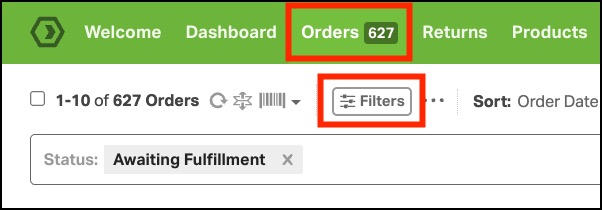
- Scroll to the section titled: ORDER IDs.
- Search for an Order Number and select it once found.
- Ordoro will return only the exact matching order.

- Click Apply.
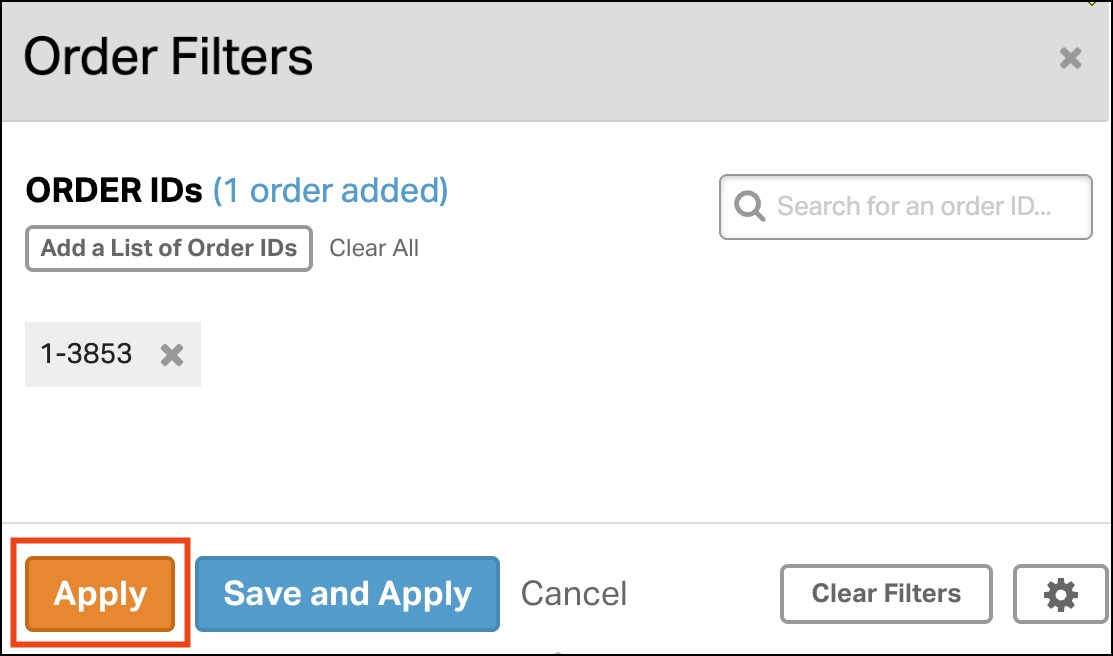
Ordoro will return only the exact matching order.

You can also paste a list of Order Numbers directly to search.
- Click Or Add a List of Order IDs.
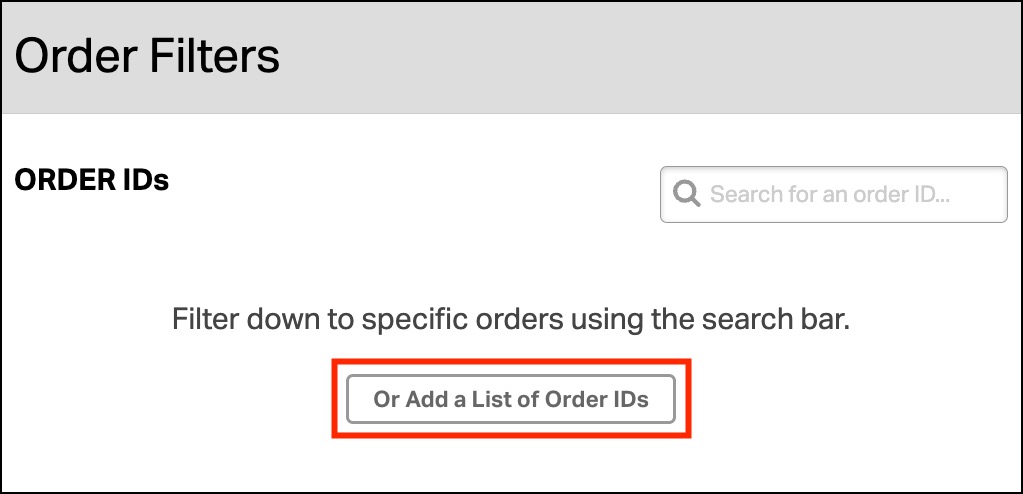
- A pop-up will appear, allowing you to enter multiple Order IDs.
- Enter Order IDs separated by spaces, line breaks, commas or tabs.
- Put quotes around order numbers if they contain spaces, line breaks, commas or tabs (example: “Order 123” ).

- Once you click Add Order IDs, the orders will be selected.

How to search by SKUs
- Go to the Orders page.
- Click Filters.
- Scroll to the section titled: SKUs.
- Search and select a SKU once found.
- Note: Archived SKUs will not appear in SKU search.
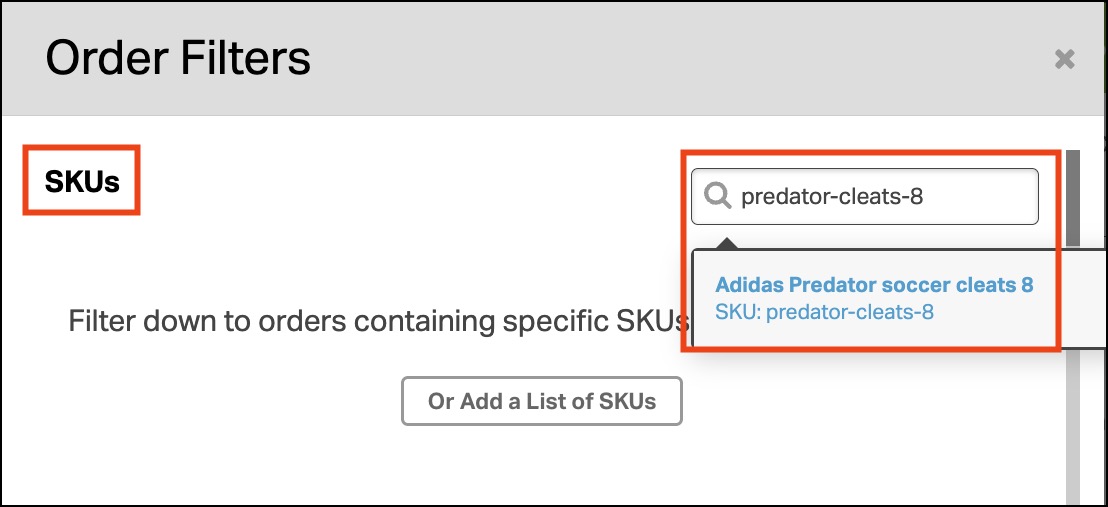
- Click Apply.
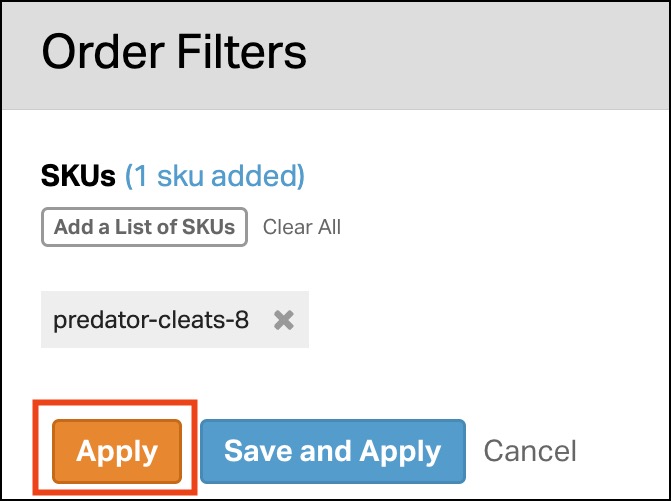
- Ordoro will return orders containing that exact SKU.
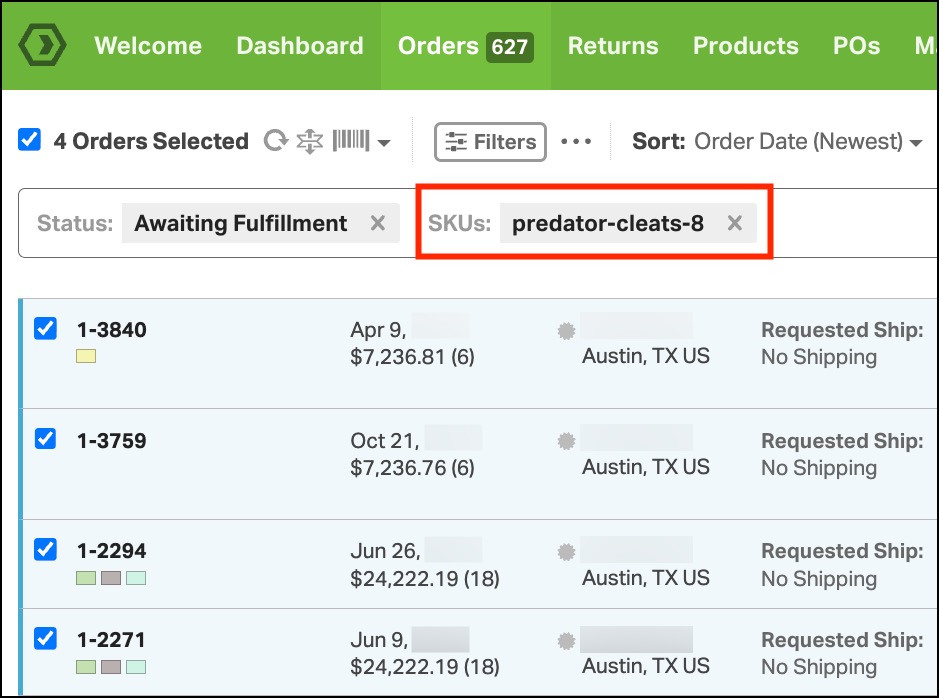
This is especially helpful when:
- A product has a fulfillment issue.
- You need to re-ship orders for a specific item.
- You are checking which customers ordered a recalled or delayed product.
- You want to batch ship a specific SKU.
You can also paste a list of SKUs directly to search.
- Click Or Add a List of SKUs.

- A pop-up will appear, allowing you to enter multiple SKUs.
- Enter product SKUs separated by spaces, line breaks, commas or tabs.
- Put quotes around SKUs if they contain spaces, line breaks, commas or tabs (example: “Red shirt XL” ).
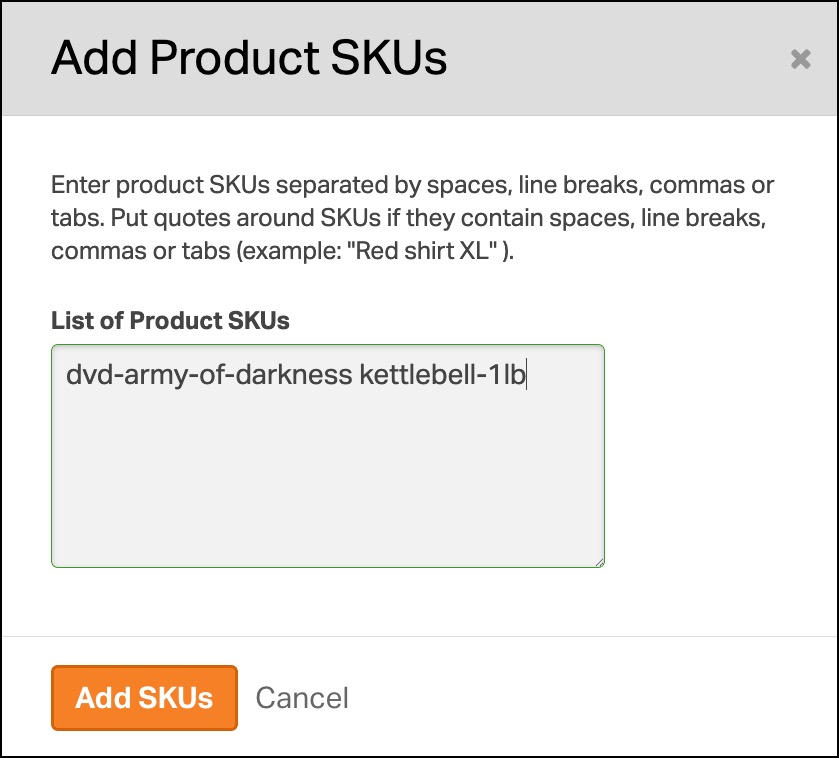
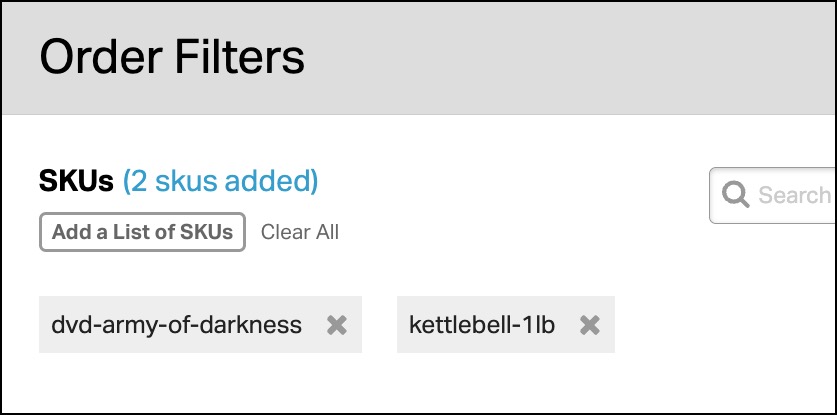
- Once you click Add SKUs, the SKUs will be selected.
Tips for best results
- Advanced Search uses exact matches.
- Partial values may not return results.
- Searching “123” will not return order 12345.
- Searching “MUG” will not return MUG-BLUE.
- You can combine filters.
- Use Advanced Search alongside filters like order status, tags, carts, or date ranges to narrow results even further.
- Advanced Search works with saved filters.
- If you frequently search the same SKUs or Order Numbers, save your filter to reuse it later.