
Choosing the right shipping method is all about striking a balance between fast delivery, affordable costs, and minimal hassle. That’s where Ordoro’s Rate Shopping feature comes in.
With this tool, you can view and compare live shipping rates across multiple carriers like USPS, FedEx, and UPS – all in one place. Whether you’re looking for the cheapest rate or the fastest arrival time, Rate Shopping gives you more visibility and control without changing your current workflow.
Interested in early access? Contact our Support team at support@ordoro.com to enable this feature and help shape its future.
Topics
- What is Rate Shopping?
- Why use Rate Shopping
- How to use Rate Shopping
- Sorting Shipping Rates
- Applying Multiple Presets
- Additional Rate Shopping Features
- Future Improvements
What is Rate Shopping?
Rate Shopping allows you to view shipping rates from multiple carriers simultaneously. All from right inside the label panel. It uses live rate data from your connected carriers so you can make quick, informed shipping decisions.
This tool works seamlessly with standard shipments, Quick Ship orders, and scan-to-pick-and-pack workflows, so there’s no need to change how you ship.
Why use Rate Shopping?
Here’s how this feature can help your business:
- Save money: Easily find the most affordable rate from your selected carriers.
- Meet delivery expectations: Quickly spot the fastest option available.
- Stay flexible: Mix and match box types and services from different carriers.
- Save time: No need to toggle between carrier dropdowns. See everything in one view.
How to use Rate Shopping
Follow these steps to compare rates:
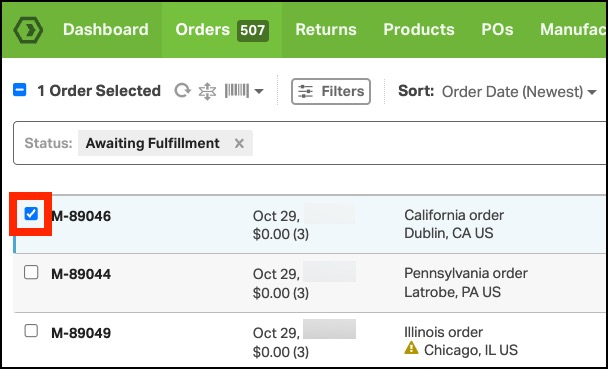
- Select an order in your Orders tab.
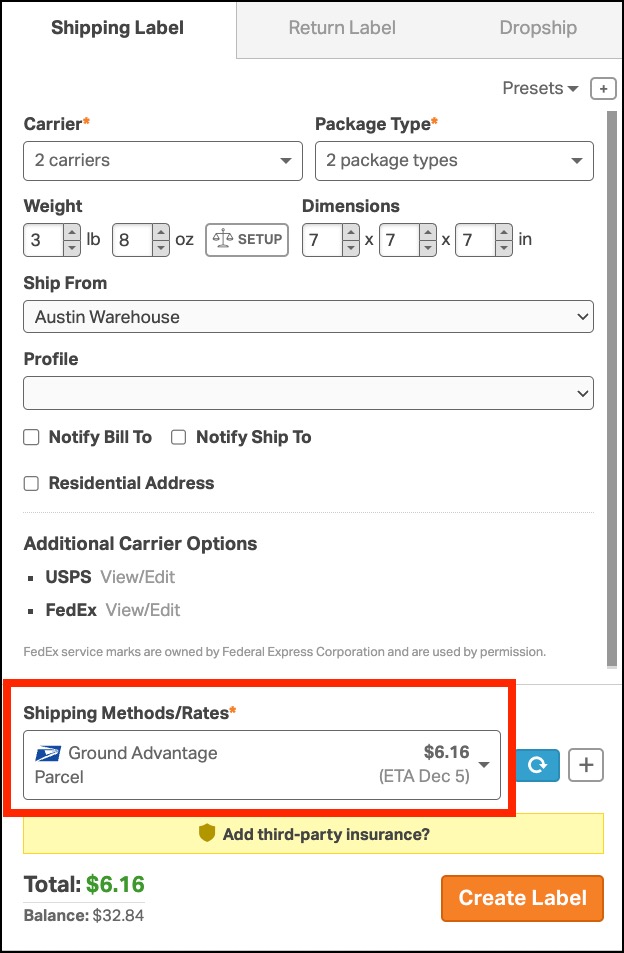
- In the label panel, go to the carrier dropdown and select multiple carriers. Use Select All to view everything, or choose specific carriers to compare.

- The shipping rates will refresh automatically once carriers are selected.
- Click the Shipping Methods/Rates box to open a pop-up showing the rates for all selected carriers.
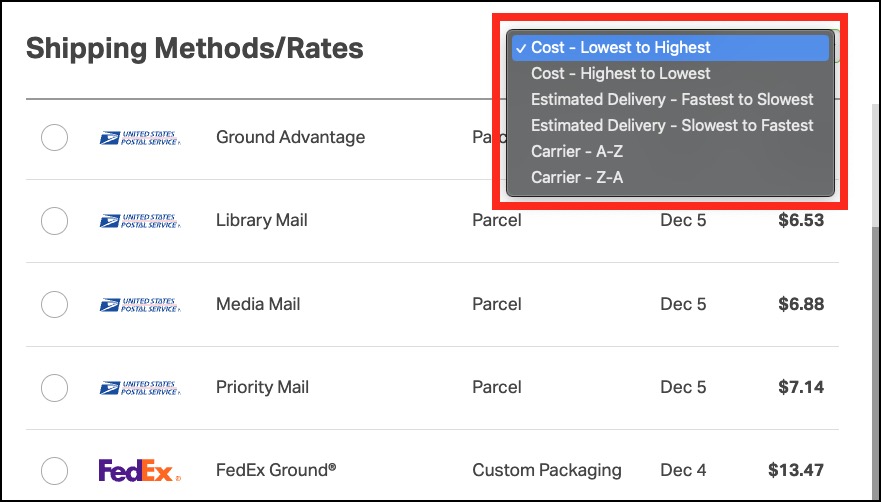
- Use the sort options to organize by price, delivery estimate, or carrier.
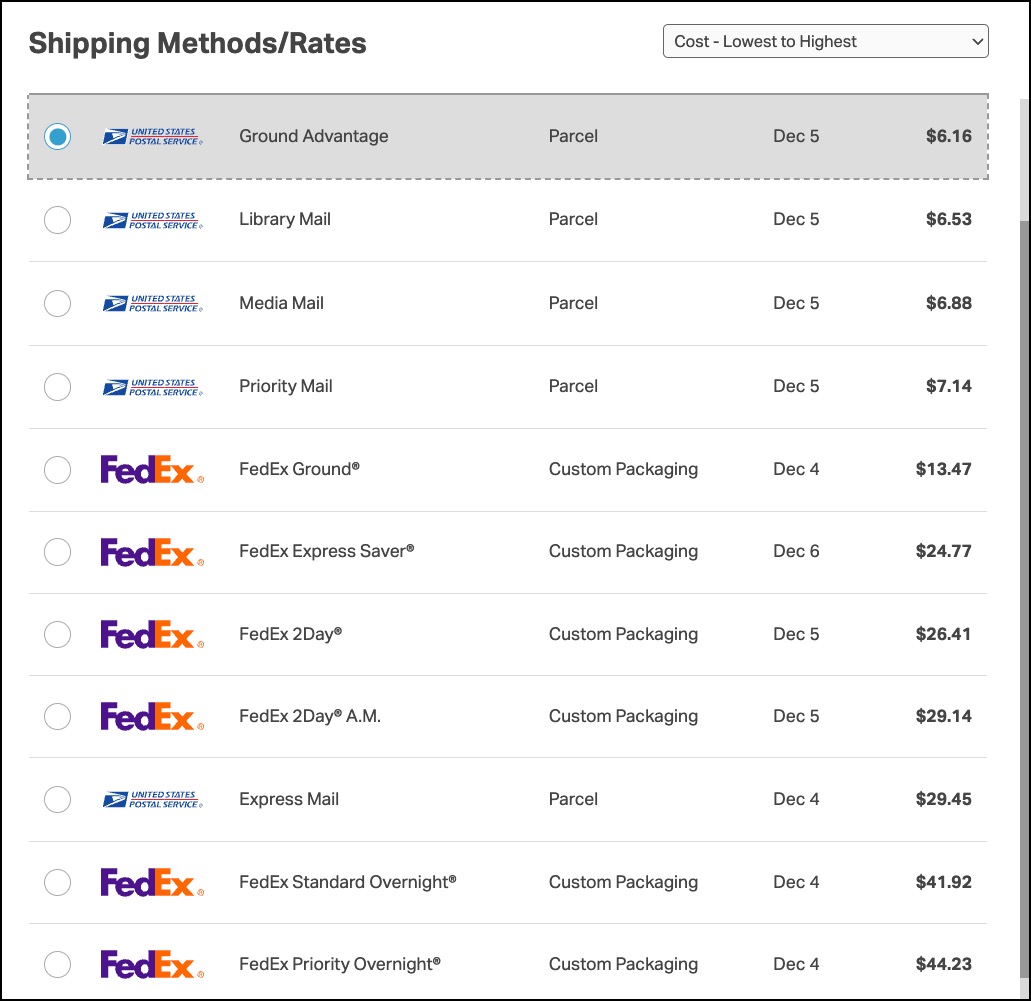
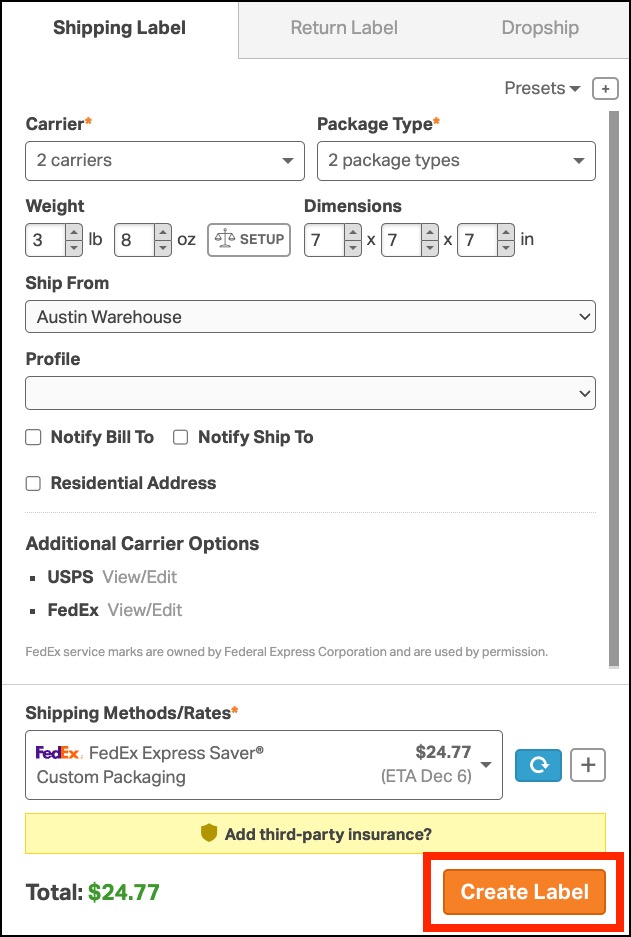
- Navigate through the list using the dashed box around the rates, then click (or press Enter) to choose your rate.
- Click Create Label to finish shipping the order.
Sorting Shipping Rates
You can sort the rate comparison panel in the following ways:
- Cost: Lowest to highest or highest to lowest.
- Estimated Delivery: Fastest to slowest or slowest to fastest.
- Carrier: Alphabetically (A-Z or Z-A).
Applying Multiple Presets
More than one preset can be applied to the same order. Here are the details.
- If the presets update different settings (like one for FedEx and one for UPS), they’ll work together, and you’ll see rates for both carriers.
- If the presets update the same field (like weight or box type), then the value from the last preset applied will override the earlier one.
- Example:
- If you apply one preset with a weight of 2 lbs.
- And then another with a weight of 5 lbs.
- The final weight of the order will be 5 lbs.
- Example:
Additional Rate Shopping Features
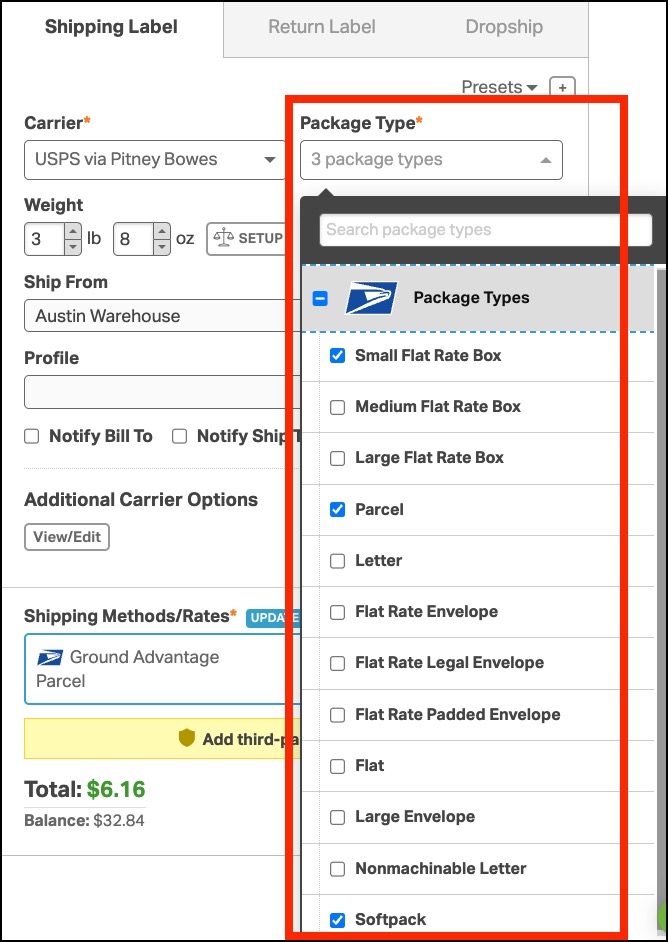
- Compare box types
- Even if you’re shipping with just one carrier, you can still view and compare rates across multiple box types (e.g., USPS Flat Rate vs. Parcel).
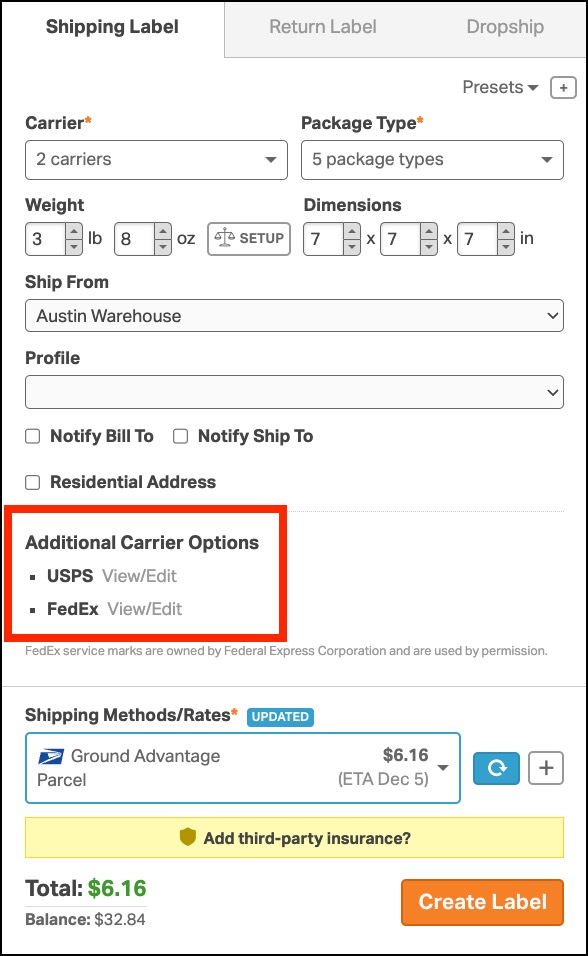
- Customize per carrier
- When multiple carriers are selected, you’ll still see individual service options, delivery confirmations, insurance settings, and more for each one.
Future Improvements
This feature is getting continual enhancements. Coming soon:
- Presets for Rate Shopping
- Save common carrier and package combinations for faster label creation.
- Smarter workflows
- We’re actively refining the experience based on your feedback to make rate shopping even smoother.