
Exporting your order data gives you more flexibility to analyze, organize, and share your business data outside of Ordoro.
You can download your orders as a CSV file, which opens in Excel, Google Sheets, or Numbers. From there, you can sort, filter, and build reports that fit your workflow.
Topics
- When to export order data
- Which report should I use?
- How to export your orders
- Helpful tips
- Order Summary / Detail column headers
When should I export order data?
You might export your orders to:
- Build email lists for marketing campaigns
- Identify repeat purchases or trends by SKU
- Review sales by state for tax reporting
- Share order data with your team or partners
- Create custom reports in Excel or Google Sheets
Which report should I use?
When exporting, you’ll choose between Order Summary and Order Detail. The right choice depends on what you need.
Order Summary (one row per order)
- Each row = one order
- Does not include product-level details (like SKUs or item names)
Best for:
- Revenue reporting
- Order totals and trends
- Sharing a clean summary with accounting or leadership

Order Detail (one row per item)
- Each row = one product on an order
- Orders with multiple items will appear across multiple rows
Best for:
- Sales by SKU analysis
- Understanding what customers are buying
- Sending item-level data to suppliers
💡 Example: If an order has 3 items:
- Summary report → 1 row
- Detail report → 3 rows

Working with kits
If you use kitting and export an Order Detail report:
- You can choose Include kit components in report
- Each component will appear as its own row
- Multi-level kits will show the lowest-level components

Additional columns included:
- Component Ordered Qty
- Component SKU
- Component SKU Description
Kits can hide what’s actually selling. With components included, you can:
- See which individual products are moving fastest
- Forecast inventory more accurately
- Avoid stockouts on high-use components
How to export your orders
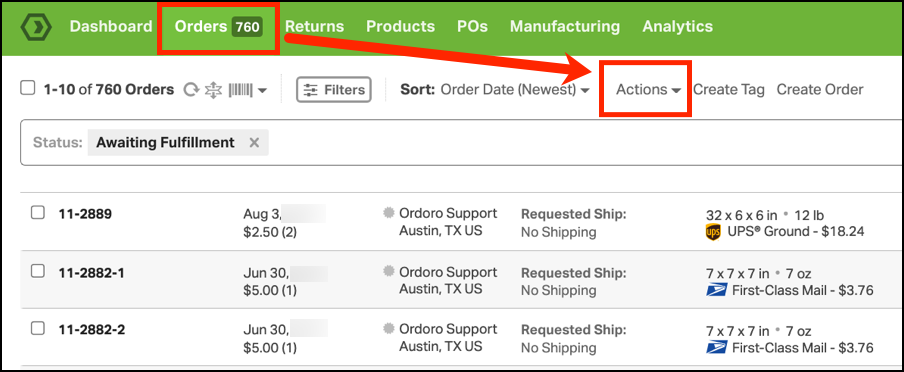

- In the pop-up, click Edit to customize your export.

- Choose your filters (date range, status, etc.)
- Click Apply.

- Optional: Select Include Time Zone to use your local time zone instead of UTC.

- Optional: Select Include kit components in report (Order Detail only)

- Click Export or Schedule.
- Export = download once
- Schedule = send reports automatically

- Once complete, go to Activity Menu → Exports.
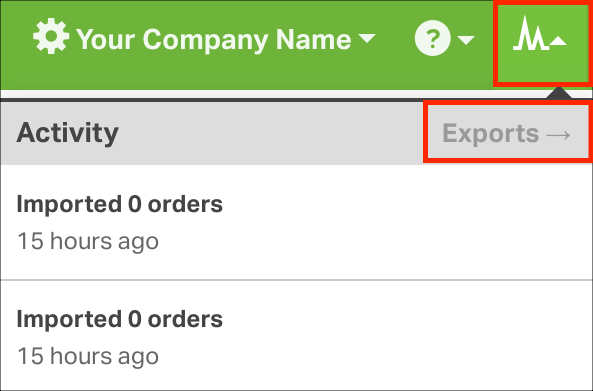
- Click CSV to download your file.

Helpful tips
Data may vary based on your setup
Your export may look different depending on:
- Your shipping methods, like multi-package or flat rate shipments
- Your carriers
- Your Ordoro subscription
The sections below explain each scenario.
Flat rate shipments
Examples:
- USPS Small Flat Rate Box
- FedEx One Rate
- UPS Express Boxes
What to expect:
- No dimensions included (they’re fixed)
- Weight is included
Multi-package shipments
Examples:
What to expect:
- No dimensions shown
- Weight reflects the total across all packages
Allocation (Inventory feature)
If you use Allocation:
- The export includes an Allocation column
- Data is only accurate if Allocation is enabled. This feature is for our Inventory Apps plans.
Additional columns:
- Allocation Status (order-level status)
- Order Line Allocation (line-level detail)
Time zone note
By default, exports use UTC.
To change this:
- In the Date Range section, select Include Time Zone
- Choose your preferred timezone
Order Summary / Detail column headers
Below is a comparison of the fields included in each report type.
| Column | Order Summary | Order Detail |
|---|---|---|
| Order ID | ✓ | ✓ |
| External Order ID | ✓ | ✓ |
| Order Date | ✓ | ✓ |
| Cart Name | ✓ | ✓ |
| Order Status | ✓ | ✓ |
| Number of Lines | ✓ | ✓ |
| Total Price | ✓ | ✓ |
| Product Subtotal | ✓ | ✓ |
| Discount | ✓ | ✓ |
| Shipping & Handling | ✓ | ✓ |
| Tax | ✓ | ✓ |
| Credit Card Issuer | ✓ | ✓ |
| Bill To (Company Name) | ✓ | ✓ |
| Bill To (Name) | ✓ | ✓ |
| Bill To (Street1) | ✓ | ✓ |
| Bill To (Street2) | ✓ | ✓ |
| Bill To (City) | ✓ | ✓ |
| Bill To (State) | ✓ | ✓ |
| Bill To (Code) | ✓ | ✓ |
| Bill To (Country) | ✓ | ✓ |
| Bill To (Email) | ✓ | ✓ |
| Bill To (Phone) | ✓ | ✓ |
| Bill To (Fax) | ✓ | ✓ |
| Bill To (Reference Number) | ✓ | ✓ |
| Ship To (Company Name) | ✓ | ✓ |
| Ship To (Name) | ✓ | ✓ |
| Ship To (Street1) | ✓ | ✓ |
| Ship To (Street2) | ✓ | ✓ |
| Ship To (City) | ✓ | ✓ |
| Ship To (State) | ✓ | ✓ |
| Ship To (Code) | ✓ | ✓ |
| Ship To (Country) | ✓ | ✓ |
| Ship To (Email) | ✓ | ✓ |
| Ship To (Phone) | ✓ | ✓ |
| Ship To (Fax) | ✓ | ✓ |
| Ship To (Reference Number) | ✓ | ✓ |
| Requested Shipping Method | ✓ | ✓ |
| Customer Instructions | ✓ | ✓ |
| Internal Notes | ✓ | ✓ |
| Order Allocation Status | ✓ | ✓ |
| Shipment Date | ✓ | ✓ |
| Ship From | ◯ | ✓ |
| SKU | ◯ | ✓ |
| SKU Description | ◯ | ✓ |
| SKU Additional Details | ◯ | ✓ |
| Category | ◯ | ✓ |
| Ordered Qty | ◯ | ✓ |
| Order Line Price | ◯ | ✓ |
| Shipped Qty | ◯ | ✓ |
| Order Line Allocated | ◯ | ✓ |
| Vendor | ✓ | ✓ |
| Shipping Method | ✓ | ✓ |
| Tracking Number | ✓ | ✓ |
| Tracking Status (USPS only) | ✓ | ✓ |
| Shipping Cost | ✓ | ✓ |
| Length | ✓ | ✓ |
| Width | ✓ | ✓ |
| Height | ✓ | ✓ |
| Weight (in oz) | ✓ | ✓ |
| Package Type | ✓ | ✓ |
| Weighted Average Unit Cost | ◯ | ✓ |
| Tags | ✓ | ✓ |
| Supplier | ✓ | ✓ |
| Supplier SKU | ◯ | ✓ |
| Serial Numbers | ◯ | ✓ |
| Payor | ✓ | ✓ |
| Duties Payor | ✓ | ✓ |
| Component Ordered Qty * | ◯ | ✓ |
| Component SKU * | ◯ | ✓ |
| Component SKU Description * | ◯ | ✓ |
* If Include kit components in report is selected.