
If you are receiving this error when trying to create a USPS Ship label, you’ll need to reauthorize your USPS Ship account.
Error creating label image: 446981. The X-Payment-Authorization-Token token provided with the request is invalid or missing.
In Ordoro, your USPS Ship account will show a yellow Reauthorize bar.

How to reauthorize your USPS Ship Account
To reauthorize, follow these steps.
1. Click on your company name in the top right corner of Ordoro. In the dropdown, select Account Settings.

2. Go to Shippers/Carriers.
3. Click Edit by USPS Ship.
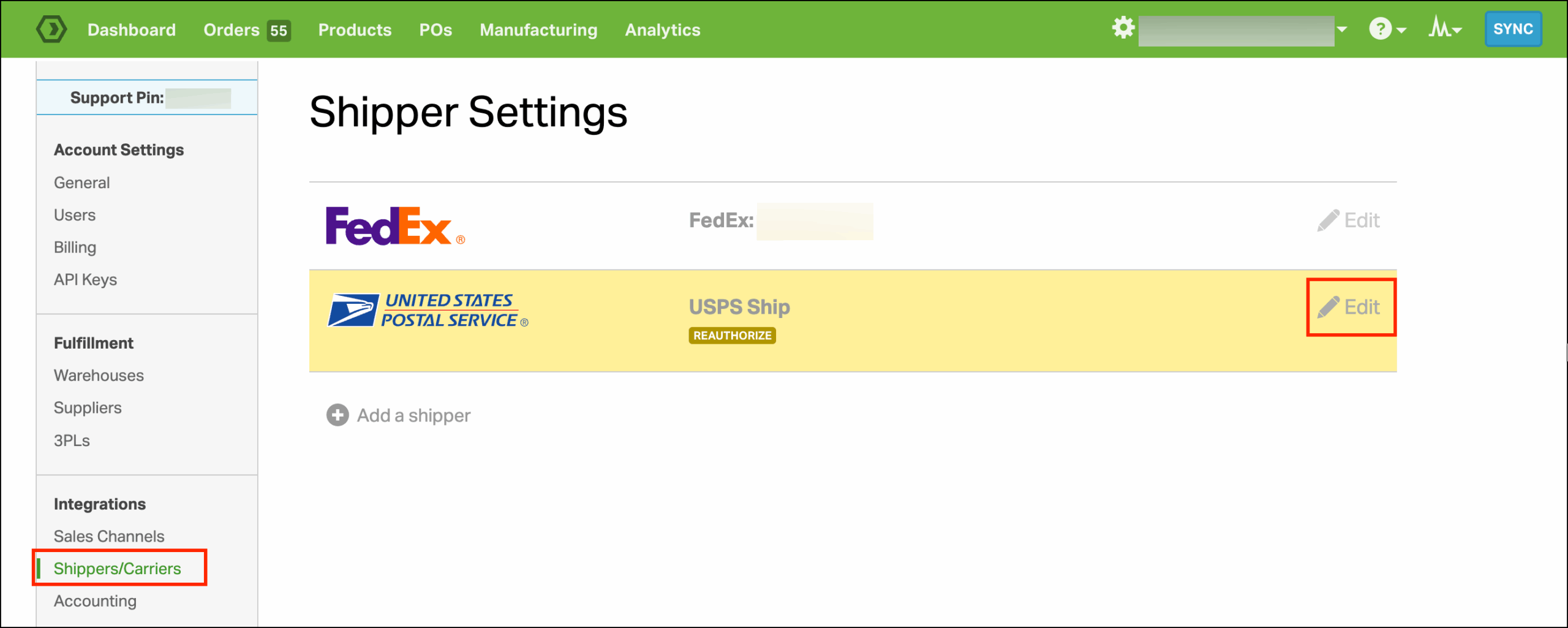
4. Click Reauthorize.

5. Log into your USPS Ship account and follow the prompts to reauthorize your account. You should be directed back to Ordoro.
6. Attempt to create a new label in Ordoro. This should work, but if not, it’s likely your payment method needs to be updated in the USPS Business Customer Gateway. See below for steps to update your payment method.
How to update your payment method in USPS Customer Gateway
1. Click here to log into the platform, then go to the Enterprise Payment System.

2. Select Manage Account.

3. Select Add Payment Method. In the dropdown, select either ACH or Credit Card. Follow the prompts to update your payment method.

4. Remove the old card by selecting this dropdown and clicking Delete.

5. Return to Ordoro and reauthorize your USPS account again (see step 1. above).