
Stocktake helps you count your inventory and update your Physical On Hand (POH) so your numbers match what’s actually on your shelves.
Use it for cycle counts, full inventory audits, or quick spot checks when something looks off.
Topics
- How Stocktake works
- Before you start (with a strong warning)
- Quick start workflow
- Real world example
- Create a new stocktake
- Add or remove products
- Count products
- Reconcile counts
- Print a product list
- Manage stocktakes: List page, filters, tags, sorting
- Kits in stocktake
- FAQ
How Stocktake works
A Stocktake session is a dedicated counting session for one warehouse.
Use Stocktake when you want to:
- Cycle counts. Count a subset of inventory (like a category, aisle, or vendor) on a schedule.
- Full inventory counts. Count all SKUs for year-end or audit prep.
- Spot checks. Recount a small set of SKUs when you see a variance.
In each stocktake, SKUs move through three statuses:
- Uncounted. No count has been entered.
- Counted. A counted quantity has been saved for that SKU.
- Reconciled. Your POH was updated using the counted quantity.
Think of a Stocktake like a checklist:
- Add items → build your list
- Count → record what you physically have
- Reconcile → update Ordoro to match reality
Before you start
Important notes that help avoid surprises.
- One warehouse per stocktake. Each stocktake is tied to a single warehouse.
- ⚠️ Important: Reconcile will overwrite your inventory
- When you reconcile, Ordoro replaces your current Physical On Hand (POH) with the quantity you counted.
- Double-check your counts before reconciling since there’s not an undo button.
- Find out about Reconcile here.
Quick start workflow
Here’s the fastest way to run a stocktake:
- Filter products on the Products page to build the list you want to count.
- Add products to a new stocktake (or an existing one).
- Click Start to begin counting
- Scan or enter counts and save your progress.
- Reconcile to update the Physical On Hand quantity (POH) using your counted quantities.
- Mark the stocktake as finished when you’re done.
If you want a guided walk-through, start with the example below.
Real world example
This example shows a complete stocktake workflow for a targeted cycle count.
Scenario: You want to count a subset of inventory (e.g., DVDs), exclude kits, and update the Physical On Hand (POH) quantity after you confirm the final counts.
Step 1: Filter products to count
- Go to the Products page.
- Use search and filters to narrow the product list (for example, filter by DVD tag).
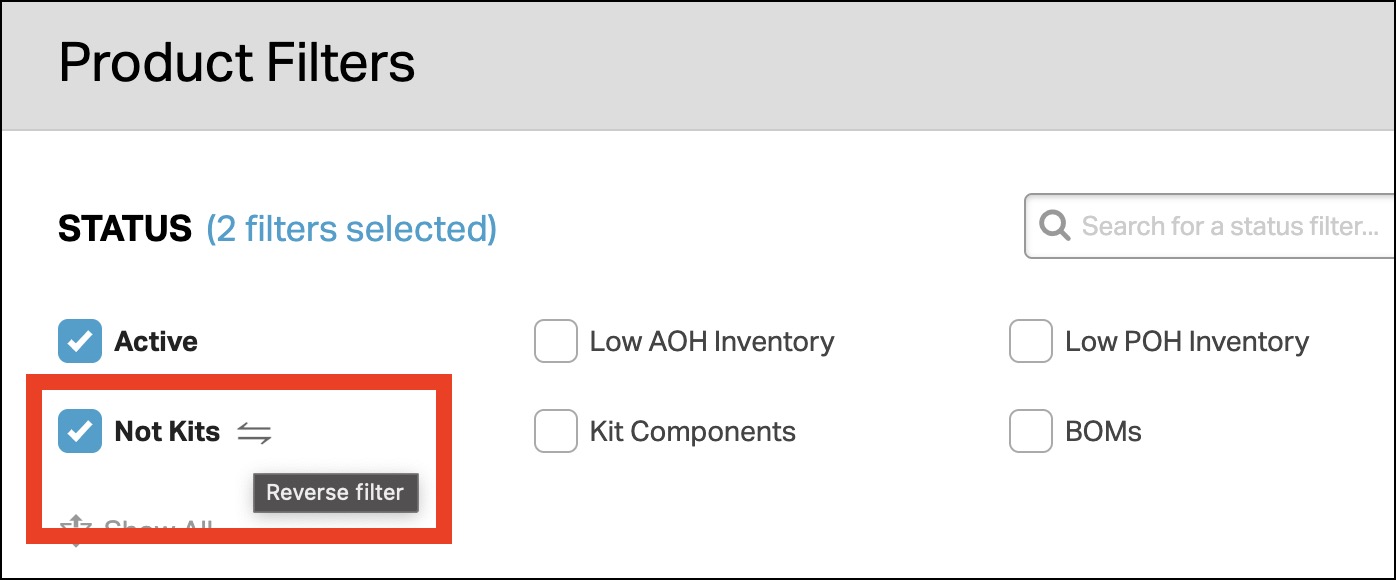
- If you only want to count individual products, exclude kits using Not Kits. See more here.
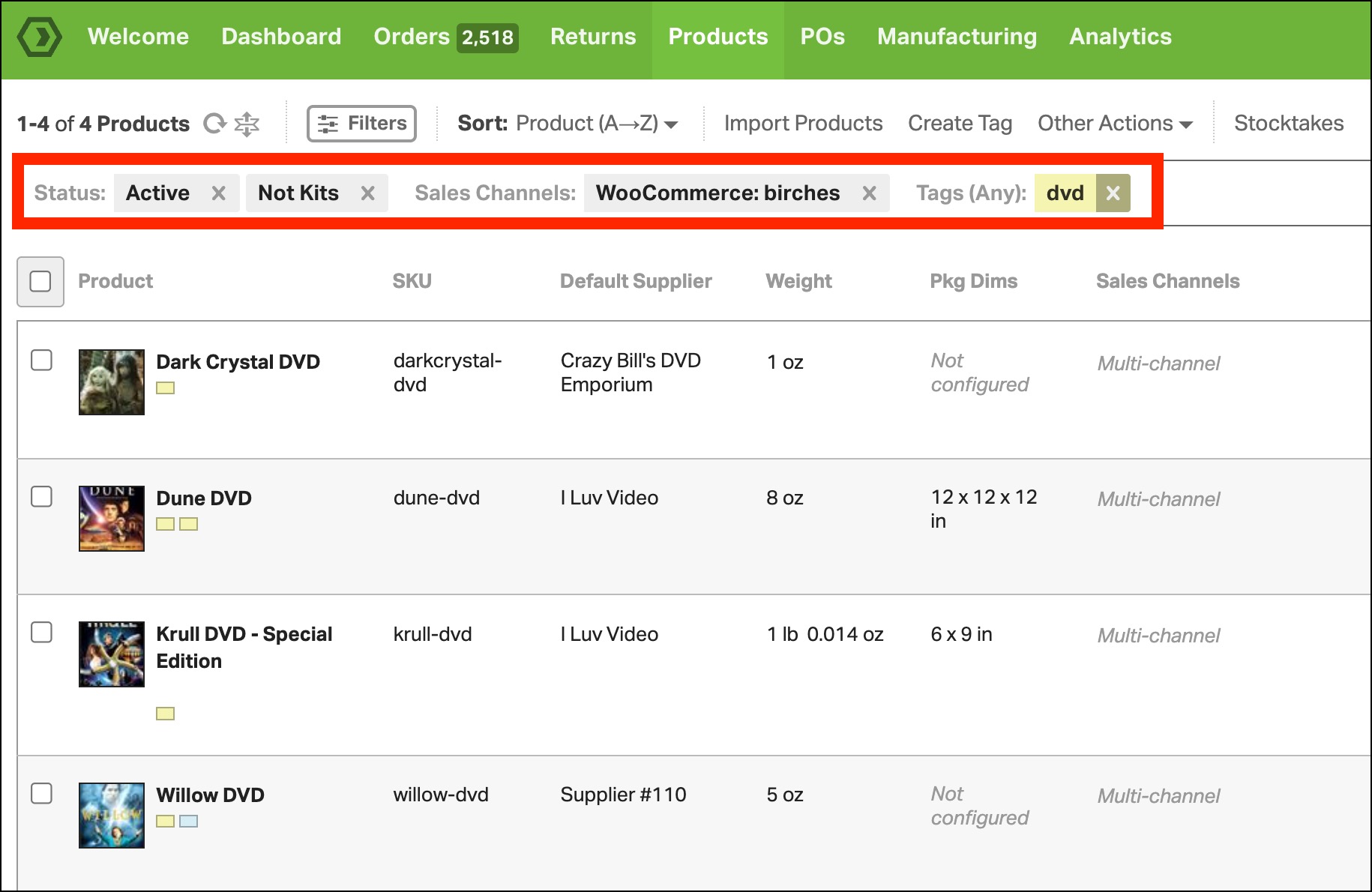
Tip: If you don’t want to count kits, filter them out before adding products to the stocktake. For example, to count only individual products, use the Not Kits filter.
Step 2: Add products to a new stocktake
- Select the products in your filtered list.
- Click Actions.
- Choose Add All Selected Products to a New Stocktake.
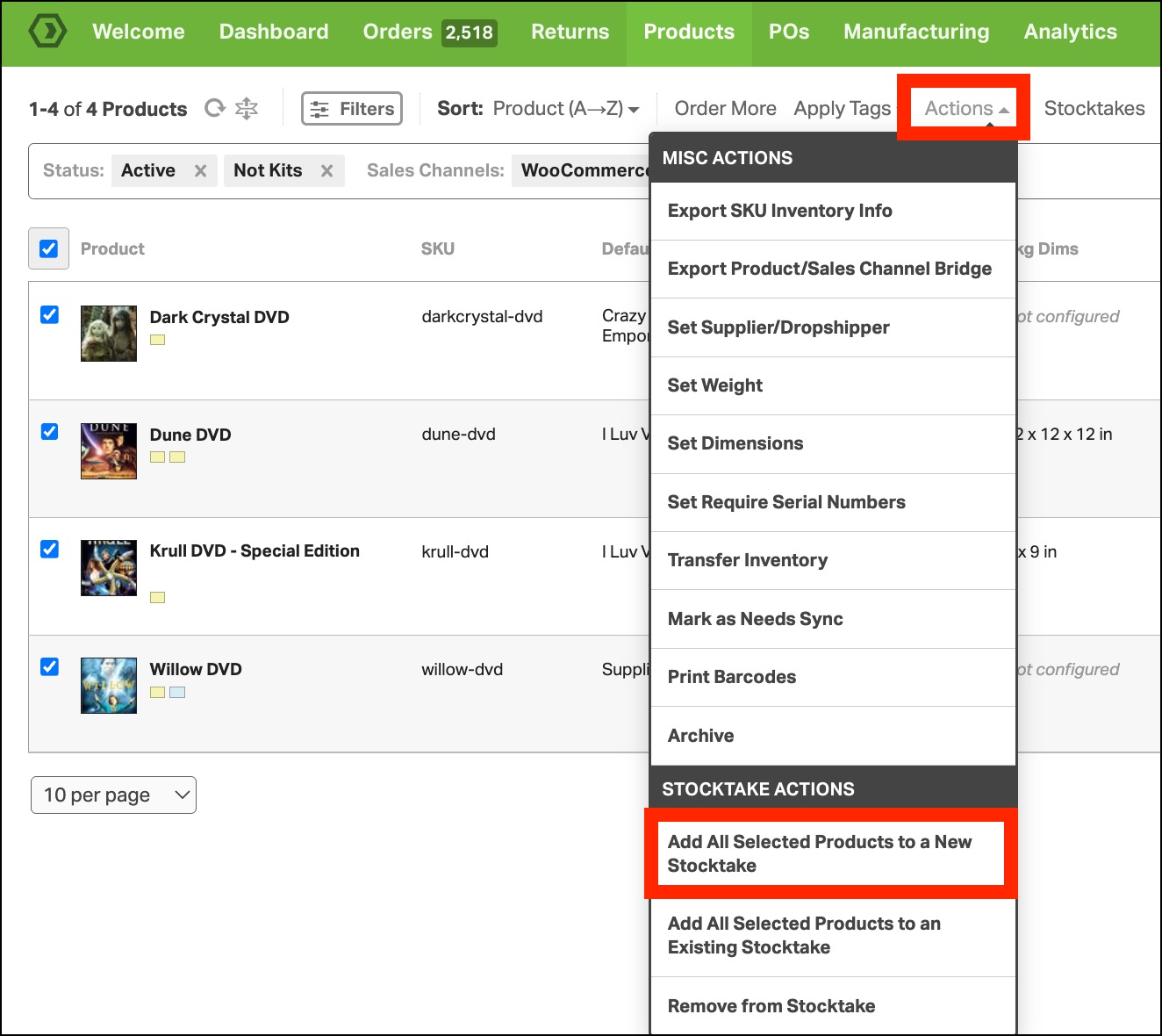
- Complete the new stocktake setup (details below).
- Click Create and View Stocktake.

Step 3: Start counting
- The stocktake you just created will be open.
- Click Start Stocktake.
- The counting modal opens.

Step 4: Count items (scan or type)
- Search for a SKU or scan a barcode from the stocktake list

- Enter the counted quantity, or scan repeatedly to increase the count.
- Click Save Count, or wait for autosave if it’s enabled.
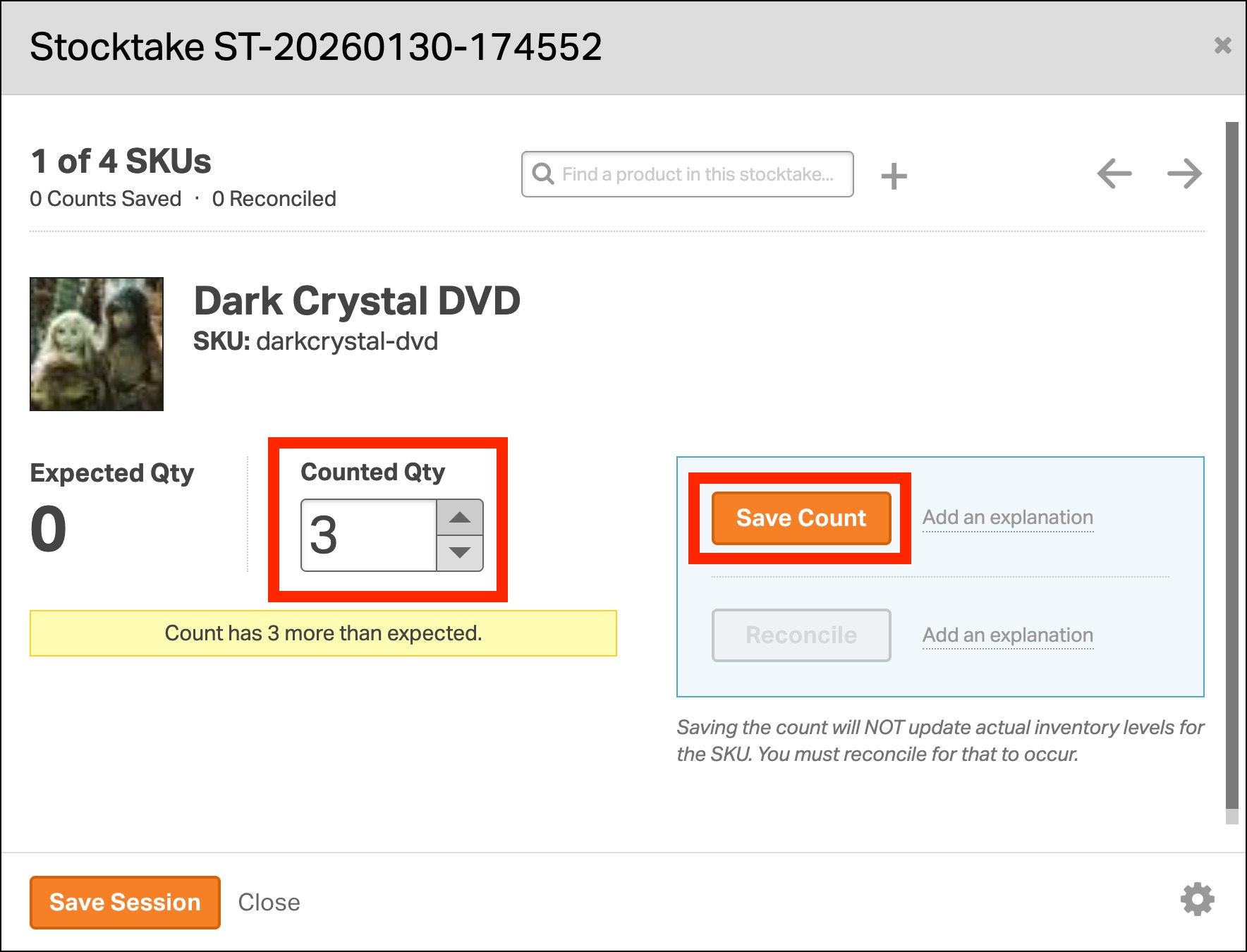
- Add an explanation note when needed (for example, “Damaged item”).

- Click Save Session to keep your progress and return later.

Step 5: Reconcile to update inventory
Once you confirm your final counts, reconcile to update the Physical On Hand (POH) quantity.
- Select the SKUs you want to apply, then click Reconcile, or click Reconcile All to apply all counted values.

- Check Mark the Stocktake as Finished if you are done counting.
- Click Reconcile to apply the update.
Important: Reconcile replaces the item’s current Physical On Hand quantity with the Counted Qty.

Create a new stocktake
When you create a new stocktake, you choose the warehouse and optional comparison settings.
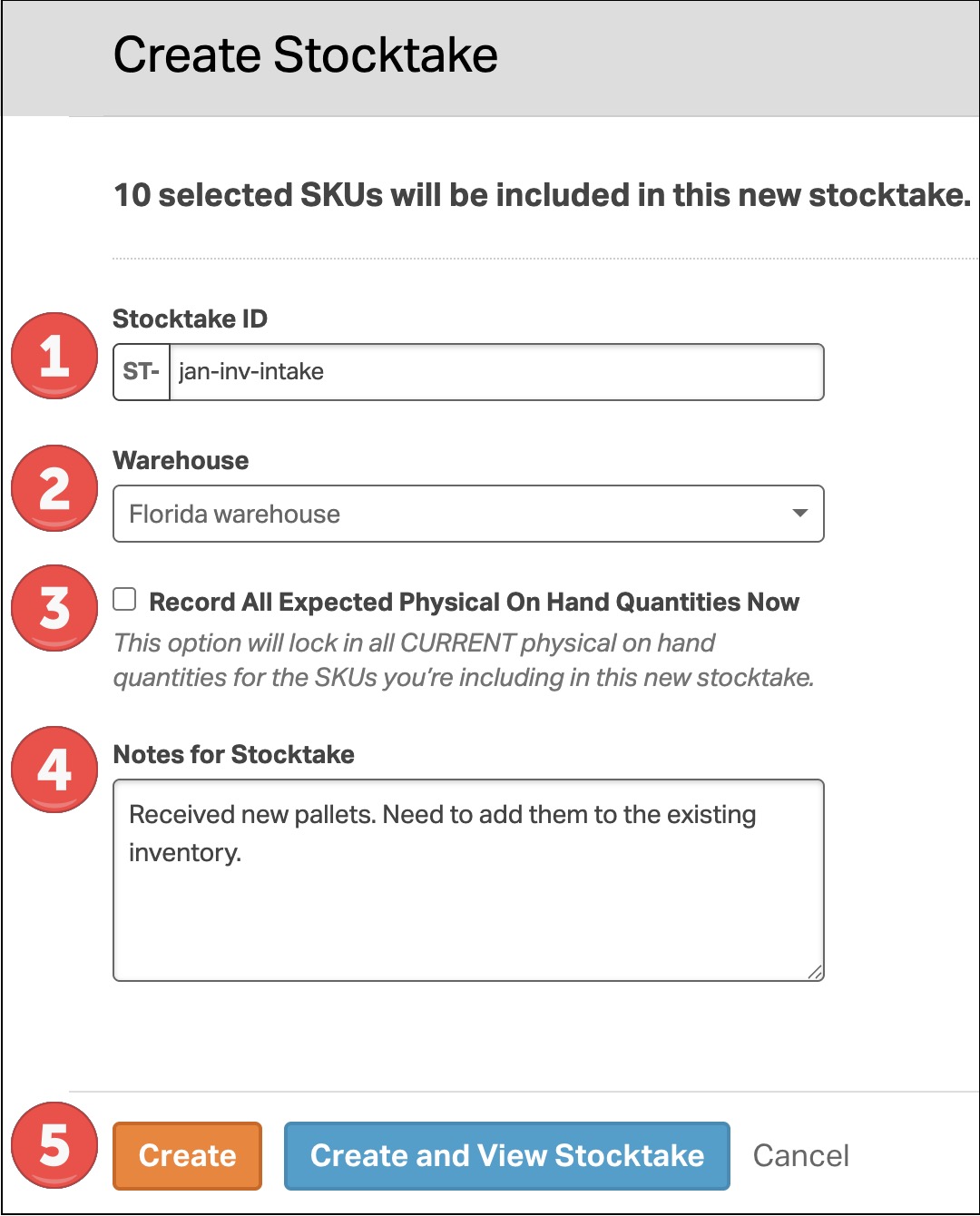
- Enter a Stocktake ID.
- Select a Warehouse.
- Optional: Check Record All Expected Physical On Hand Quantities Now. This saves a snapshot of POH at the time you create the stocktake, so you can compare expected vs. counted.
- Add internal notes if needed.
- Click Create, or Create and View Stocktake.
Add or remove products
You manage which SKUs are in a stocktake from the Products page.
- Go to the Products page.
- Search or filter products.
- Select products and click Actions.
- Choose one option:
- Add All Selected Products to a New Stocktake.
- Add All Selected Products to an Existing Stocktake.
- Remove from Stocktake.

Count products
Counts are recorded in the counting modal.
Start stocktake
- Open your stocktake session.
- Click Start Stocktake.
- The counting modal opens.
Optional: Adjust count settings
In the counting modal, click the gear icon to adjust settings.

General settings:
- Proceed to the next SKU on save. Moves you forward after saving a count.
- Autosave counts. Saves after changes are detected. Autosave occurs 10 seconds after a change is detected.

Barcode settings:
- Scan multiplier. Records multiple units per scan.
- Behavior for when scanning a product barcode that is not on stocktake:
- Automatically add product, but do not increase count
- Automatically add product and increase count
- Display a warning
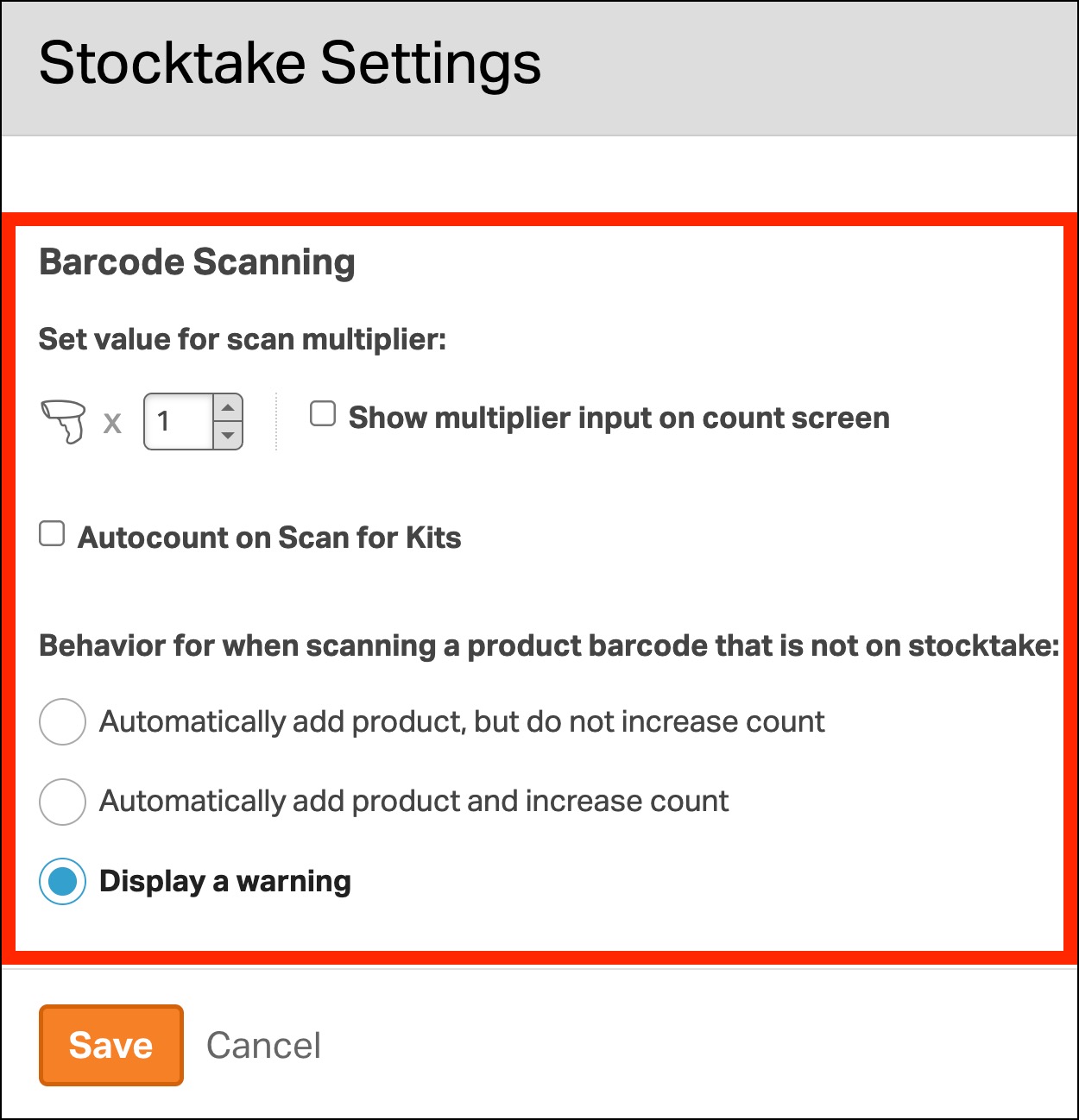
Note: This is the warning you’ll see if you select Display a warning.

Click Save to apply the Settings changes.

Record counts
- Search for a SKU or scan a barcode.
- Enter the counted quantity.
- Click Save Count, or rely on autosave if it’s enabled.
- Add notes if needed using Add an explanation.
- Use the arrows or search bar to move between SKUs.
- Click Save Session to keep your progress.

Reconcile counts
There are a few ways to reconcile inventory during a Stocktake. The best option depends on whether you want to 1) update inventory as you count, 2) for a subset of items, or 3) for the entire Stocktake.
Important: The Reconcile action overwrites the item’s current Physical On Hand quantity with the Counted Qty.
Option 1: Reconcile an item while you’re counting
- Use this option when you want inventory to update right away.
- Example: You’re counting one shelf at a time and want each item updated as soon as you confirm the count.
Steps for Option 1:
- When in the Stocktake modal, view an item.
- Enter the Counted Qty.
- Click Reconcile to update the Physical On Hand qty for that SKU.

- To confirm it worked, look for these messages: “Count has been reconciled” and “Reconciled stocktake.”

Option 2: Reconcile multiple specific products in one Stocktake
- Use this option when you want to finish counting first, then reconcile only specific products.
- Example: You counted 200 items, but you only want to reconcile the 15 items that were off, or the items from a specific supplier.
Steps for Option 2:
- Go to the Stocktake detail page.
- Select the checkbox next to each product you want to reconcile.
- Click Reconcile [X] SKUs.

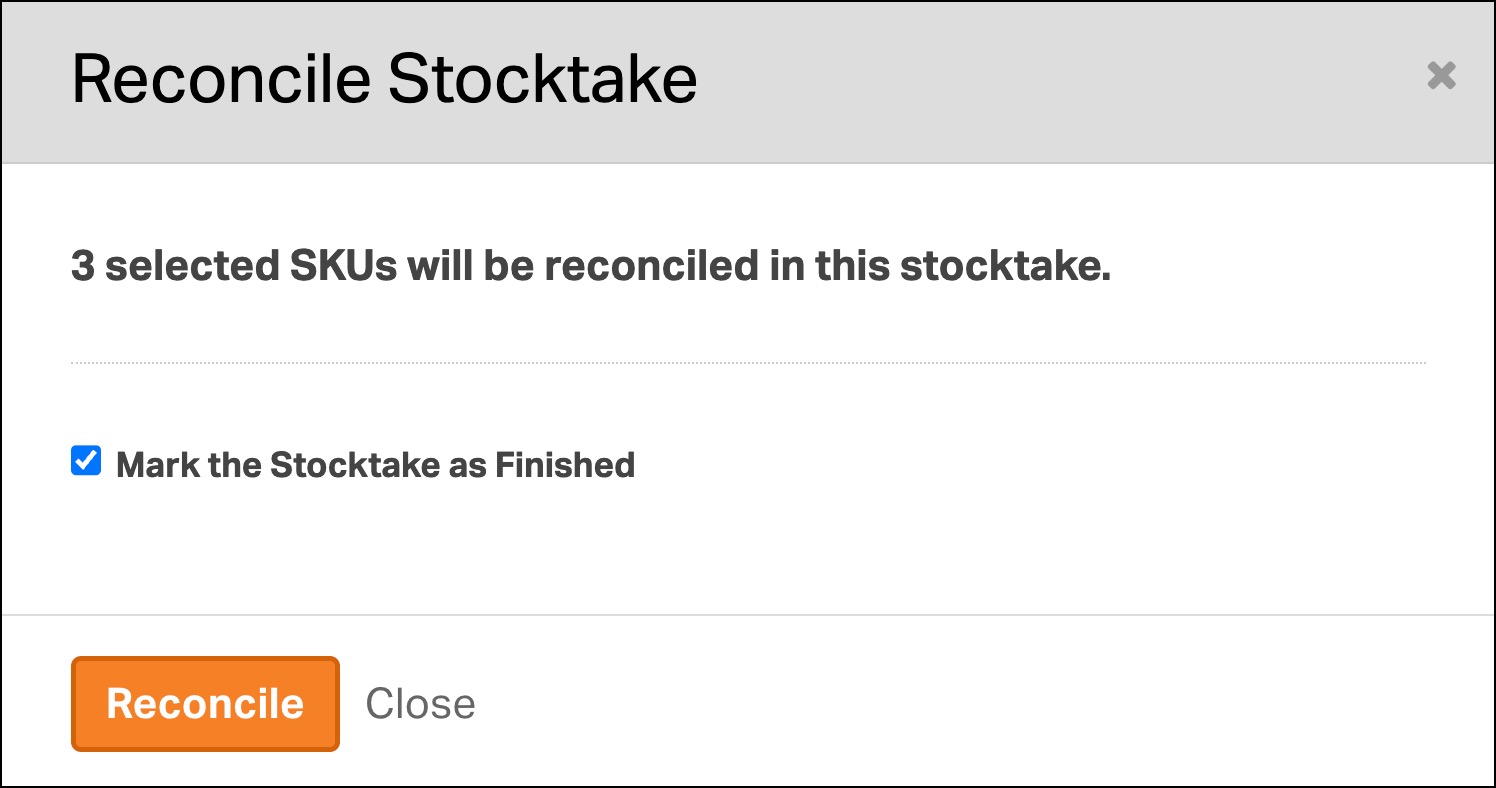
- In the pop-up, review the details, then click Reconcile to confirm.
- Optional: Check Mark the Stocktake as Finished to finish the session.

- To confirm it worked, you’ll see the line item’s status set as Reconciled.

Tip: Use filters (Status, Supplier, Tag, and more) to quickly narrow the list before selecting items.

Option 3: Reconcile the entire Stocktake at once
- Use this option when you’re done counting and want to apply all counts in the Stocktake.
- Example: You completed a full cycle count and want to update inventory for every item included.
From the Stocktake detail page
- Do not have any products selected.
- Click Reconcile All.

From the Stocktake list page
- Select the Stocktake you want to reconcile.
- Click Reconcile All.
Note: From the Stocktake list page, you can only reconcile one Stocktake at a time. You can’t select and reconcile multiple Stocktakes in one action.

To finish the session:
- Check Mark the Stocktake as Finished.
- Click Reconcile.
Print a product list
If you want a paper count sheet, you can print the SKU list for a stocktake.
- On the Stocktake List page, select a session and click Print.
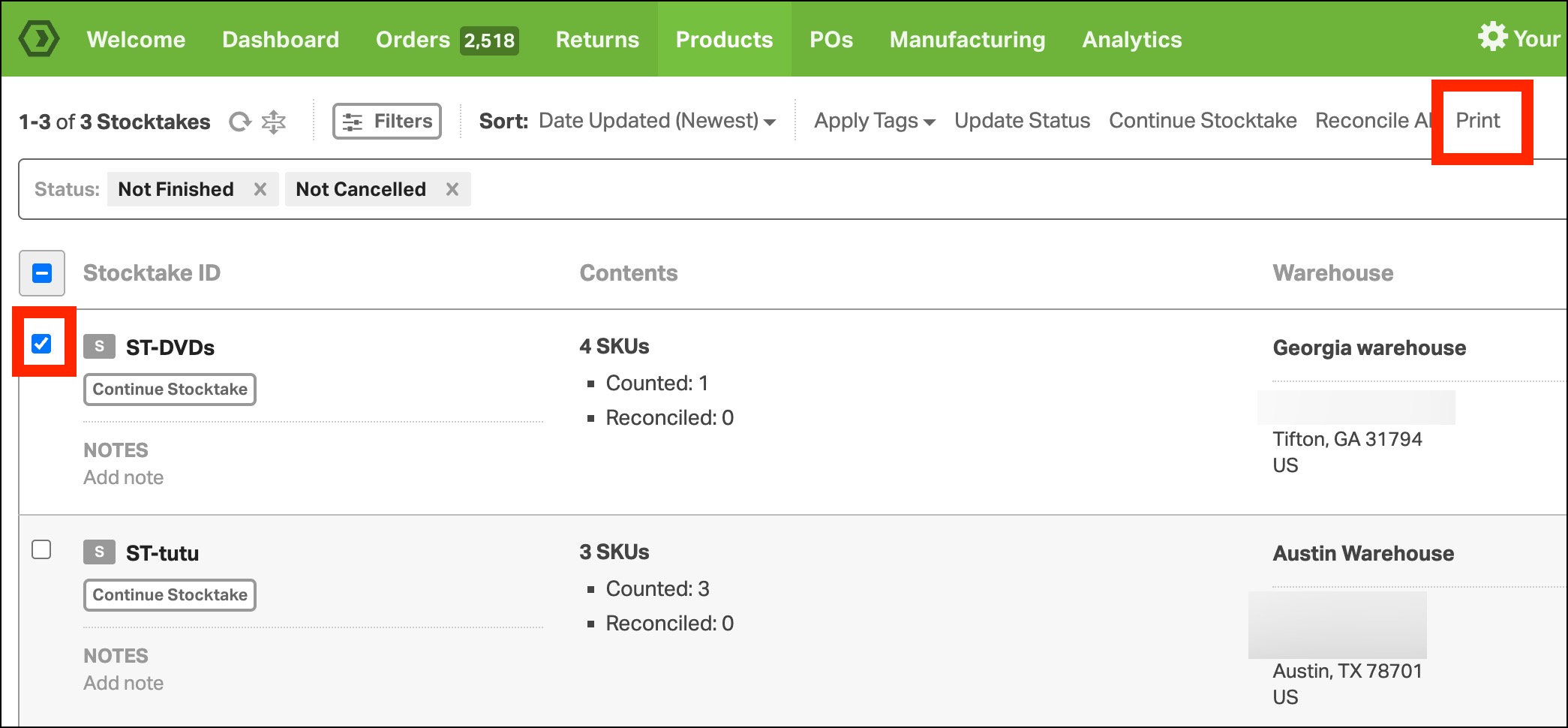
- Choose whether to include product images and/or barcodes.

- A printable SKU list opens in a new tab.

Manage stocktakes: List page, filters, tags, sorting
The Stocktake List page helps you find and manage stocktake sessions.
To view all stocktake sessions, go to the Products page and click Stocktakes in the navigation bar.
What you see on each row
- Stocktake ID
- Contents: Total SKUs in the stocktake
- SKUs
- Counted: How many SKUs have been counted
- Reconciled: How many SKUs have been reconciled
- Warehouse
- Date Created
- Date Updated: The latest action appears in gray

Filters
You can filter stocktakes by:
- Started: At least one SKU counted.
- Finished: Stocktake manually set as complete.
- Cancelled: Stocktake was cancelled.

You can also use the inverse of those statuses to find active work:
- Not Started: Zero SKUs have been counted (status symbol “i” for initiated)
- Not Finished: In progress
- Not Cancelled: Active stocktakes

Other filters include:
- Warehouses: Stocktakes can only be assigned to a single warehouse
- Tags: Create custom tags to categorize stocktakes (for example, “Quarterly Audit” or “Cycle Count”)
- Free Text Search: Search by any text string.

Sort options
You can sort stocktakes by:
- Stocktake Session ID (A–Z, Z–A)
- Warehouse Name (A–Z, Z–A)
- Date Created (Newest, Oldest)
- Date Updated (Newest, Oldest)
- Date Started (Newest, Oldest)
- Date Finished (Newest, Oldest)
- Date Cancelled (Newest, Oldest)

Kits in stocktake
Kits are included in the stocktake if they match your filters. A message shows how many selected SKUs are kits.

If you don’t want to count kits, filter them out before adding products to the stocktake. For example, to count only individual products, use the Not Kits filter.
FAQ
Does starting a stocktake update inventory?
- No, inventory updates happen when you reconcile.
Can I save progress and finish later?
- Yes, use Save Session to keep your progress and return later.
Do I have to reconcile everything at once?
- No, you can reconcile selected SKUs, or reconcile all counted SKUs using Reconcile All.
What is Expected Qty?
- Expected Qty is the Physical On Hand (POH) snapshot at the time the stocktake was created, if you chose to record it. It can help you compare what you expected vs. what you counted.
Can I exclude kits?
- Yes, use the Not Kits filter before adding products to a stocktake.