
Rearrange the order of your presets so the ones you use most often are easier to find.
The order you set in Presets Settings is also reflected in the Preset dropdown when creating labels, so your presets will appear in the same order wherever you use them.
Topics
Reordering presets
- Go to Settings > Presets.
- Click the reorder button next to Create a Preset.
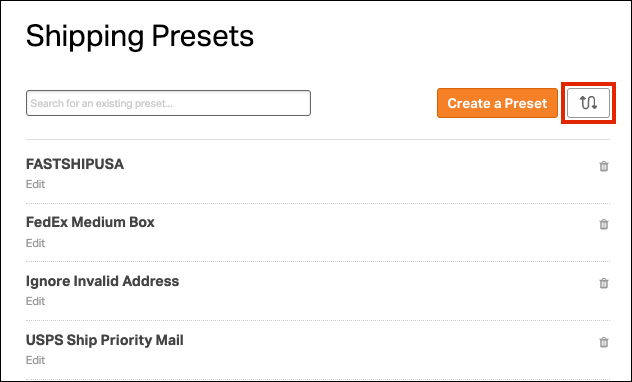
- The Arrange Preset Order window will open.
- Use the drag handle next to a preset to move it to a new position.

- Click Save.
Move multiple presets at once
If you want to move several presets together:
- Go to Settings > Presets.
- Click the reorder button next to Create a Preset.
- Select the checkboxes next to the presets you want to move.
- Use the up arrow to move the selected presets to the top of the list, or the down arrow to move them to the bottom.
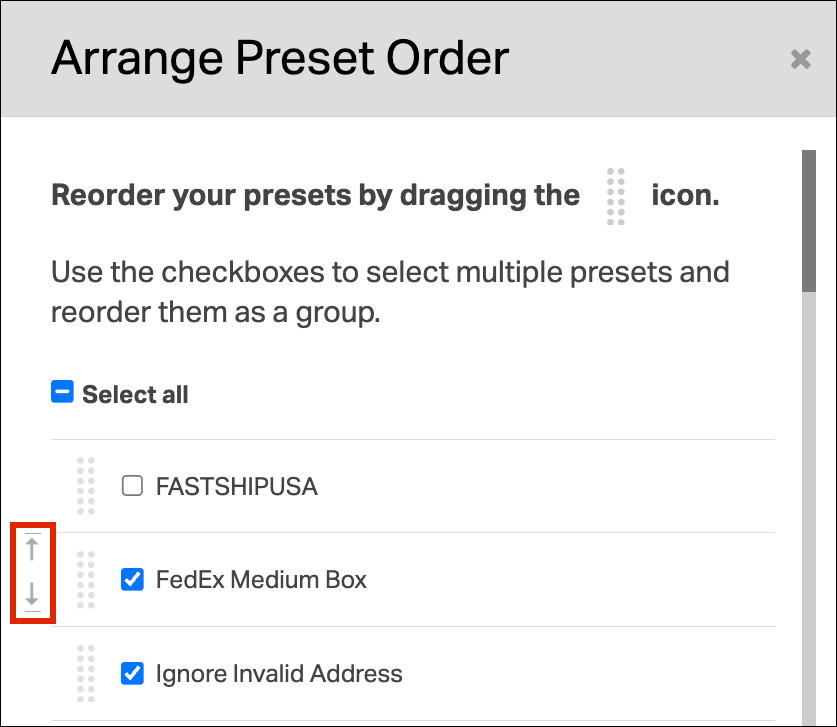
- You can also drag the grouped presets to place them exactly where you want them.
- Click Save.