
Product Internal Notes can be included on your Pick List to give you additional information about a product while picking orders. These notes can be helpful for communicating additional product details, product-specific handling instructions, or other useful information during the picking process.
How to include Product Internal Notes on the Pick List
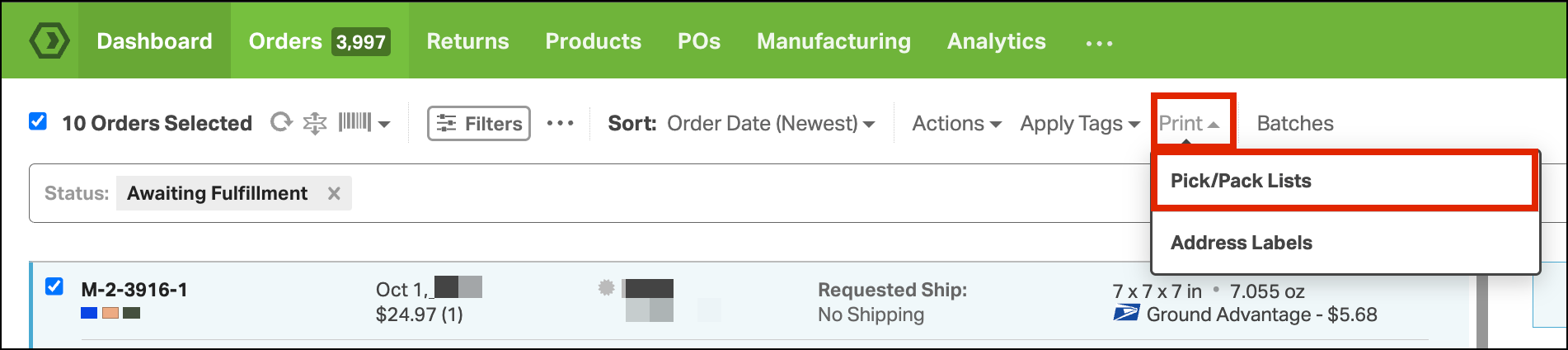
- Select the order or orders you’re preparing to pick.
- Click Print > Pick/Pack Lists.
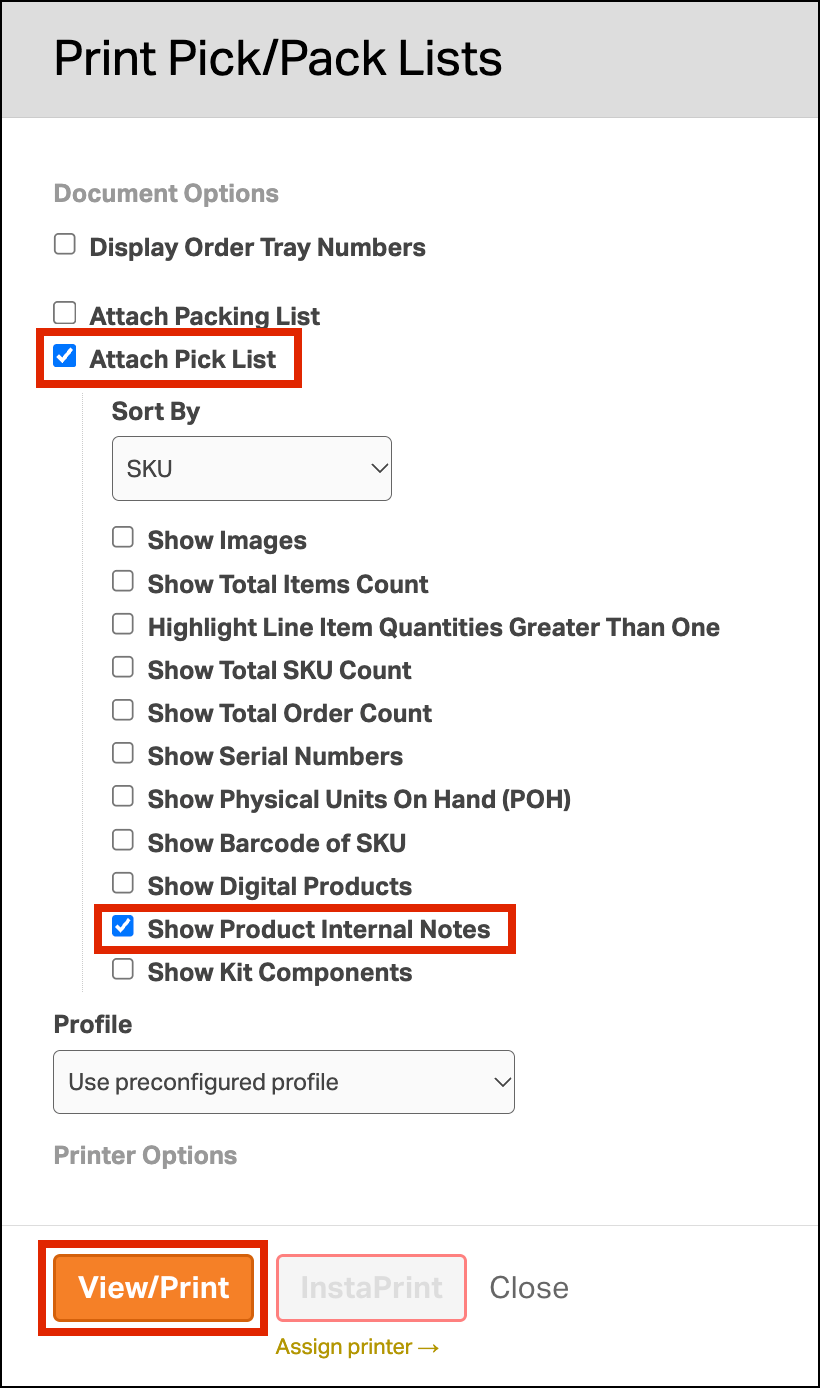
- Select Attach Pick List.
- Under the Pick List settings, select Show Product Internal Notes.
- Click View/Print to generate the Pick List.
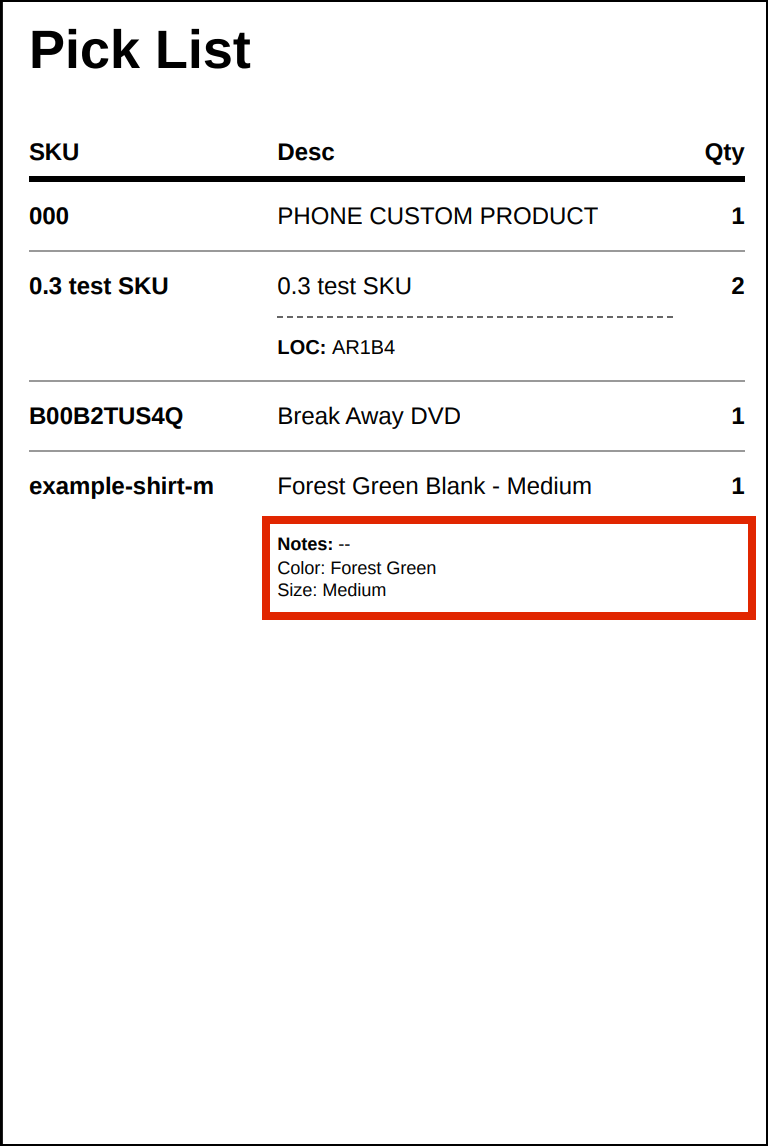
The product’s Internal Notes will display beneath the product description on the Pick List.
NOTE: If the product is a Kit Parent, it will not display Internal Notes from its Kit Components. To view Internal Notes for Kit Components, you must also enable Show Kit Components on the Pick List.