
Order Line Labels help you keep each item matched to the right order. Use them to track products through production, engraving, or assembly, or to label items before packing.
Each label shows product and order details with barcodes. You can print labels for one order, several orders, or a batch.
Topics
- What’s on an Order Line Label?
- Turn on Order Line Labels for products
- Print labels from Orders
- Choose your label settings
- Include kit components
- Print labels from a batch
- Fix common printing problems
What’s on an Order Line Label?
Each label helps you identify the product and the order it belongs to. Here’s a sample:
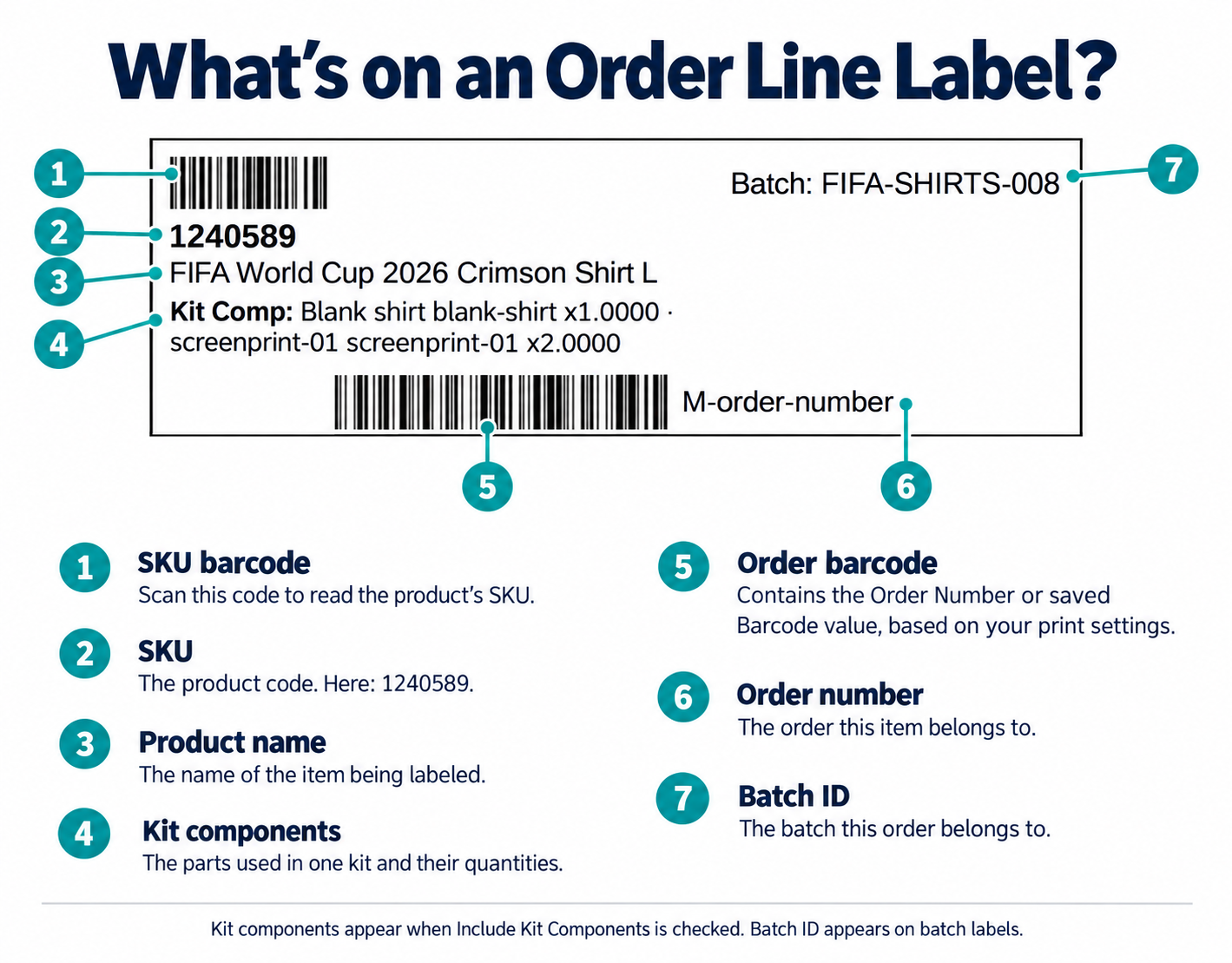
| Label detail | What it shows |
|---|---|
| SKU and product name | Identifies the product you’re working with. |
| SKU barcode | Contains the product’s SKU. It can be a standard barcode or a QR code. |
| Order number | Shows which order the item belongs to. |
| Order barcode | Contains the order number or the order’s saved Barcode value, based on your print settings. It can also be a standard barcode or a QR code. |
| Kit components | Lists the items used in the kit and their quantities when Include Kit Components is checked. |
| Batch ID | Shows which batch the order belongs to when you print labels from a batch. |
The label’s layout and details depend on the size and options you choose when printing.
Turn on Order Line Labels for products
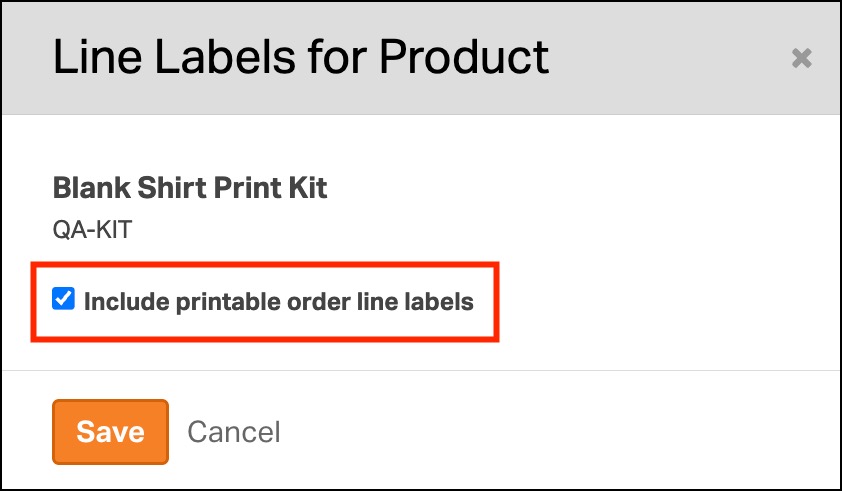
Products must have Include Order Line Labels? = Yes before they can print on Line Labels. New products start with this setting off.
- Go to Products.
- Open the product you want to label.
- Find Include Order Line Labels? in the right sidebar, under Organization.
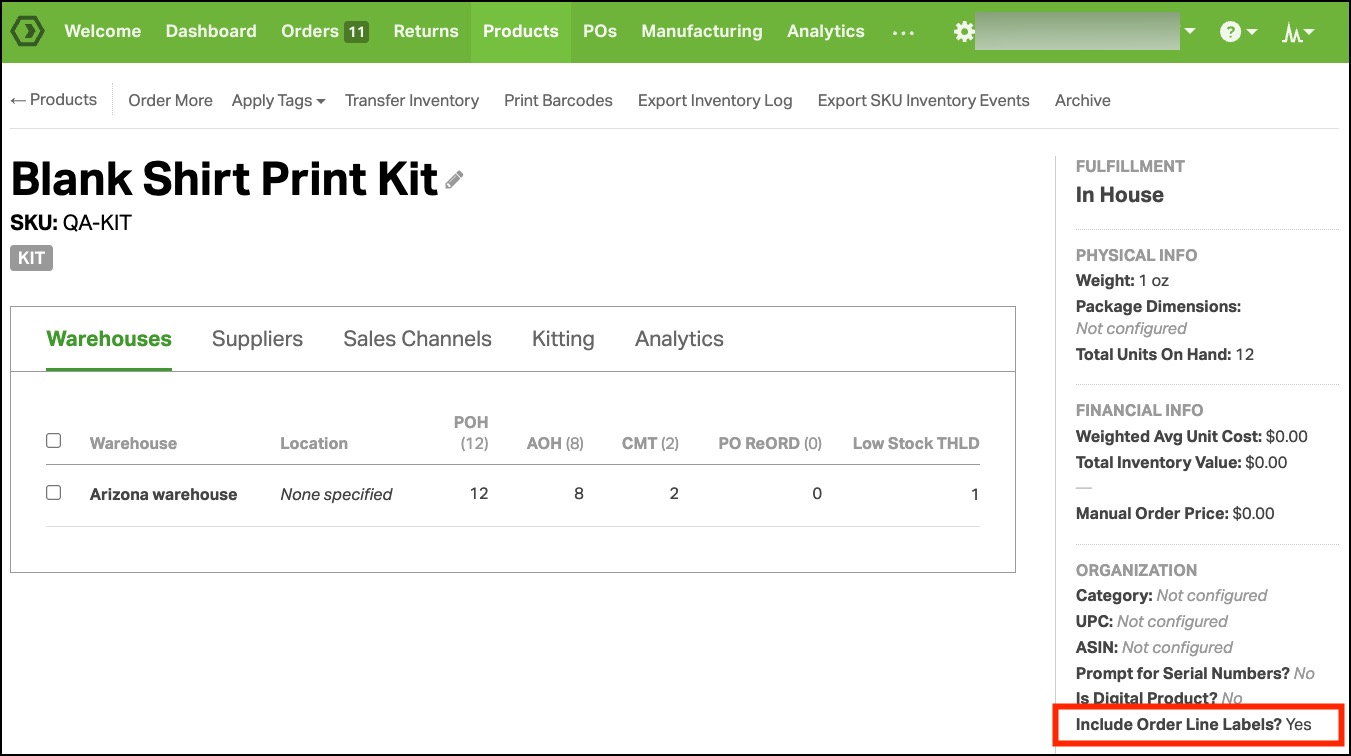
- Click the text to change the setting and save the change.
- Products set to Yes are included when creating line labels.
- Products set to No are left out, even when they are on a selected order.
- Repeat for the other products that need labels.
Print labels from Orders
- Go to Orders.
- Select the order or orders you want to print.
- Choose Print → Line Labels.

- Choose your options in the Print Line Labels window.
- Ordoro will print labels only for products with Include Order Line Labels? set to Yes.
- Products set to No will be skipped.
- Click View/Print to open the labels.
- Review the labels, then print them on the matching label stock.

Choose your label settings
| Setting | What it does |
|---|---|
| Size | Sets the label size or number of labels per sheet. Choose the option that matches your stock. |
| Sort | Groups labels by Order Number or SKU. Sorting by SKU puts matching products together across orders. |
| Reference Barcode Type | Sets the order barcode format to Code128 or QR Code. |
| Reference Barcode Property | Chooses what the order barcode contains: the Order Number or the order’s saved Barcode value. |
| SKU Barcode Type | Sets the product barcode format to Code128 or QR Code. This barcode contains the SKU, or product code. |
| Print Each Quantity | Prints one label for every unit when checked, or one label per order line when unchecked. Only products set to Yes are included. |
| Include Kit Components | Adds the kit’s component list to its label. |
Choose barcode formats that work with your scanner. The order barcode and SKU barcode can use different formats.
Available label sizes
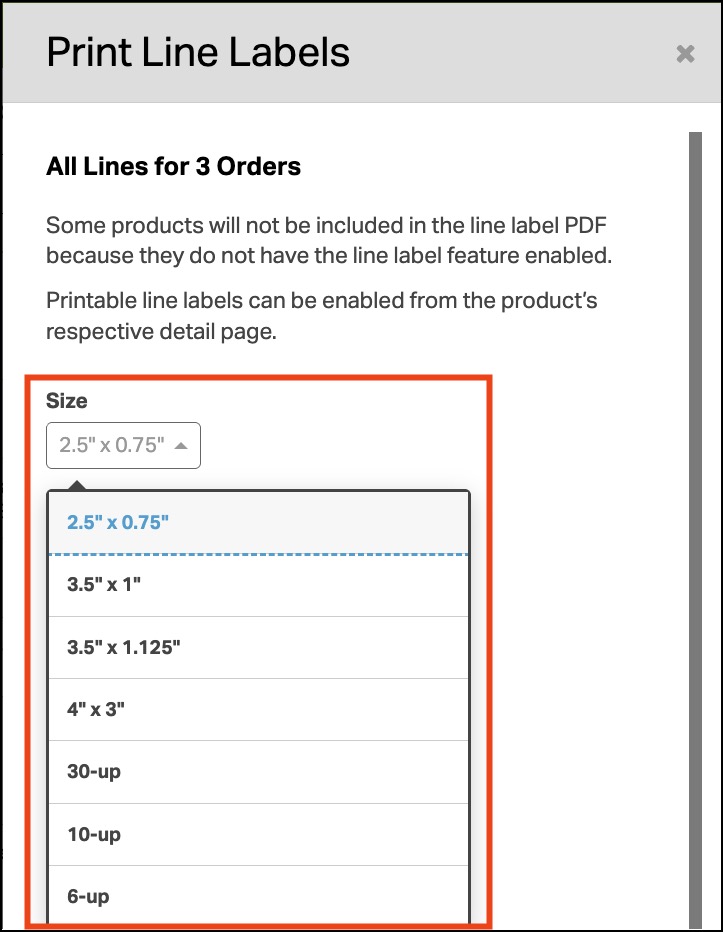
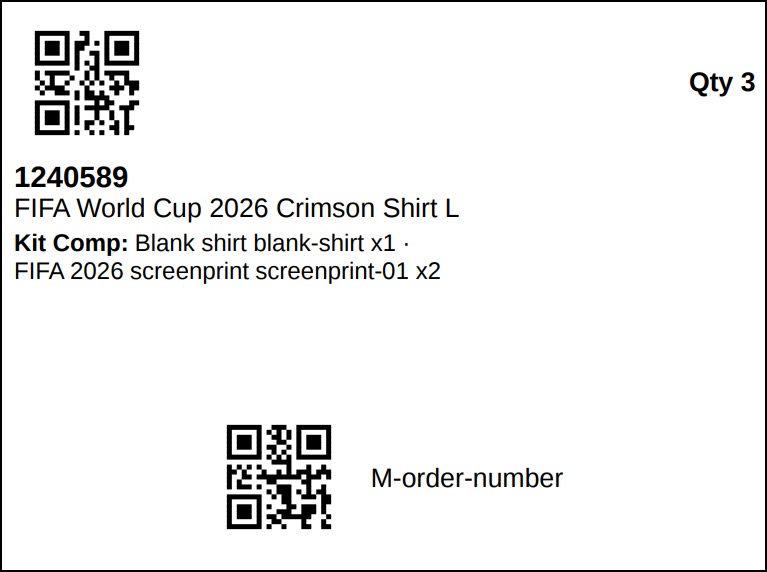
- Individual labels: 2.5″ × 0.75″, 3.5″ × 1″, 3.5″ × 1.125″, and 4″ × 3″. A sample of the 4″ x 3″ format is shown below.
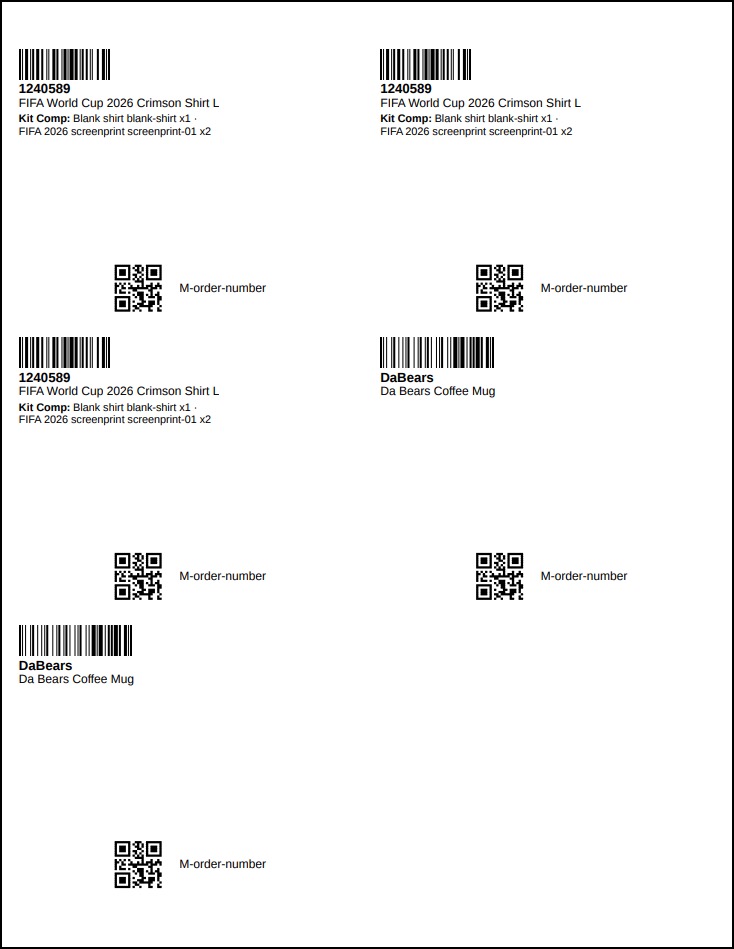
- Sheet layouts: 30-up, 10-up, and 6-up. For example, 30-up places up to 30 labels on each sheet. A sample of the 6-up format is shown below.
How Print Each Quantity works

Suppose an order has one line for 3 shirts and another for 2 mugs, and both products are set to Yes.
| Print Each Quantity | Labels printed |
|---|---|
| Checked | 5 labels: one for each shirt and mug |
| Unchecked | 2 labels: one for the shirt line and one for the mug line |
If the same SKU appears on two separate order lines, the unchecked option prints one label for each line.
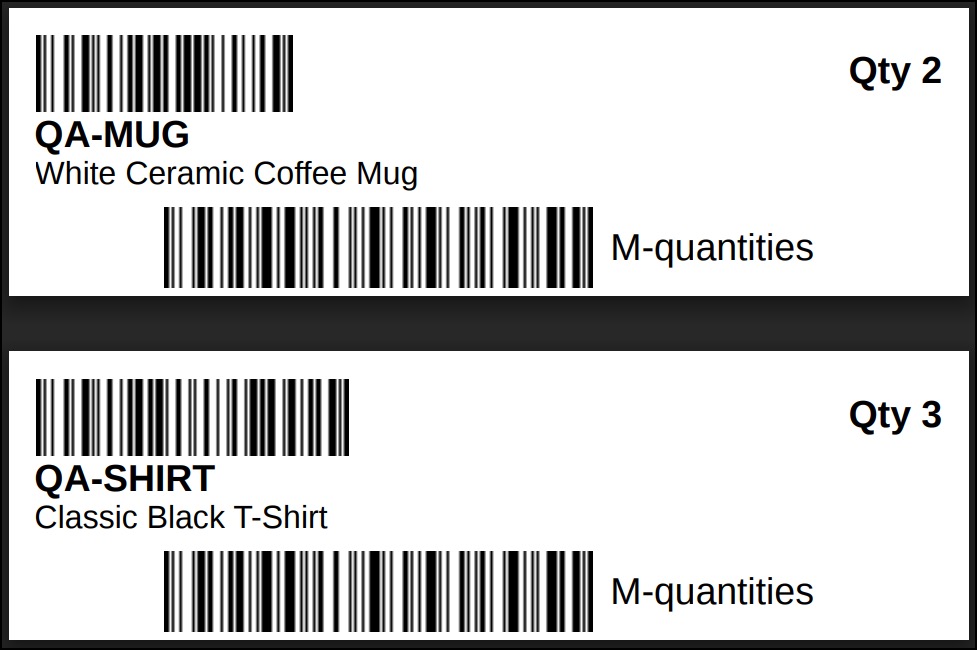
Example of Print Each Quantity = Yes

Example of Print Each Quantity = No
Include kit components

A kit contains other products, called components. You can list these items on the kit’s label to help your team see what goes into each kit.
- Open the kit’s Product Detail page and set Include Order Line Labels? to Yes.
- Go to Orders, select your orders, and choose Print → Line Labels.
- Check Include Kit Components.
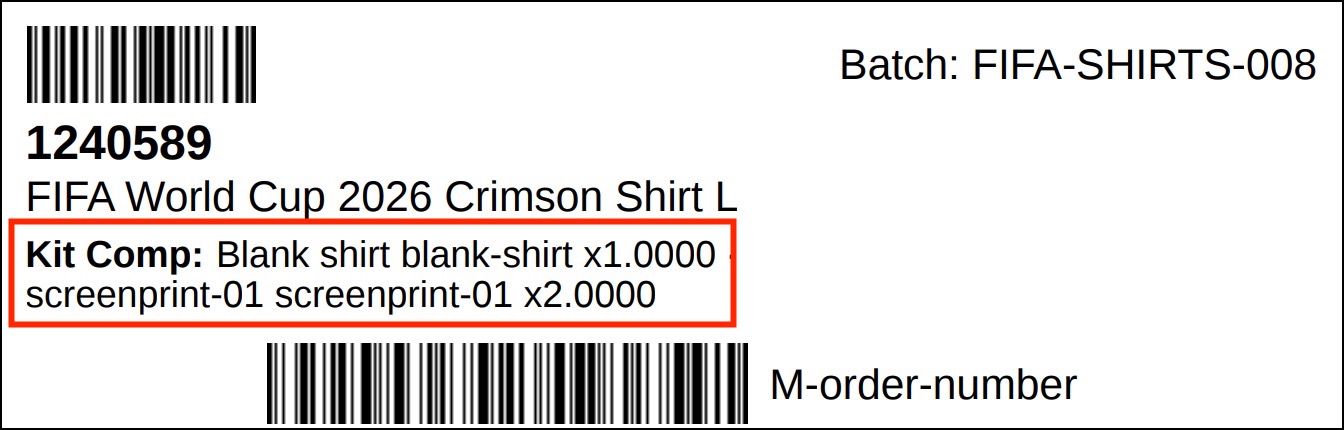
This is how kit components appear on line labels.
Things to know
- Kit components are not supported for the label size 2.5″ x 0.75″.
- The component products can stay set to No. They will still appear on the kit’s label.
- Components do not get separate labels just because they are part of a kit.
- If a component is also ordered on its own, it gets a separate label only if its product setting is Yes.
- Long component lists may be cut off without a warning. Review the labels and try a larger label size if needed.
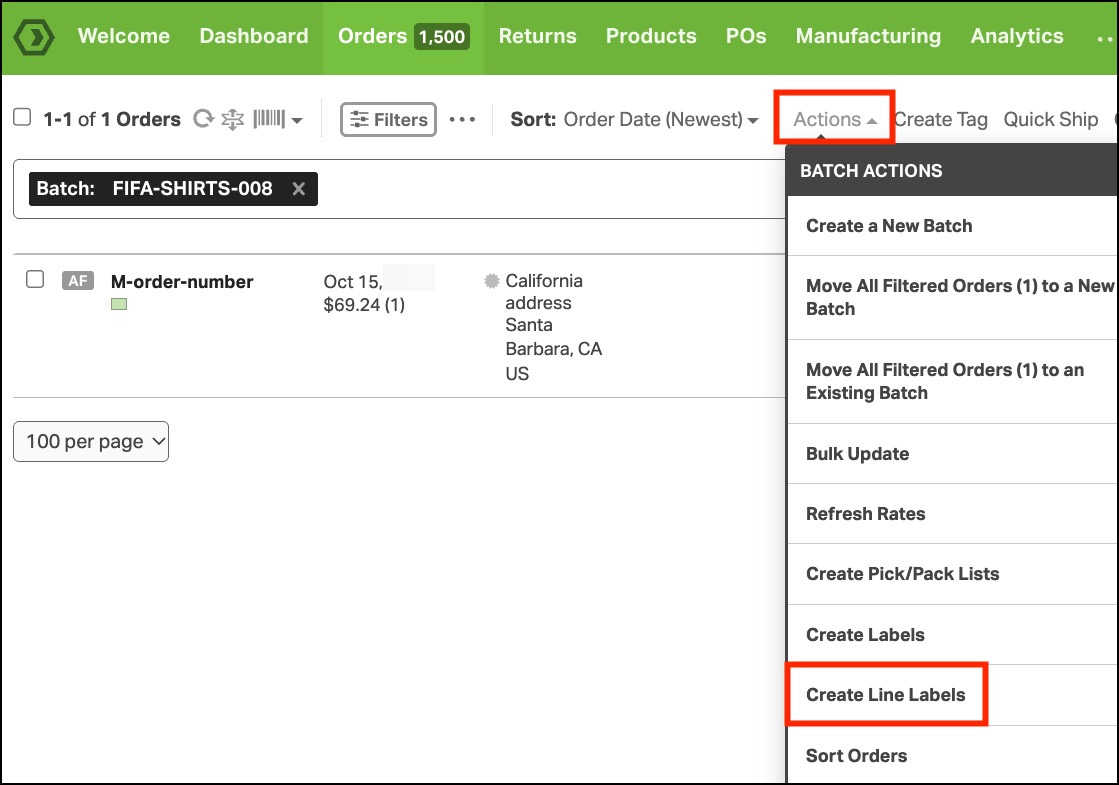
Print labels from a batch
If your orders are grouped into a batch, you can print their Line Labels together. Each label also shows the Batch ID so your team can match the item to its batch.
- Go to Batches.
- Select the batch or batches you want to print.
- Choose Create Line Labels.

- Choose your label settings and generate the labels. Check Print Each Quantity if you need one label for every unit.
- Once the labels are ready, open each batch’s document list and select its Line Labels document to view or print.

You can also open a single batch’s Details tab and choose Create Line Labels.
Note: Only products with Include Order Line Labels? set to Yes will get labels. Products set to No will be skipped.
Fix common printing problems
A product is missing from the labels
Open its Product Detail page and check that Include Order Line Labels? = Yes. Then generate the labels again.
For a kit, check the setting on the kit product itself.
Fewer labels printed than expected
Check Print Each Quantity if you need one label for every unit. Also check that each product you want to print is set to Yes.
Text or barcodes do not fit
Try a larger label size and review the preview. Check the barcode format and test a printed label with your scanner before printing a large run.
Labels do not line up with the sheet
Make sure the selected size or sheet layout matches your label stock. Check that your printer is using Actual Size or 100% instead of shrinking or enlarging the page.