
You can customize the top navigation in Ordoro so the pages you use most are easier to reach.
Reorder your navigation tabs, move less-used pages into the overflow area (“…” menu), or bring pages like Reports, Data Import, and Data Export into the main navigation.
Your navigation settings are saved per user, so each user on the same Ordoro account can have their own layout. Changes you make to your navigation will not affect other users.
Topics
- What’s in the top navigation?
- Customize your top navigation
- How to use the overflow menu
- Keep your navigation simple
- Hide the Welcome tab
- Reset your navigation
- User permissions and plan changes
What’s in the top navigation?
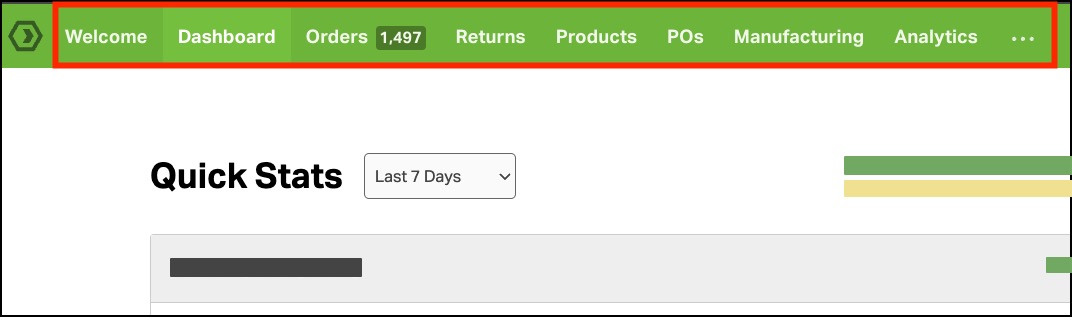
Depending on your Ordoro plan and permissions, these may include:
- Welcome
- Dashboard
- Orders
- Returns
- Products
- POs
- Manufacturing
- Analytics
Additional pages are available from the … menu:
- Reports
- Data Import
- Data Export
You can move these pages between the main navigation and the … menu to create a layout that works best for you.
Customize your top navigation
The main navigation can contain up to 8 tabs. Any remaining tabs can stay in the overflow menu under “…“
For example, if you work primarily with orders and reports, you could move Orders and Returns to the beginning of your main navigation and move pages you use less often into the overflow menu.
To customize the top navigation:
- Go to Your Company > Account Settings.
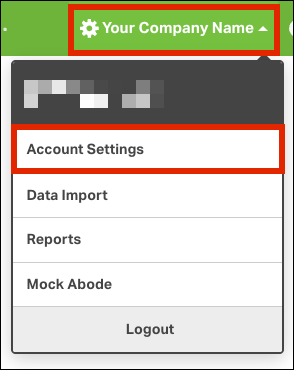
- Under General, click Configure Navigation.

- Drag and drop tabs to put them in the order you want.
- Move tabs between the Main Horizontal Nav Tabs and the Overflow Dropdown Nav (…) sections.
- Click Save.

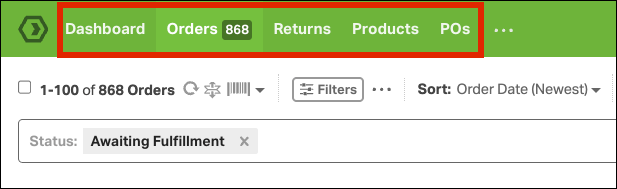
- You’ll see the changes to your customized main navigation.
How to use the overflow menu
The overflow menu provides access to tabs not displayed in your main navigation. You can also Configure Navigation from the overflow menu.
- Click the … icon at the end of the main navigation.
- Select the page to open.

By default, Reports, Data Import, and Data Export are in the overflow menu.
Moving a tab to the overflow menu does not remove the feature or change your access to it. It only changes where the tab appears.
Keep your navigation simple
You can have up to 8 tabs in the main navigation, but you do not have to use all 8 spaces.
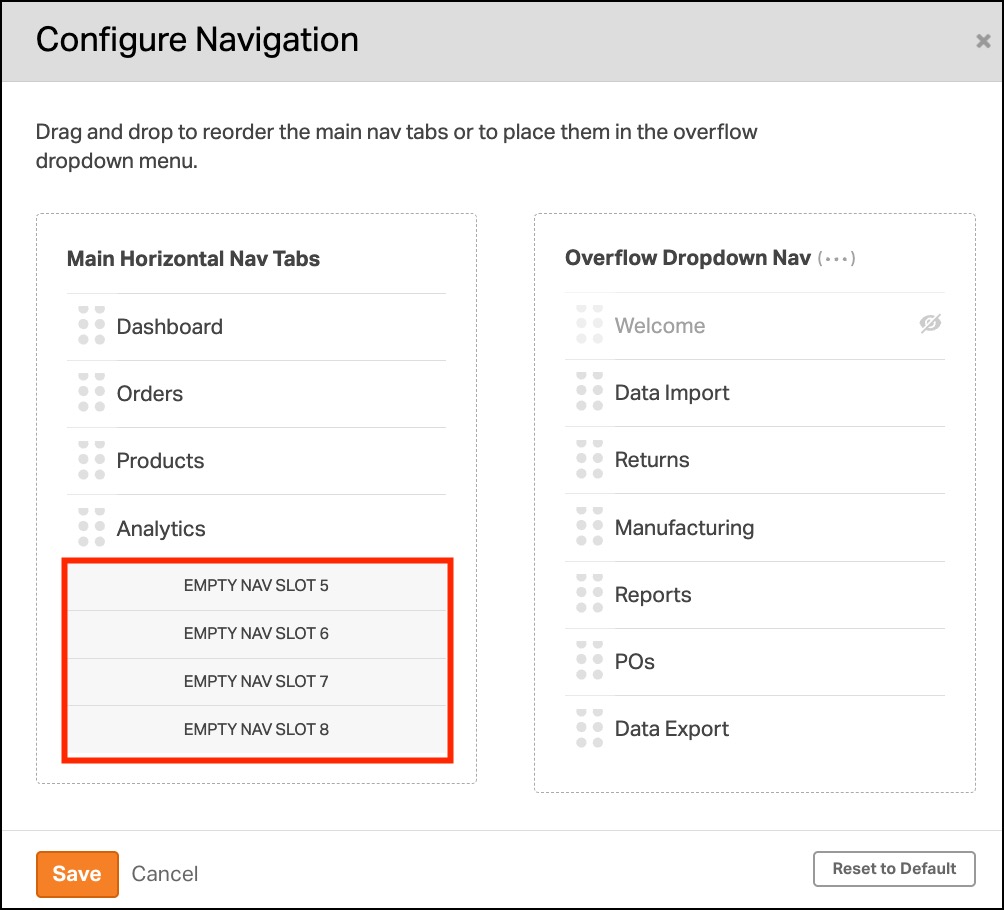
Move tabs you use less often into the overflow menu to keep your main navigation focused on the pages you use most.
For example, if you mainly work with Orders, Products, and Reports, you can keep those in the main navigation and move the other tabs into the overflow menu.
Hide the Welcome tab
Welcome is the only tab that can be completely hidden.
- Go to Settings → General.
- Click Configure Navigation.
- Hide Welcome using the eye icon.
- Click Save.
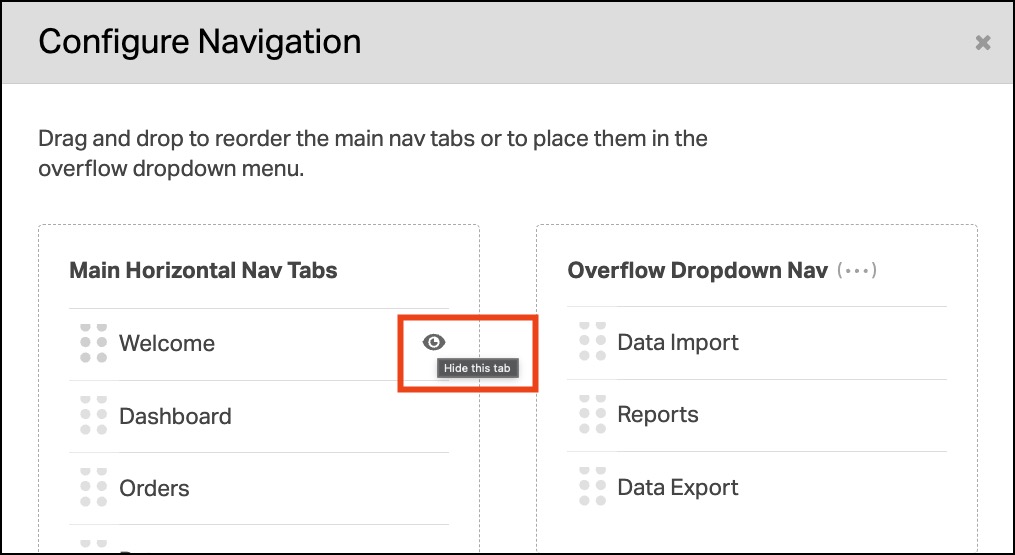
The Welcome tab will no longer appear in your main navigation or overflow menu.
You can return to Configure Navigation at any time to show it again. Other tabs cannot be hidden, but you can move them into the overflow menu.
Reset your navigation
You can restore the default navigation if you want to start over.
- Go to Settings → General.
- Click Configure Navigation.
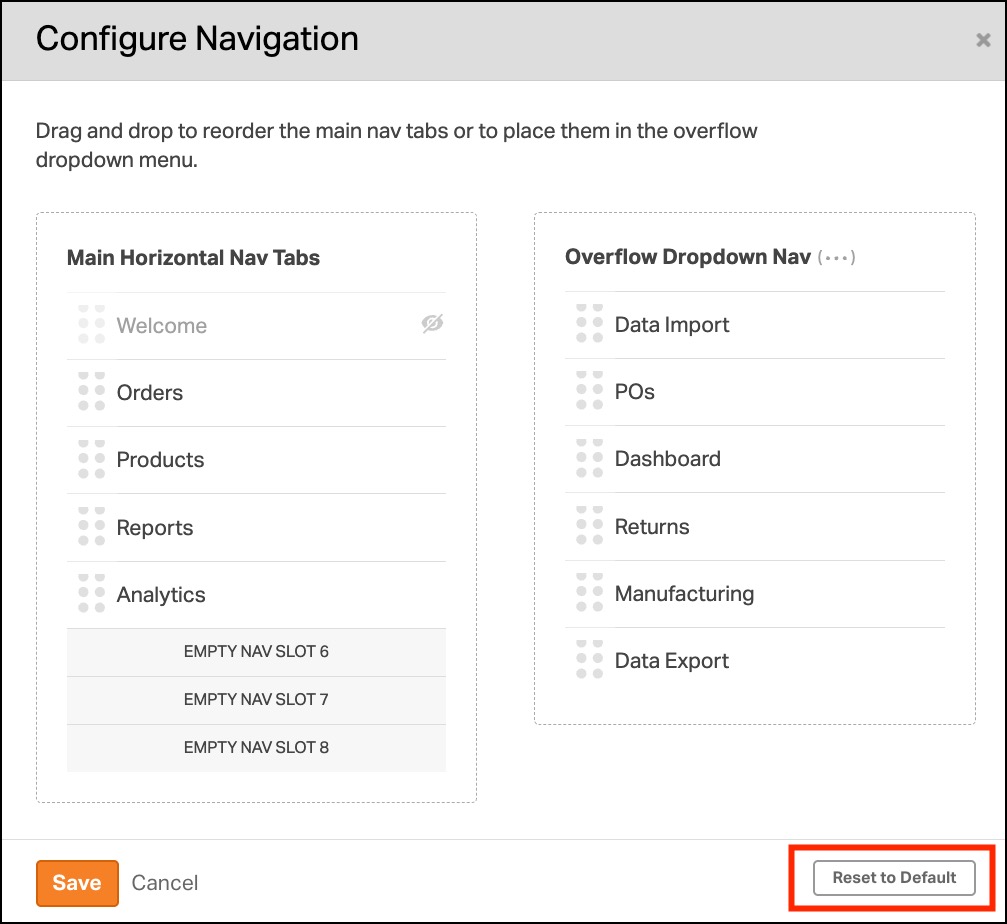
- Click Reset to Default.
- Click Save.
- You’ll see the default tabs and tab order restored.
User permissions and plan changes
The tabs available in your navigation depend on your Ordoro plan and your individual user permissions.
For example, if your user does not have permission to access POs, the POs tab will not appear in your navigation or as an option under Configure Navigation.
If your permissions or plan change, your navigation will update to reflect the features you can access while preserving your other saved navigation preferences.