
Displaying the Ship By Date and Deliver By Date on your Packing List helps your team quickly spot which orders are most urgent. This is especially helpful for marketplace orders (or any order with a deadline) so you can pack and ship on time.
Topics
When this is helpful
- You want packers to prioritize “due soon” orders without opening each order.
- You’re shipping marketplace orders with strict handling times.
- You’re trying to avoid late shipments and missed delivery windows.
Add Ship By and Deliver By Dates on the packing list
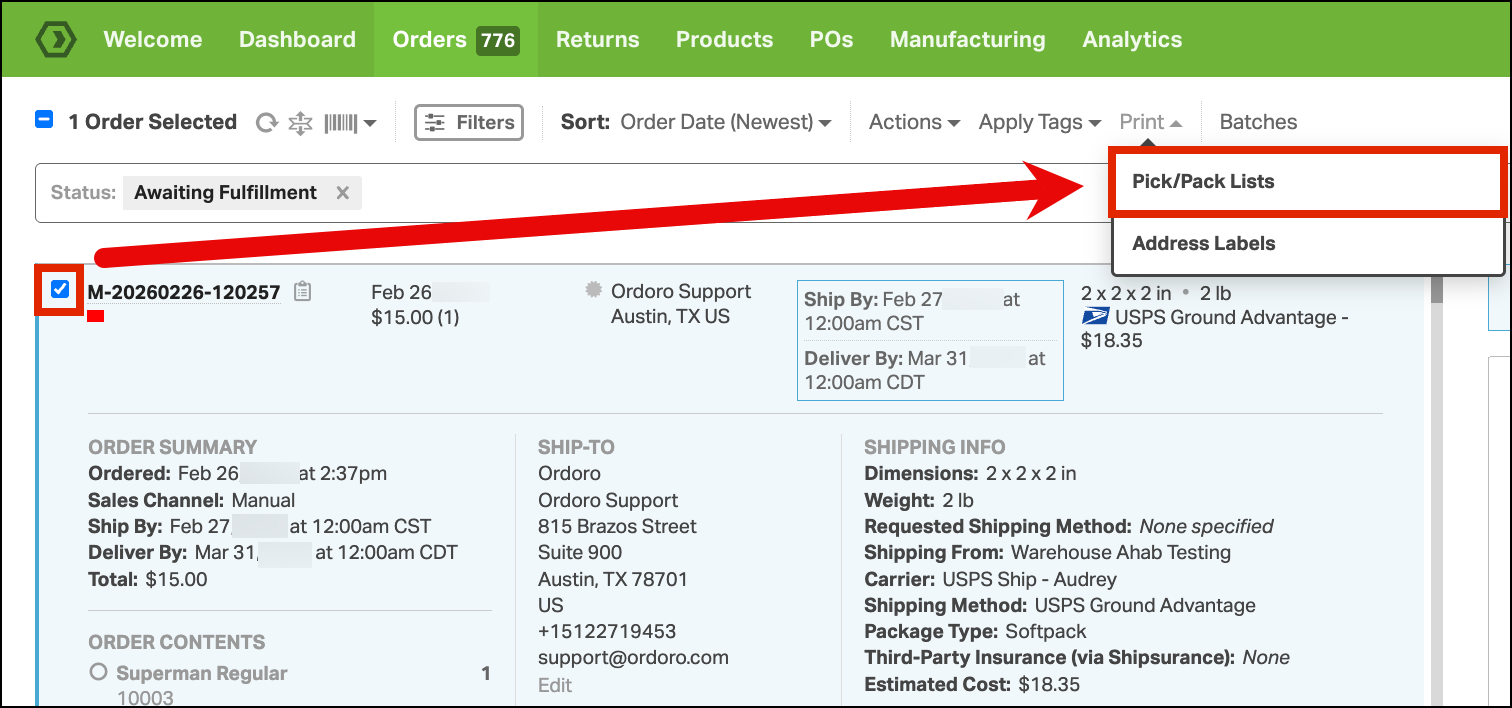
- Select the order(s).
- Click Print → Pick/Pack Lists.
- In the Attach Packing List section, select:
- Show Ship By Date
- Show Deliver By Date.

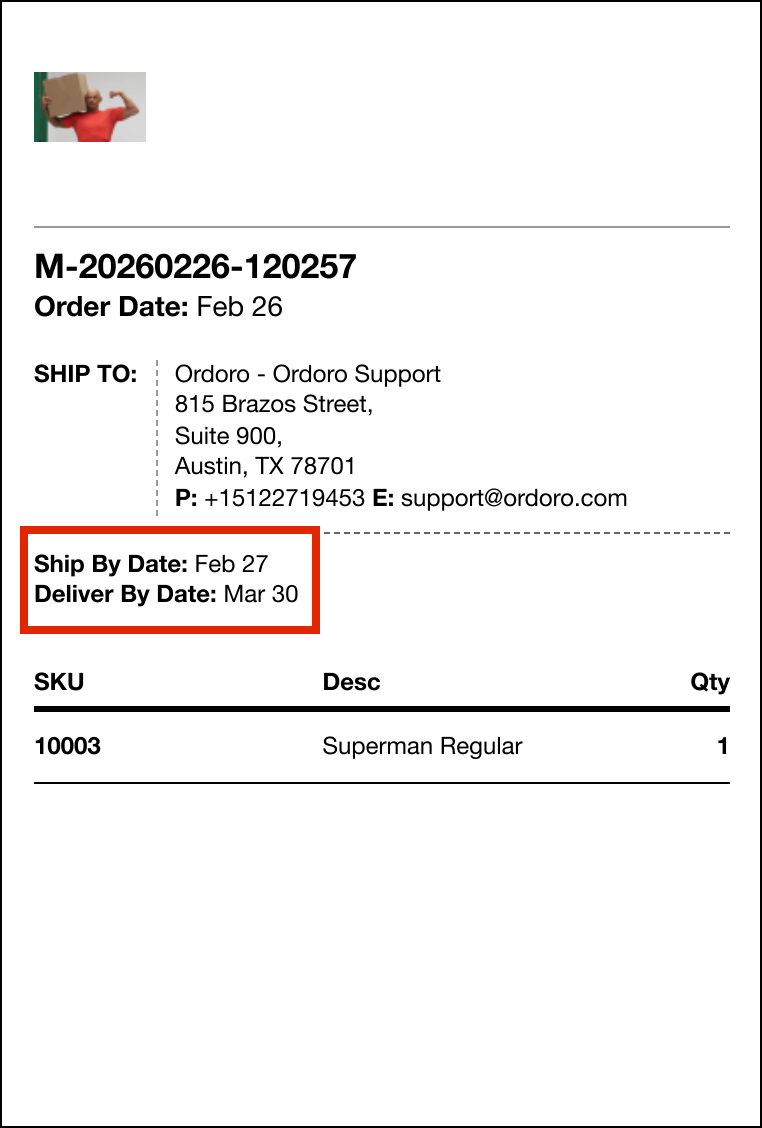
- Preview or Print the pack list. You’ll now see Ship By and Deliver By Dates printed on the pack list.
Real world example
If your team is packing a batch of orders and one shows Ship By Date: Feb 28, that order should be packed and labeled before orders with later ship-by dates. This helps you keep the whole batch moving in the right order.
If you don’t see these dates on an order, it usually means the sales channel or order data didn’t include a deadline for that shipment.