
You can now set orders to be On Hold. This can be helpful for pre-orders, orders that need customization, or if there are inventory delays.
Topics
- How to put an order into the On Hold status
- How to see orders in the On Hold status
- How to remove an order from the On Hold status
- FAQs
How to put an order into the On Hold status
Order List Page
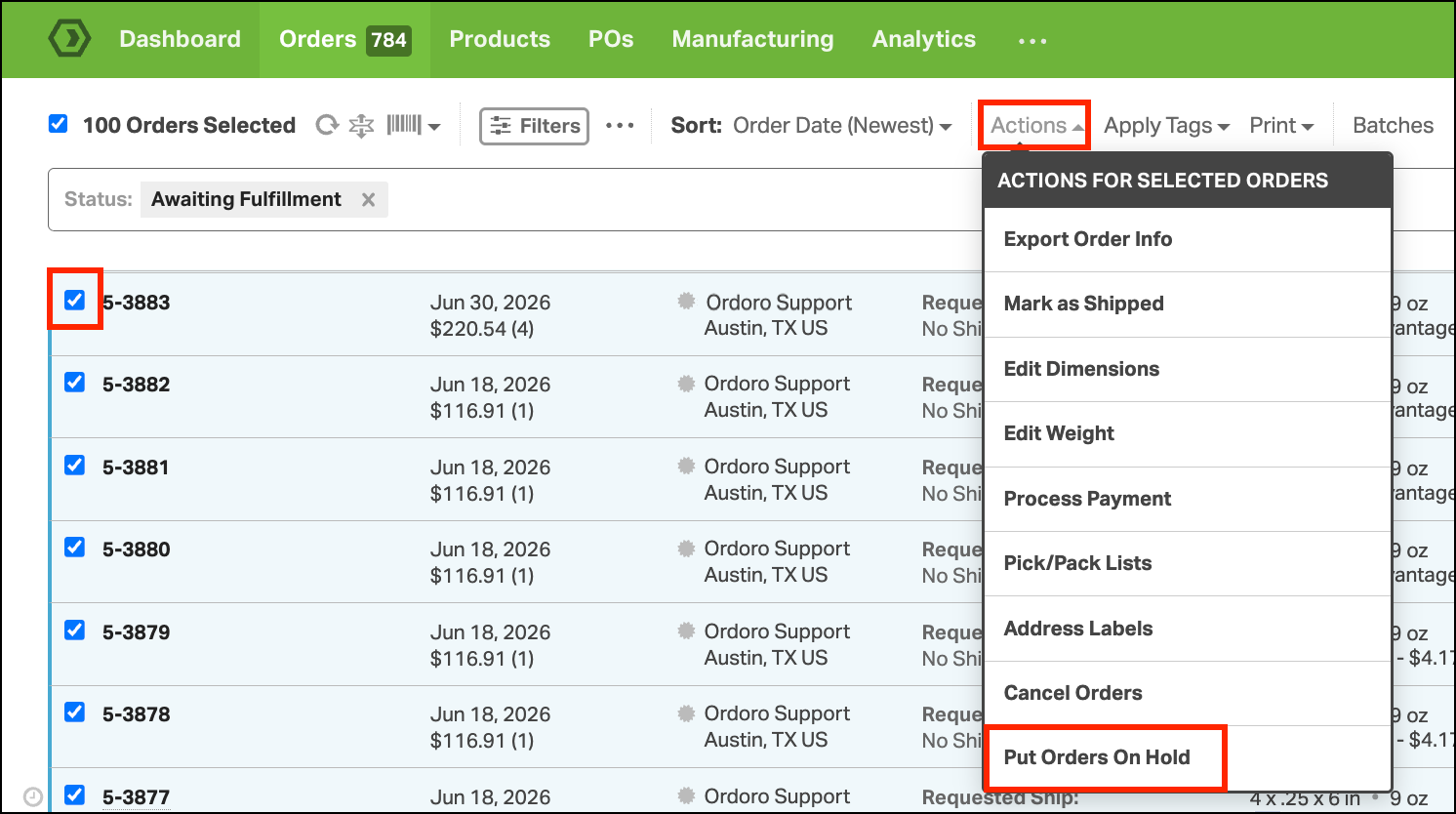
- Select the checkbox next to an order or select all orders on the Order List page.
- Select Actions.
- In the dropdown, select Put Order On Hold.
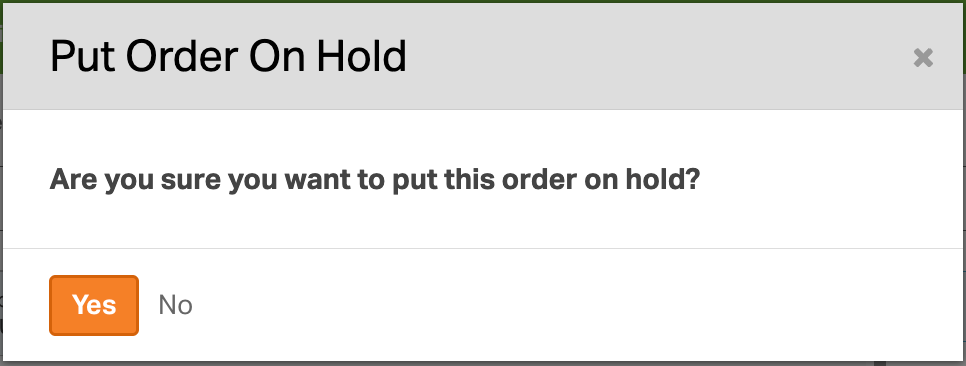
- In the modal, select Yes.
- Note: You can update up to 100 orders at a time.
Order Detail Page
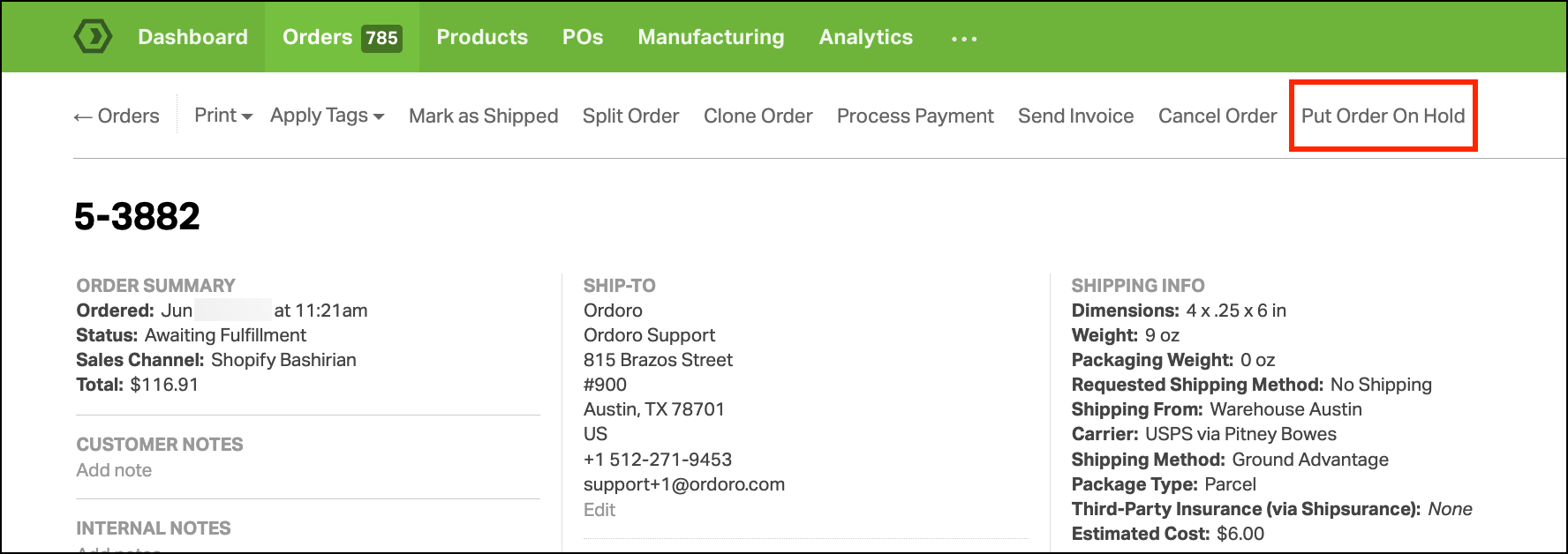
- Go to the order’s detail page.
- Select Put Order On Hold.
- Select Yes in the modal.
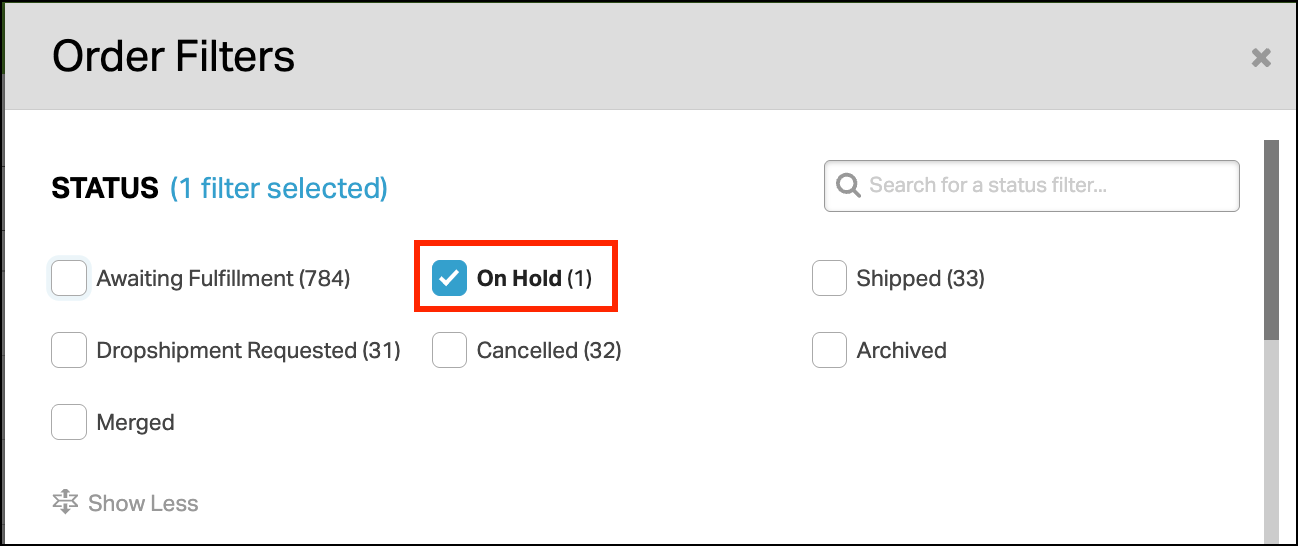
How to filter to see orders in the On Hold Status
1. Go to the Orders tab.
2. Select Filters.
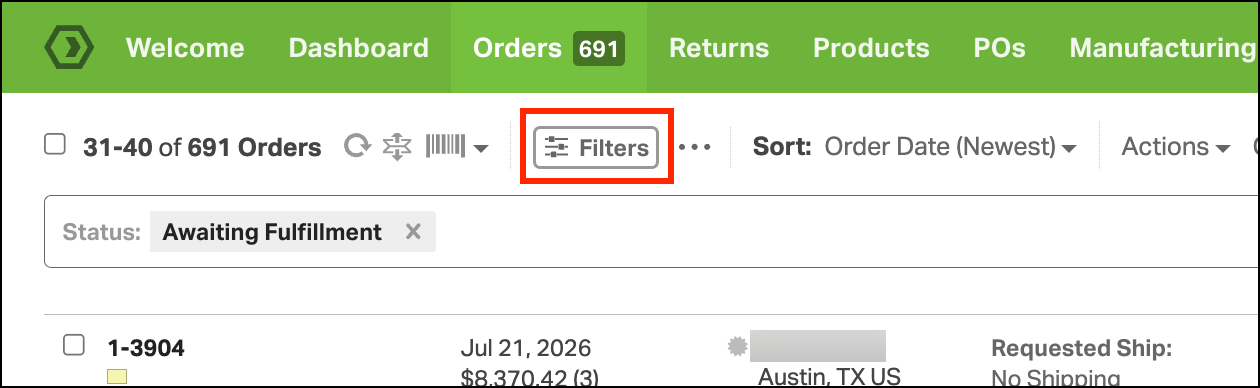
3. In the modal, select On Hold.
How to remove an order from the On Hold status
- Go to the Orders tab.
- Select Filters.
- Select On Hold. Click Apply to see the On Hold orders.
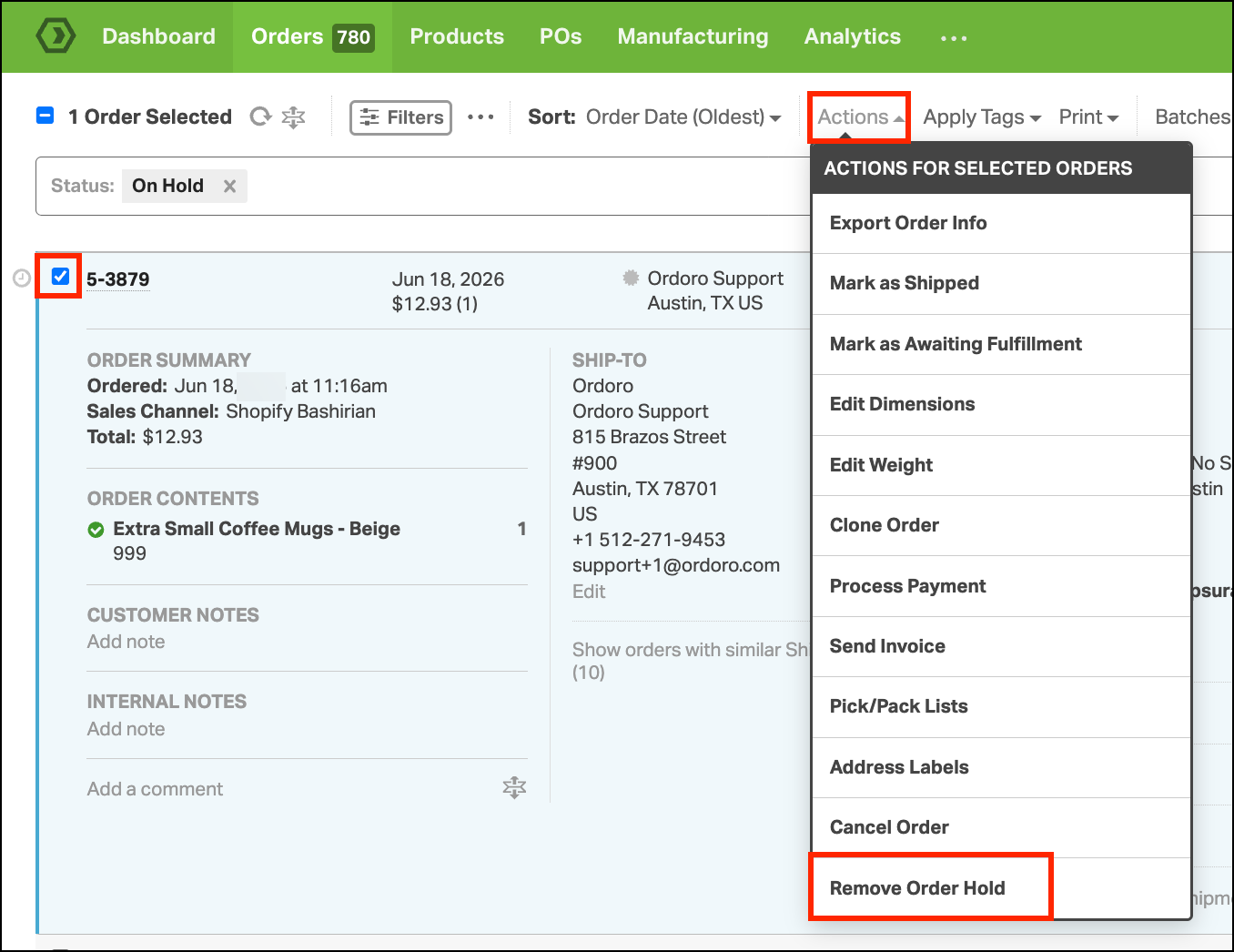
Order List Page
- Select the checkbox next to the order ID.
- Select Actions. In the dropdown select Remove Order Hold.
- Select Yes in the modal.
Order Detail Page
- Select the checkbox next to the order ID.
- Select Actions. In the dropdown select Remove Order Hold.
- Select Yes in the modal.

FAQs
- You can move Awaiting Fulfillment orders to the On Hold Status.
- You cannot move orders in the Shipped or Dropshipment Requested statuses into the On Hold Status.
- You can add On Hold orders to a Batch.
- You can have Order Revisions made to an On Hold order.
- You cannot merge two On Hold orders.
- You cannot merge Awaiting Fulfillment and On Hold orders together.