
Yes. When your supplier’s pricing changes, you can update the Supplier Unit Cost directly from a purchase order. This helps you keep your product costs accurate without having to jump back and forth between the PO and the Product page.
Topics
Why is this helpful?
Updating the cost from the PO can help you:
- Keep product costs in sync with your most recent supplier pricing.
- Avoid mistakes from manually updating costs in multiple places.
- Make sure future purchase orders start with the right supplier cost.
Update a supplier cost from a PO
- Go to the POs tab.
- Click the PO number to open the PO Detail page.

- Find the product line you want to update.
- Click the Supplier Unit Cost field.
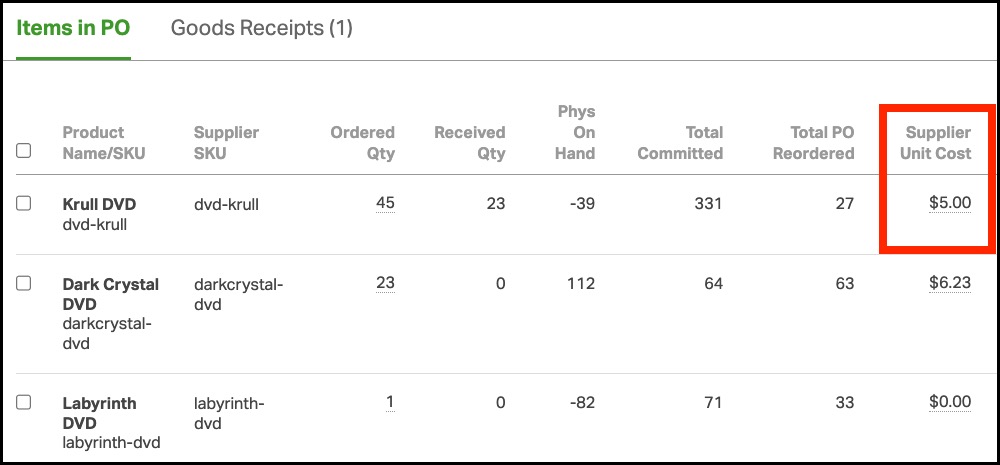
- In the pop-up window:
- Enter the new Supplier Unit Cost.
- Note: Ordoro can store the Supplier Unit Cost with up to six decimal places (for example, $2.000010), which is then used to calculate the PO Price Total based on the Quantity.
- Check Update Default Supplier Unit Cost for the Product.
- Enter the new Supplier Unit Cost.
- Click Save.

What happens when you update the cost
When Update Default Supplier Unit Cost for the Product is selected:
- The new cost is saved on the product for the same supplier listed on this PO.
- Other open POs are not changed.
- This works whether the supplier is the product’s default supplier or not.
- The checkbox is sticky, so Ordoro remembers your last selection for next time.
How supplier assignment works
Ordoro updates the product based on the supplier on the PO:
| If… | Ordoro will… |
|---|---|
| The PO supplier is already assigned to the product. | Update that supplier’s unit cost. |
| The PO supplier is new, and the product has a different default supplier. | Add the new supplier + keep the current default supplier. |
| The product has no suppliers yet. | Add the supplier and make it the default. |