
Want to give your customers a better post-purchase experience? With Ordoro’s Branded Tracking Pages, you can customize what your customers see when they track their shipments, all while promoting your brand. Instead of a standard carrier link, your tracking emails can include your logo, contact info, product details, and more.
This guide walks through how it works, who can access it, and how to set it up.
Note: The Branded Tracking page is for Shipping Premium plans only. See if your account is eligible here.
Topics
- What is a Branded Tracking Page?
- Who gets access to Branded Tracking?
- How to customize your Tracking Page
- What customers see
- How to send the Branded Tracking page
- FAQs and tips
What is a Branded Tracking Page?
A Branded Tracking Page is a customizable web page your customers can view when they click the tracking link in their shipment email. It replaces the standard carrier page and includes:
- Your logo and brand colors
- Shipment status and estimated delivery
- Product details from the order
- Optional support links and contact info
It’s a simple way to offer a more professional, on-brand experience.
Who gets access to Branded Tracking?
Access depends on your Ordoro plan:
- ✅ Shipping Premium plans include Branded Tracking by default.
- ⚠️ Shipping Advanced plans may request access for an additional monthly fee. Reach out to our Sales team to learn more.
- 🔒 If your account does not have access, the Branded Tracking tab will not appear in your Profile Settings.
How to customize your Tracking Page
Once Branded Tracking is enabled on your account:
- Go to Profile Settings. Click Edit next to the Profile you’d like to update.
- Select the Branded Tracking tab.
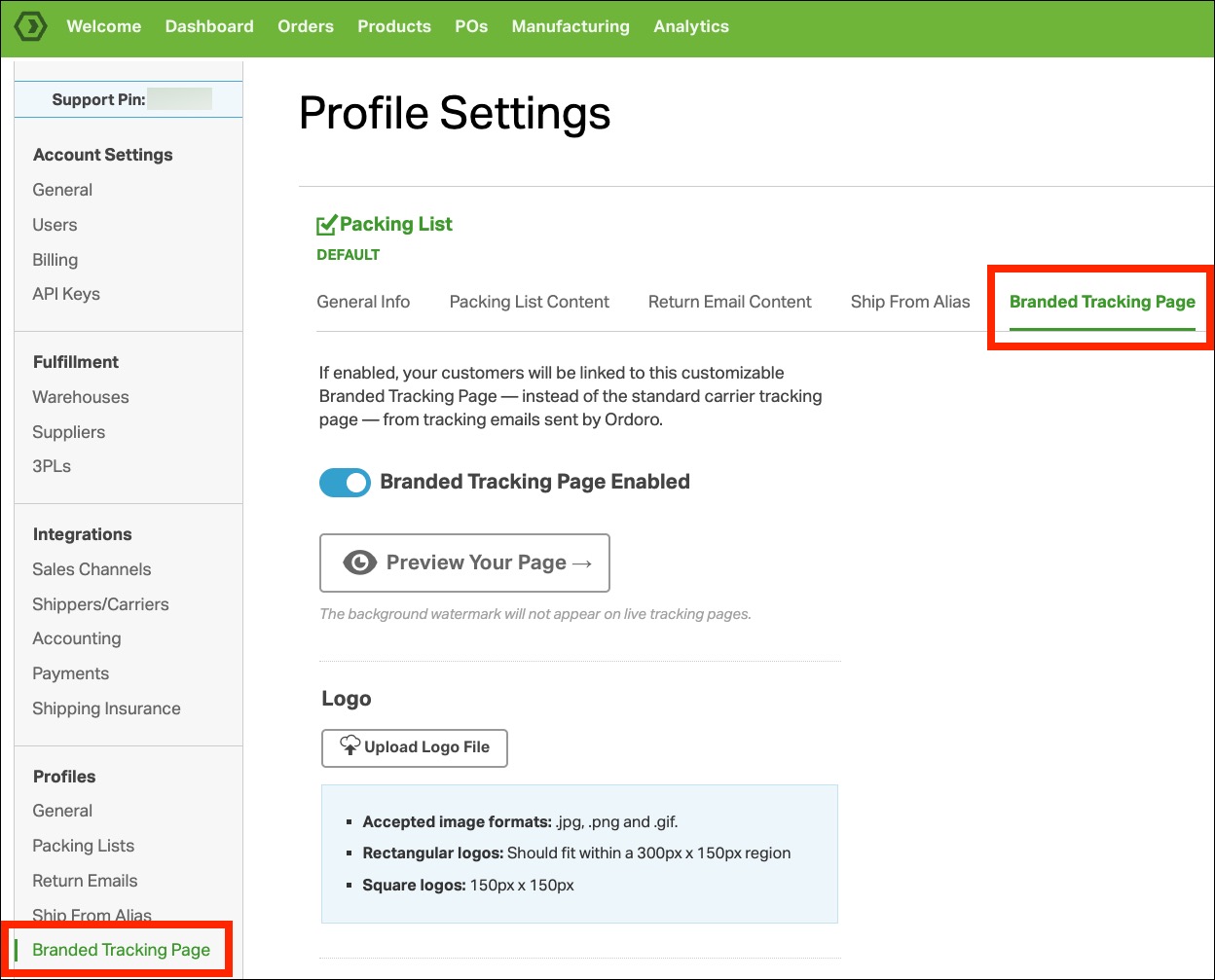
From here, you can set the following:
Note: If any of these fields are left blank, they will be hidden from the final page to keep things clean and focused.
Logo
You can upload your company logo to personalize the top of your branded tracking page. Your logo will automatically pull from your General Info tab in Profile Settings.
Logo guidelines:
- Accepted formats: .jpg, .png, or .gif
- Rectangular logos should fit within 300px by 150px
- Square logos should be sized to 150px by 150px
This logo will appear at the top of the tracking page and helps reinforce your brand with every shipment. If no logo is uploaded, this section will remain blank.

Shipment Details
You can mix and match these options based on how much detail you want your customers to see.

- Show Product Images
- Displays product images pulled from your catalog.
- This provides customers with a visual reference of what’s on its way.
- Show Product Costs
- Shows the unit price for each product on the order.
- Helpful if you want to reinforce pricing transparency after purchase.
- Show Ordoro Product Name
- Displays the product name saved in Ordoro.
- Useful if your internal naming matches what the customer expects to see.
- Show Lines with Zero Quantity
- Includes line items that have a quantity of zero.
- This is optional and can be useful for kits or partial shipments, depending on your fulfillment process.
Store Info
You can mix and match these options based on how much detail you want your customers to see.

- Customer Support Email
- Displayed on the tracking page so customers can reach you.
- Customer Support Phone Number
- Optional. Shown alongside the email if it is filled in.
- Return Policy URL
- Link to your return policy page.
- Additional Message or Info
- Add either a short blurb or a paragraph.
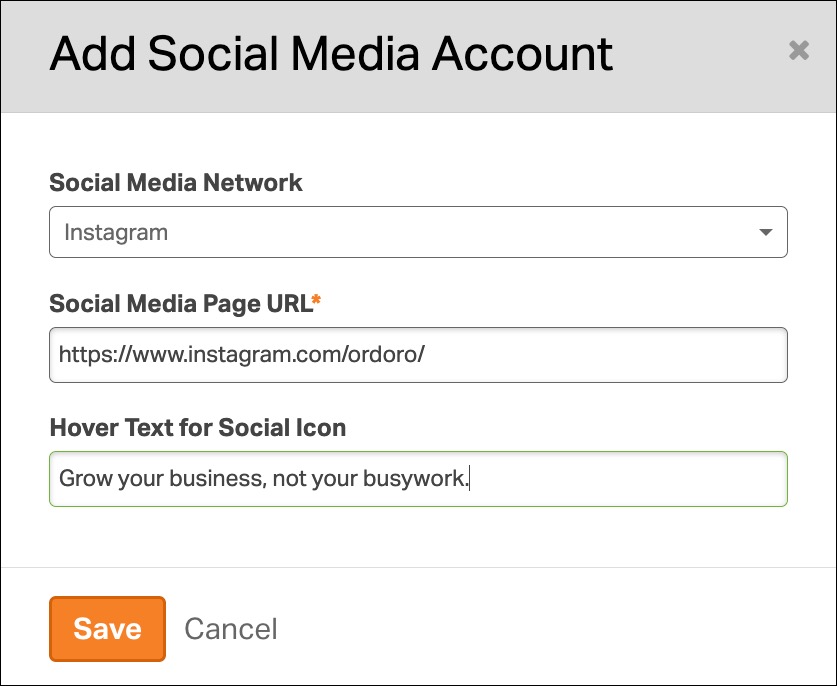
- Connect Your Social Media Accounts
- Include additional URLs, such as your website, blog, or social media. These will appear as clickable links.
- Supported options include Facebook, Instagram, LinkedIn, X (formerly Twitter), and YouTube.
- Be sure to include the https:// part of the link as well.
- Each link will appear as a clickable icon on the tracking page. You can also add hover text to show a short description when customers move their mouse over the icon.
Preview Your Page
You’ll see a real-time preview, allowing you to make adjustments before saving. It will have placeholder information as sample data.

What customers see
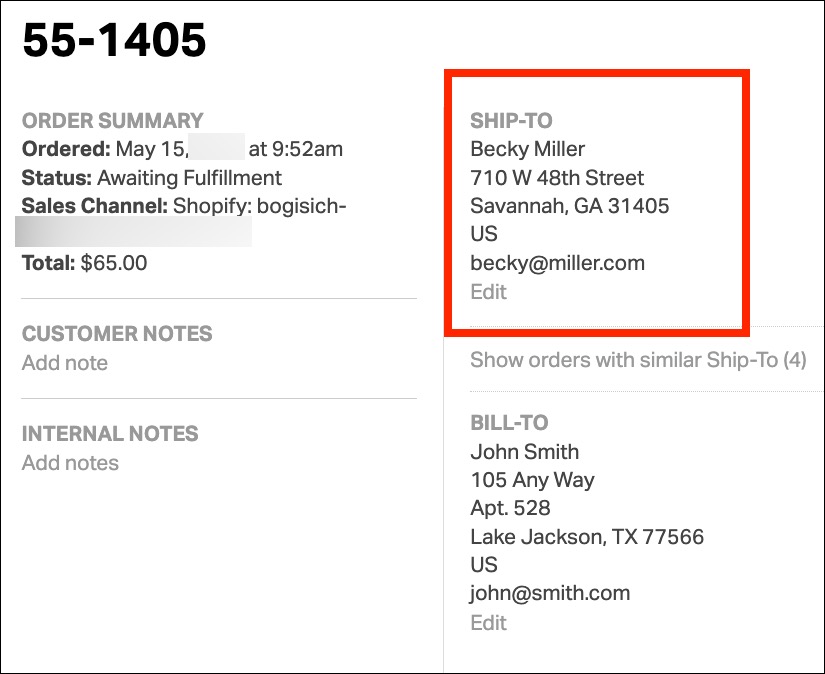
When you create a shipping label or manually enter tracking, the branded tracking link will be included in the shipment email sent to the Ship-To email address only.
Here’s what is displayed on the Branded Tracking Page:
- Your logo
- Tracking number and status (USPS and UPS only)
- Estimated delivery date (when available)
- Order ID, product names, and quantities
- Return policy, contact info, and social or website links
- A “Powered by Ordoro” note at the bottom
If Branded Tracking is turned off, customers will receive a regular carrier tracking link instead.

How to send the Branded Tracking page
For your customer to receive the Branded Tracking page, you’ll need to enable email notifications when creating a label.
Here’s how:
- Create a shipping label as usual.
- In the label modal, ensure the Notify Ship To checkbox is selected.
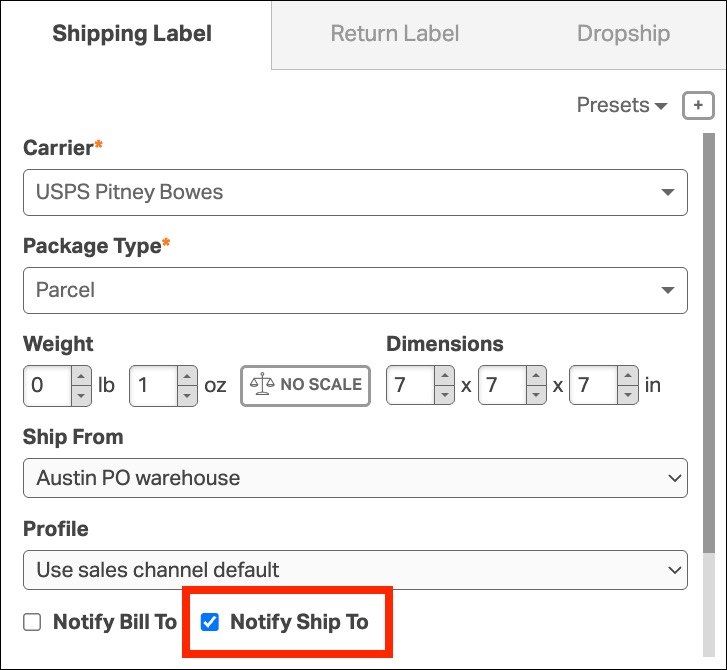
- This will send an email to the Ship To email address with tracking details.
- When the customer clicks the tracking number in that email, they’ll be taken to your Branded Tracking page.
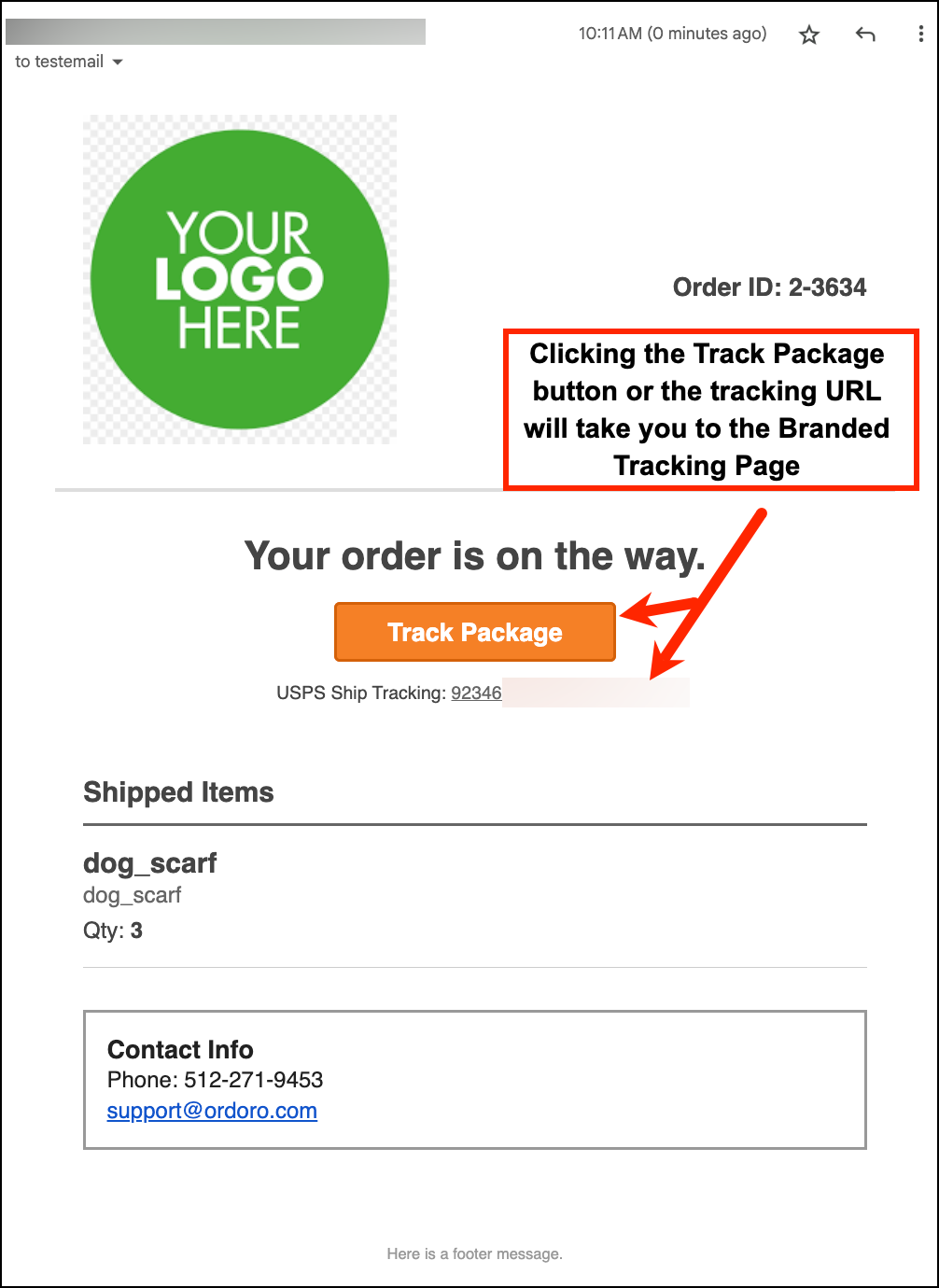
If the Notify Ship To box is not checked, the email will not be sent, and the customer will not receive the branded experience.
FAQs and tips
Can I use rich formatting or HTML in these fields?
No. All fields use plain text. For links, enter full URLs (for example, https://yourstore.com).
What happens if I leave a field blank?
It will not appear on the page. This allows you to include only what’s useful to your customers.
Do all customers see the branded tracking page?
Only if the feature is enabled and the tracking email goes to the Ship-To address. Bill-To addresses will not receive the branded link.
What disappears if I turn branded tracking off?
The following items will not show on the page:
- Return policy link or text
- Support email or phone
- Additional message or website or social links
- Branded page design elements (colors and logo)